Tag: VMware

  • Getting network on Linux servers operational after migrating hypervisors

    Getting network on Linux servers operational after migrating hypervisors

    Recently I made the move to migrate all my VMs from running on VMware ESXi to running on Hyper-V. This was the first time that I have shifted to another platform away from ESXi as my main hypervisor platform.

    As it was a single server, I made a backup of all my VMs with Veeam, taking also a copy of my config file and built a new Veeam Backup and Replication server on Hyper-V with importing the config file, allowing to restore all VMs across to Hyper-V.

    Whilst all VMs booted up, the one issue I did run into was the ethernet adapter had changed from a VMXnet3 to a Hyper-V Virtual Network Adapter.

    For Windows VMs, this was no issue and they all connected as if nothing had changed.

    For Linux servers (Ubuntu in my case), the adapter name did change and the the Netplan .yaml file did not update. Thus, there was no connectivity to the outside world.

    While the adapter in Hyper-V manager looked to have a connection, it was unable to display the IP Address as it was not associated with it. (This would be relevant to any hypervisor migration where the adapters aren’t exactly the same).

    There is a very simple fix, as I mentioned above,  the. netplan yaml file does not automatically update to reflect a new adapter name as there is no detection that runs like it does when installing the OS.

    To find your new adapter, you can run: ip link show – You will be able to match the mac address on the adapter to the results in the ip link output.

    Once you have your new adapters name, you can then update the .yaml file. Using the below commands, you will first search and confirm the name of the .yaml file and then edit with your preferred editor (in my case I will use vi). You can use tab completion to fill in the file name when you have the netplan folder specified

    ls /etc/netplan/
    sudo vi /etc/netplan/00-installer-config.yaml

    Inside the .yaml file, you will need to find the line underneath “ethernets” – this will be your old adapter name and using the correct key combination, enter the insert (i key) function.
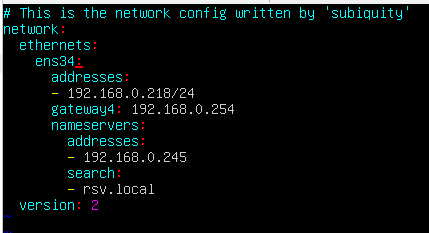
    Using my screenshots, update the “ens34” to “eth0”

    Press esc to escape the insert mode, then use :wq to write and quit vi.
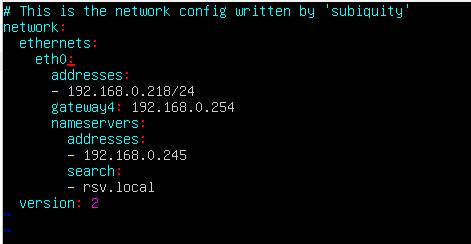
    Lastly, make sure to apply the netplan configuration. This is easily achieved by sudo netplan apply – Once applied, run through a ping test and make sure your network is functioning correctly.
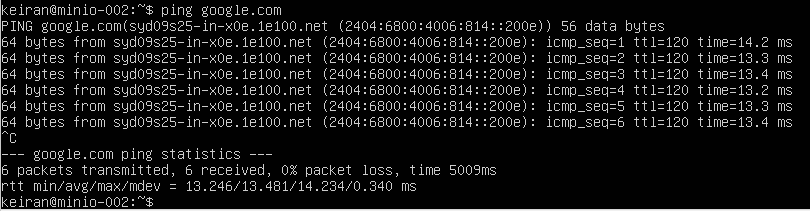
    My understanding, and experience so far, is that with Hyper-V the adapter name is going to be the same followed by ascending numbers (eth0, eth1, eth2, etc.) – However, it is always best to confirm first.

    Hopefully that will save you some time when migrating between various hypervisors where the adapter changes.

  • VCSA 8.x stuck in update staging loop

    VCSA 8.x stuck in update staging loop

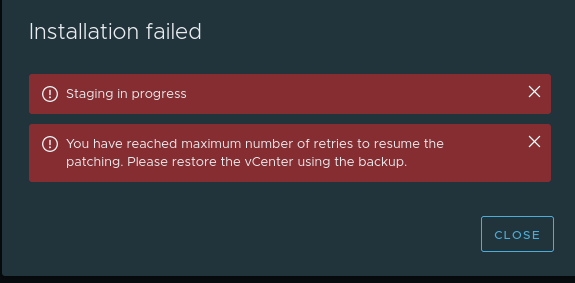
    I ran into an issue with where my VCSA was consistantly throwing me an error regarding “Staging in Progress” and “You have reached maximum number of retries to resume the patching. Please restore the vCenter using the backup”

    As this is my home lab, the system had been turned on and off numerous times, and thus a restart does not resolve this issue.  It also stood out as a bit of an issue as no matter who URL I used to log in, it would popup immediate under https://<vcsa>:5480/ui/update/progress and I had to redirect to another page.

    I was unable to also load any new updates (which I knew I was a few behind by this stage) and so off I went to do some research where I found KB 87238 – This was pretty straight forward and just needed some files removed from the VCSA. While this article is for 7.x I did find that the “Software-pakages” folder did not exist and was unable to cop the json file as required (No issues appeared to occur)

    First make sure you take a snapshot or backup of your VCSA.

    Enabled SSH so that you can get shell access.

    Follow the below commands

    ssh root@vcsaadress

    Command> shell


    # service-control --stop applmgmt
    # rm -rf /storage/core/software-update/updates/*
    # rm -rf /storage/core/software-update/stage/*
    # rm -rf /storage/db/patching.db

    Depending on the version, the next file may not exist – this did not seem to be a problem for v8.x

    # mv /storage/core/software-packages/staged-configuration.json /storage/core
    # mv /etc/applmgmt/appliance/software_update_state.conf /storage/core/
    # service-control --start applmgmt


    Operation not cancellable. Please wait for it to finish...
    Performing start operation on service applmgmt...
    Successfully started service applmgmt

    Once These steps are completed, I was able to then log back into VCSA and run a scan for updates. This found 3 available updates:

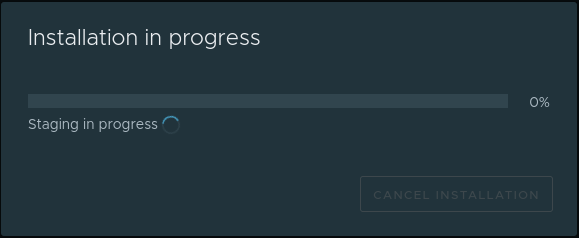
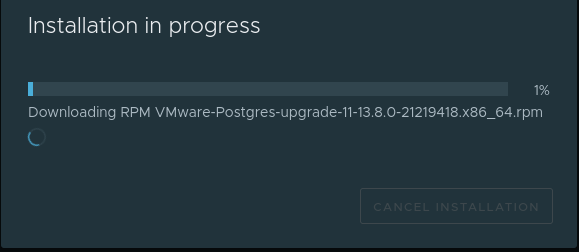
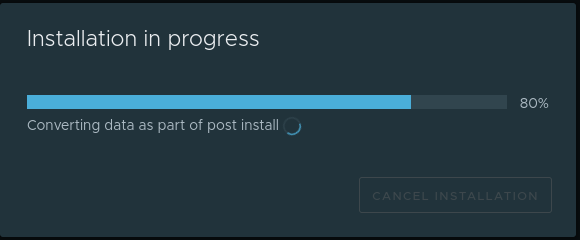
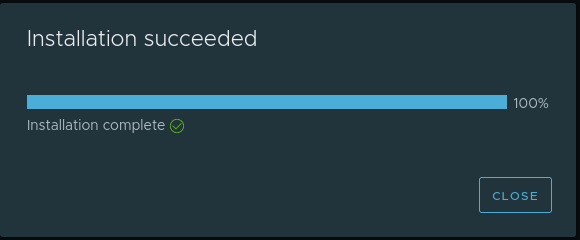
    I was able to select and start staging the updates, there was a successful progress bar running.

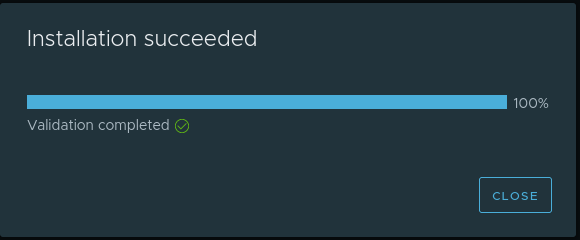
    Although the Validation did complete successfully after staging, the update did not install and I was unable to scan for anything more, in fact, I received another few errors. I decided to give it a reboot and see what happens.

    After a reboot I was given the option to install (without the need for staging) and the VCSA was able to update as it should.

  • Introducing vSphere Lifecycle Manager -vSphere 7

    Introducing vSphere Lifecycle Manager -vSphere 7

    On Thursday we saw VMware release their next major release in the vSphere product line. vSphere 7 was finally GA’d after a number of months since Project Tanzu and Project Pacific were announced at VMworld US 2019. There have been some significant changes in this release where some items have been removed and a large number of new features added.

    In this particular article, I want to cover the changes made to vSphere Update Manager (VUM) or as it is now known as vSphere Lifecycle Manager (vLCM). vLCM incorporates vboth the original vSphere Update Manager controls as well as managing firmware updates for your hosts hardware.

    vLCM is designed to not only apply the standard upgrades, patches, VMware Tools and Virtual Machine hardware updates as the previous vSphere Update Manager, but it is also has the ability to apply firmware updates to your hosts hardware. These new features to apply OEM software updates to your host hardware are only available to hosts running ESXi 7.0. Actions such as host patching, updates and upgrades are still available for lower versions 6.5 and 6.7. When using an ISO through vLCM to upgrade your hosts, you will still only be able to use the matching major version of vCenter, will not be able to use a lower version to say upgrade a 6.5 host to 6.7 while using vCenter 7.

    vSphere Lifecycle Manager is only available under the HTML5 vSphere client, and rightly so as the flash client has been completely removed. There are 5 top menu items and each with related sub-menu’s underneath. These are arranged as below:

    • Image Depot
      o ESXi Versions
      o Vendor Addons
      o Components
    •  Updates
    • Imported iSOs
    • Baselines
    • Settings

    Image Depot
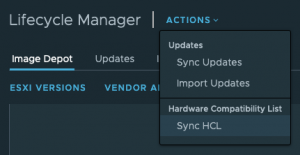
    The image depot displays 3 sets of tables, each presenting a list of items that together will help form your remediate image to manage your host updates. You will start with your Base VMware ESXi Image, then you can either select to use updated firmware bundles provided by the vendor or select individual components to update. The vLCM will sync with the the VMware HCL to provide an up-to-date approved list of firmware.

    ESXi Versions
    This is a collective list of VMware base images that are available in the depot. Selecting the image will provide information on the included software and drives that are available and may be installed when the host if remediated.

    Vendor Addons
    In this list, you will find a collection of component updates in a single bundle provided by the vendor. Here you will get a select list which the vendor has approved to work together and information provided on each update. There is also an included list of the drivers that have also been removed from the build.

    Components
    This menu provides a list of available individual component firmware updates that you can include in your remediation images. If you have found that you do not want certain components updated in the vendor addons or that there is a critical fix that is only required for one component, then you will be able to add these components separately to your image.

    Outside of the new Image Deport, there are the standard vSphere Update Manager options avialble to remediate your hosts with the standard Patches, VMware Tools, VM Hardware Version through the use of baselines and baseline groups.

    The introduction of the new Image Depot included in vSphere Lifecycle Manager definitely seems to look promising and is a nice addition. This will certainly help save a lot of time researching and bridging the gap between ESXi and supported vendor drivers and firmware versions. This is certainly a great new step forward.

  • Tech Field Day 18 – Here we come!

    Tech Field Day 18 – Here we come!

    That’s right, another year and another round of Tech Field Day events and this year I am lucky enough to be heading back over again to the US for the title event – Tech Field Day 18! This month, TFD is landing in Austin, Texas running for two days (7-8 Feb). There are 12 individual delegates from around the world flying in for this event. They will be travelling around to visit 4 different vendors to learn, discuss and publish content about certain technologies that are either currently on the market or soon to be released.

    This is a great opportunity for the vendors to be able to get real world feedback from those who implement/manage various technologies in many different environments. This is also a chance for companies to get into the grains of their product and do technical deep dives without the marketing behind it. Tech Field Day is all about the tech.

    We will hear from Datera, NetApp, Solarwinds and VMware. Each session will be live streamed on Facebook and on the Tech Field Day site. You can also follow the live feed on twitter by following the #TFD18 tag – you can also ask your own questions as well 🙂 .

    For more information about the event or about Tech Field Day and GestaltIT, head over to the website and check out the links!

  • Veeam Backup & Replication 9.5 Install – Back to Basics.

    Veeam Backup & Replication 9.5 Install – Back to Basics.


    Sometimes it is good to go back to basics, somethings change between different versions of software and the installation process isn’t always the same. Sometimes, you may have never installed that piece of software before, but the only installation guide is 3 versions in the past and they have since introduced the need for IIS for a new web portal or something. So here we go in the first post of my new Veeam series “How to install Veeam Backup and Replication” 

    1. Download the latest Veeam VBR ISO from the support download page. 
    2. Depending on version downloaded, you may need to extract the ISOs from the ZIP
    3. Mount the “VeeamBackup&Replication” ISO and open the setup.exe
    4. Click the install icon for Veeam Backup & Replication.
    • Read and Accept the EULA (You can’t proceed if you don’t agree) 
    • If you have a license file, attach it. Otherwise, you will get 30 days free trial
    • Choose your components to install. 
      • Veeam Backup & Replication– This is the main application for configuring and running backup & replication tasks.
      • Veeam Backup Catalog– Used to index the files into a GuestOS backup file for easy restoration. 
      • Veeam Backup & Replication Console– The console is the GUI used to perform tasks and configure Veeam Backup & Replication. 
    • The System Configuration check is used to ensure the correct components are available and installed ready for Veeam B&R to install and configure.
      If there are components showing as Failed, click on the “Install” button to get them installed.  
    • One installed, re-run the check and ensure each component passes. Click “next”. 
    1. Review the default configuration, this includes directory locations, ports and SQL instances. You can select “Let me specify different settings” if you need to make any changes. Click Install to continue. 
    • Wait until installation completes. The installation will take approx. 10 minutes, and if there is an update as part of the install, you will see this occur towards the end of the process. 
    • You will be notified once completed. 
    • Double click on the Veeam icon on the desktop to open the console and put in your Username and password and click connect.
    • By default, the Component update will open up and require you to run the update on any components that require it. They will be listed. Select and apply the updates.
    • Under “Inventory” > “Virtual Infrastructure” > select “ADD SERVER” > Select type of server (in this case, VMware vSphere). NB:You will need to run this process before you can set up your proxies.
    • Input your vCenter (or host) details for Veeam to connect to. 
    • Add your server credentials into the credential manager. 
    • Trust the certificate if it is Self-signed. Please see KB2806 regarding 9.5U3 self-signed Cert bug. 
    • Confirm settings are all correct and click “finish”. 
    • Confirm under “Virtual Infrastructure” > VMware vSphere” that you can see your vCenter hierarchy. 
    • Under “Backup Infrastructure” > “select Backup Proxies”

    • Add in your proxy server’s IP/hostname and a description
    • Add your credentials for the proxy server, or reuse pre-configured.
    • Wait for components to all install. 
    • Confirm the Proxy service details
    • Once you click “finish”, you will return back to the VMware Proxy screen, here you will be able to set your Transport Mode and Datastores. 
    • Select “Choose” for Transport Mode. This will show you a number of options with descriptions to help you choose the correct transport mode to meet your infrastructure requirements. If unsure, select Automatic Selection.
    • Once you continue on, you will have the opportunity to set up traffic rules where you can create bandwidth restrictions. Here you can get granular and create policies for certain IPs. 
    • Once you have finished setting up your proxy, you will then need to set up your repository for storing your backups and/or replications. Select “Backup Repositories” and Set up a new repository. Start off by giving your repo a name. 
    • Veeam offers support for a number of different types of repositories. Select the best option for your infrastructure. (This tutorial will just be a Windows Server.) 
    • Under “Server” choose the repository server from the list or click  “Add New…” server. Once added click the “Populate” button to see the capacities and free space available. Once identified, select the disk you want to use. 
    • In your Repository settings, you can setup the path for which you want your backups to go to. Once set, click the “Populate” button again. Veeam also offers Load Control to assist with your bandwidth and disk performance for your backups, use and adjust as required. 
    • With Windows Server 2016, Microsoft introduced ReFS, their new volume format that allows for greater capabilities. Veeam acknowledges these abilities and advises you of the benefits of using ReFS over NTFS.  *Proceeding will not prevent you from using the Datastore. NB: ReFS is reasonably resources heavy.
    • Under Mount Server, you can set which server will take the load when mounting a restore point with Instant VM Recovery, SureBackup or On-Demand Sandbox. If you have the ability to provide write caching for the mount server, you can enable vPower NFS Service to assist with those mount points.
    • Once all configured, the review stage will confirm if any of the additional components will need to be installed on the new Backup Repository. Once confirmed, you can apply and let Veeam set up the repository. 
    • During the apply process, you will be able to confirm all steps completion. 
    • Once your infrastructure is configured, it is down to business and time to test and create your first Backup job. Under “Backups”, Right click and Select “New Backup Job.” Set a Name and then select your Virtual Machines you would like to backup.  
    • Click recalculate to ensure the total size is updated to reflect the size of the disks to backup. You can also exclude objects from being backed up. 
    • Select your proxy, if you have a Proxy server setup, then choose that one. Otherwise, if you did not setup a proxy earlier, you can use VMware as the Backup Proxy, however this will be a slower process. 

    • Select your Repository for the backup job. In this screen, you can also set the amount for restore points you want to keep and any advanced settings such as additional scripts, Email notifications, backup modes (Incremental, Active Full, etc.) etc. 
    • The Guest Processing page is used to configure the backup job to leverage Application Aware processing and also file indexing and exclusions, and much more.
    • The schedule is fairly self-explanatory. Here you can configure how often the job will run and how many retry attempts before failing the job. 
    • Once all settings have been configured, apply the configuration and if appropriate, Run the job once created. 

    • Watch the progress and if there are any errors, adjust your components where required. 
  • PowerCLI: Import-vApp OVA: Hostname cannot be parsed.

    The other day I was rebuilding my lab using William Lam’s vGhetto vSphere Automated Lab Deployment script for vSphere 6.5. In the past I have run the 6.0 script successfully. As part of the script, there is an OVA of a host profile that William has made for the deployment, this is used for the configuration of the host.
    This particular time I came across an error right after starting the process and immediately after connecting to the nesting host.  It was a bit of a strange error, pointing to the Import-vApp cmdlet but also saying, “Invalid URI: The hostname could not be parsed,” which sounded as though to be a DNS issue, I spent a little bit of time going through my DNS settings, making sure that the computer from which I was running the script was able to resolve the hostname. I moved off my MacBook using PowerCLI Core and tested from my Windows machine using PowerCLI 10.0, and received the same error.

    I did some quick research and found nothing related to the specific error message and started to look at it piece by piece. I decided to pull apart the OVA file and try and run just the OVF – SUCCESS! There appears to be an issue with the OVA and the Import-vApp cmdlet in both PowerCLI Core and PowerCLI 10.0. I am yet to test the OVA in vSphere via the WebClient, but I suspect it may work as it should.

    To pull apart the OVA, I recommend using 7ZIP and opening the .ova file and copy/paste the content.

    1. Download and Install 7ZIP
    2. Relaunch explorer
    3. right click OVA file -> 7ZIP -> extract to /<foldername>
    4. check for the VMDK, OVF and description file are all present
    5. Change your ESXI $NestedESXiApplianceOVA= to the .ovf file
    6. rerun script.
  • Configure PowerCLI and PowerNSX on macOS

    A couple of months back, PowerShell Core on Mac and Linux became mainstream after success of its beta. This has allowed for modules to be extended to also be cross-platform for many products out there. The two main products I want to cover are the PowerCLI and PowerNSX and installing from the Powershell Gallery.
    To get started, you will need to go to the PowerShell github repo and download the PowerShell install package that is right for your system.
    Once the package is installed, Open up terminal and type pwsh to launch PowerShell.
    The next Module you will need to install is PowerCLI 10.0 which is the full feature install.
    In your PS terminal, insert the below

    PS>Install-Module -Name VMware.PowerCLI -Scope CurrentUser

    If you receive an invalid certificate error, you can bypass this by using the below.

    PS>Set-PowerCLIConfiguration -InvalidCertificateAction Ignore
    To confirm the Module is installed, you can run Get-Module VMware.PowerCLI 
    Lastly, you will want to install PowerNSX, there is whole site full of information regarding PowerNSX and how to use it, 
     
    The Easiest way to Install powerNSX is to run:
    PS>Install-Module PowerNSX
    PS>Import-Module PowerNSX
    Again, to confirm installation, run Get-Module and check if PowerNSX is listed.  You should something like below.
    Screen Shot 2018-04-06 at 12.39.20 am
    That’s it, PowerCLI and PowerNSX are now installed.
    To keep the versions up to date, you can run the Update-Module cmdlet.
    PS>Update-Module VMware.PowerCLI
    PS>Update-Module PowerNSX
  • PowerCLI migrate vSwitch port groups to vDS in a different vCenter

    Over the 6 months I have been working hard on designing and implementing our latest infrastructure refresh and migration to another datacenter. This was a big task, especially when we had to migrate customer servers with minimal downtime. However, there were many more challenges we faced, however with the right planning in the design, these were fairly well handled.
    One of the challenges was that we were using Standard vSwitches in the old 5.5/5.1 environment due to some 3rd party applications back when the environment was 4.1 which caused issues when using a vDS.
    As we were building a new vCenter we decided the best method was to automate adding all the VM port groups along with their VLANs and LAG into the DvSwitch.
    One thing I’ve learnt from Alan Renouf is “The best script you will ever write is one that you stole from somebody’s website” which doesn’t mean  steal it and claim it as your own, but if someone has a script that does exactly what you need, then use it, just make sure you give credit where credit is due.
    It just so happened by luck that right around the time I was starting to think about the process, I saw a twitter post from Ben Liebowitz “PowerCLI Script to create a new vDS Portgroups” – Beauty, this was exactly what I was after (albeit some small changes to suit).
    The next step was to get a script to match to do the initial export to CSV, after a quick google I came across a Luc Dekens script that he had written for someones request on the VMware Community Forums.  It was pretty straight forward and only require some lines removed so that the CSV only had the columns required for the import.  So once I had the scripts, it was down to testing the process on how to use them prior to prod.

    1. Edit the Export vSwitch Configuration script from Luc Dekens
    2. Run the script
    3. Open the CSV (Make sure the columns names line up with the import script)
      **As we are exporting from a vSwitch and importing to vDS, we will need to manually add a new column to the exported CSV called numports and place the correct number of ports in each row (by default 8) .
      **Also remove any multiples of portgroups (e.g. if you have multiple hosts with the same Portgroups as these will be also in the csv)
    4. Edit the Import script from Ben Liebowitz
      – Change the vDS name and LAG name to match your environment.
      – Update to the CSV path
    5. Run the import script.
    6. Confirm the ports have imported by looking at the vDS.

    The process is simple, so let’s break this down into some of the areas you can edit .
    In the export script, all you need to edit is the lines that control what information is exported to the CSV. Just remove the lines you do not require. for example I do not need the IP address, so I would remove the below line.

    @{N="IP";E={if($vNicTab.ContainsKey($pg.Name)){$vNicTab[$pg.Name].Spec.Ip.IpAddress}}}

    The csv will export to the directory you have set in PowerCLI when running the script. Below is what the csv will turn out like, however note that I have also added the numports in as well.
    ESX,pgName,vlanID,numports
    HyperVisor-Hostname,PortGroup_1,3005,8
    HyperVisor-Hostname,Portgroup_2,3005,8
    HyperVisor-Hostname,Portgroup_13,3007,8
    HyperVisor-Hostname,Portgroup_34,3007,8
    etc.
    Now for the Import.
    In the import script, make sure that you change the name of the vDS, ActiveUplink and the location of the CSV – So he following lines.

    # Set the VDS Name to variable
    $vds = "dvSwitch"
    # Import the CSV of VLAN IDs, Portgroups, and # of ports
    $vdsPortgroup = Import-Csv \path\to\New_Portgroups.csv
    get-vdswitch $vdsname | Get-VDPortgroup $portgroup.pgName | Get-VDUplinkTeamingPolicy | Set-VDUplinkTeamingPolicy -UnusedUplinkPort dvUplink1, dvUplink2, dvUplink3, dvUplink4
    get-vdswitch $vdsname | Get-VDPortgroup $portgroup.pgName | Get-VDUplinkTeamingPolicy | Set-VDUplinkTeamingPolicy -ActiveUplinkPort LAG
    

    That’s it. Very straight forward set of scripts to run. I prefer to run these individually as there is the step in the middle with the csv file. Aside from that I would like to thank both Ben Liebowitz and Luc Dekens for their community support for sharing their scripts.

  • Install and Configure NSX Manager

    I’m starting to become a bit of a fan of VMware NSX and getting excited with all the new features that came out of VMworld 2017. I recently rebuilt my lab and one of the parts I need to install is, you guessed it, NSX. So I figured I would write a series of basic “Getting Started” guides.  To start with, we will go through installing the NSX Manager, the brain of the solution. Now for the install, I just attached the NSX Manager Appliance to a vSwitch for the moment, but you will need to ensure that you have a Distributed Virtual Switch configured to utilise NSX as it is a required component. I will be installing NSX Manager 6.3.3 (The latest as of this post)
    NSX is more than just networking, it is also part of the endpoint services that was previously vShield in the vCloud Networking and Security Suite (vCNS). Implementing NSX allows you to extend the feature set taking you to the next level of virtual networking.
    I will be going over the install and configuration of some of the other components in the next few posts following this one.
    Installing NSX Manager:
    The NSX Manager OVA can be downloaded from my.vmware.com
    Once downloaded, ensure the Client Integration tools are installed and then open up the VMware Webclient. (For Client Integration Tools SSL FireFox issue  see this post)
    Right click cluster and select “Deploy OVF Template” à Navigate to the NSX Manager OVF file à Accept the configuration

    Accept the EULA

    Input details for configuration
    -Password
    – IPv4/IPv6 details
    – DNS
    – NTP
    – SSH
    – VMware Customer Experience Improvement Program


    Accept all and deploy


    Once deployed. Open up a web browser and navigate to the IP/hostname that you set for your NSX Manager.
    Login with admin and the password you set for deployment.

    Navigate to “General” and edit the time settings à set your timezone à Save and log off and back on again for settings to take affect

    Navigate down to “NSX Management Service” àSelect Edit on “Lookup Service URL:” and enter your PSC FQDN. (Enter vCenter if using embedded PSC) Enter SSO username and password and click OK

    Select edit on “vCenter Server” and enter your vCenter server address followed by vCenter Service account or SSO.

    Once all lights are green, log off and log into vCenter with the account used to attached NSX to vCenter.

    If you log in as another accout, you will not be able to see the Network and Security tab as you will not have been granted permission to it. (Note that my SSO is vSphere.local for this lab)

    Log in as the account that You will see the Networking and Security section available in the Action menu, Home screen and the left hand Navigation menu. Select Network and Security -> click on NSX Managers -> select NSX Manager you wish to adjust -> Manage -> Users.
    Click the green Plus sign -> Choose either to add a group or individual user (Suggest making an NSX Group to make control easier) -> Select the Level of Access and click OK.

    Log off and log in as the user you jut granted permission to.  (Note that I am using readysetvirtual.local for my lab domain and standard user)

  • VMware Client Integration – FireFox SSL Popup

    I’ve been having this issue for a little while now, I hadn’t found any successful posts on how to allow the VMware Client integration plug-in to run on FireFox. This occur in my last lab environment and my current.  Unfortunately, without this integration tool, OVF deployments and various other functions are unavailable in the WebClient.
    Error Msg: “The VMware Client Integration Plugin has updated its SSL Certificate in FireFox.”
    Since Firefox ver. 52, plugins have been disabled by default and started to behave differently. We found this out the hardware when some of our customers were starting to open their SaaS Citrix environment with HTML5 instead of the thick client.
    To fix this, I found a KB article that outlines the solution. (KBA 2112076)
    As you can see, the integration tool is currently installed and in Firefox 56 the message is displaying after log on to the WebClient.
    Screen Shot 2017-09-06 at 10.28.31 amScreen Shot 2017-09-06 at 10.27.43 am
    Go ahead and uninstall the Integration Tool as you will need to reinstall it again.
    Screen Shot 2017-09-06 at 10.31.15 am
     
    Uninstall your current version of FireFox and download and install FireFox Extended Support Release
    Screen Shot 2017-09-06 at 10.30.17 am
    Once installed, reinstall the VMware Client Integration Plug-in and launch FireFox. The Plugin should then popup once you access your venter WebClient login page. -> Select “Remember my choice for vmware-csd links” and click “Open Link”
    Screen Shot 2017-09-06 at 10.40.55 am
    Head over to a host and attempt an OVF deployment.  A second pop will request for Access Control -> select “Allow” and untick “Always ask before allowing this site” (Unless security reasons)
    Screen Shot 2017-09-06 at 10.42.08 am
    You should now not see any error messages when you attempt an OVF deployment.
    Screen Shot 2017-09-06 at 10.42.21 am