Category: NSX

  • VM deployed from OVF fails to create Snapshot for backup

    **Purely for demonstration purposes – Snapshots are not supported with NSX-T Manager – However, this may be applicable elsewhere.

    ** After some further research while preparing this article, I found an KB from VMware advising that snapshots was disabled on purpose for NSX Manager, they advise that Snapshots are not supported – This means you will either need to configure backups through the appliance using SFTP or use Network Block Device backups without snapshots. 

    While I was setting up and running my first job for backing up my lab, I ran into an issue where my NSX Manager appliance was unable to take a snapshot.  I was using Veeam to run my backups, I had several different guest OS types in the job, with 3 being Photon based appliances.

    All 3 of these appliances had been deployed via OVF without issue. There had been no additional changes made.
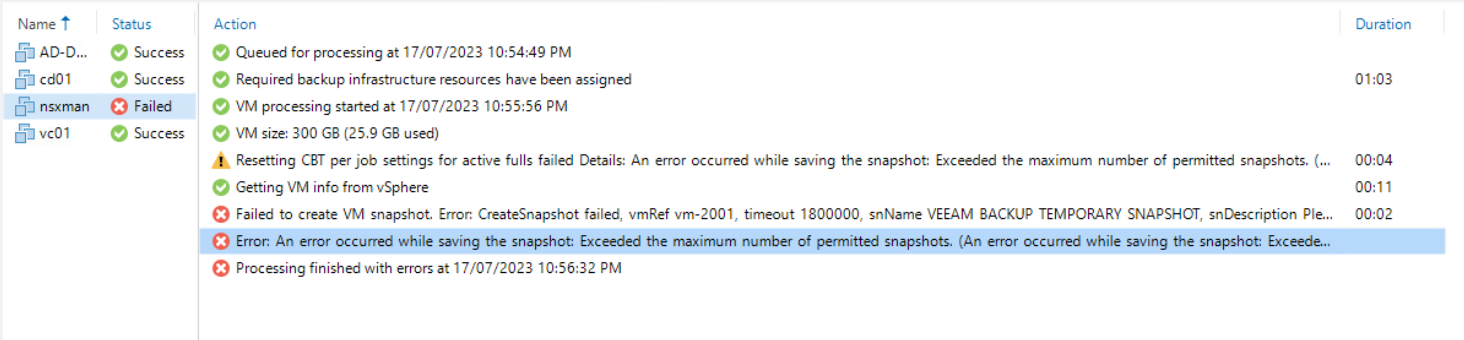
    On first run, the backup job failed on the NSX Manager, this seemed a little unusual as the error message was stating that the VM had reached its Maximum number of snapshots. Given that there was only 2 disks attached, this was quite bizarre, so I attempted to create a snapshot directly though vCenter and received the same error.

    As this appeared to be a single VM issue, I went hunting through the VM settings to first see if the disks were configured as Independent Disks  – However, this was not the case and they were configured just like the others as Dependent.

    The next place to look was the Advanced Parameters of the VM, a goldmine of fine-grained settings for a vm.
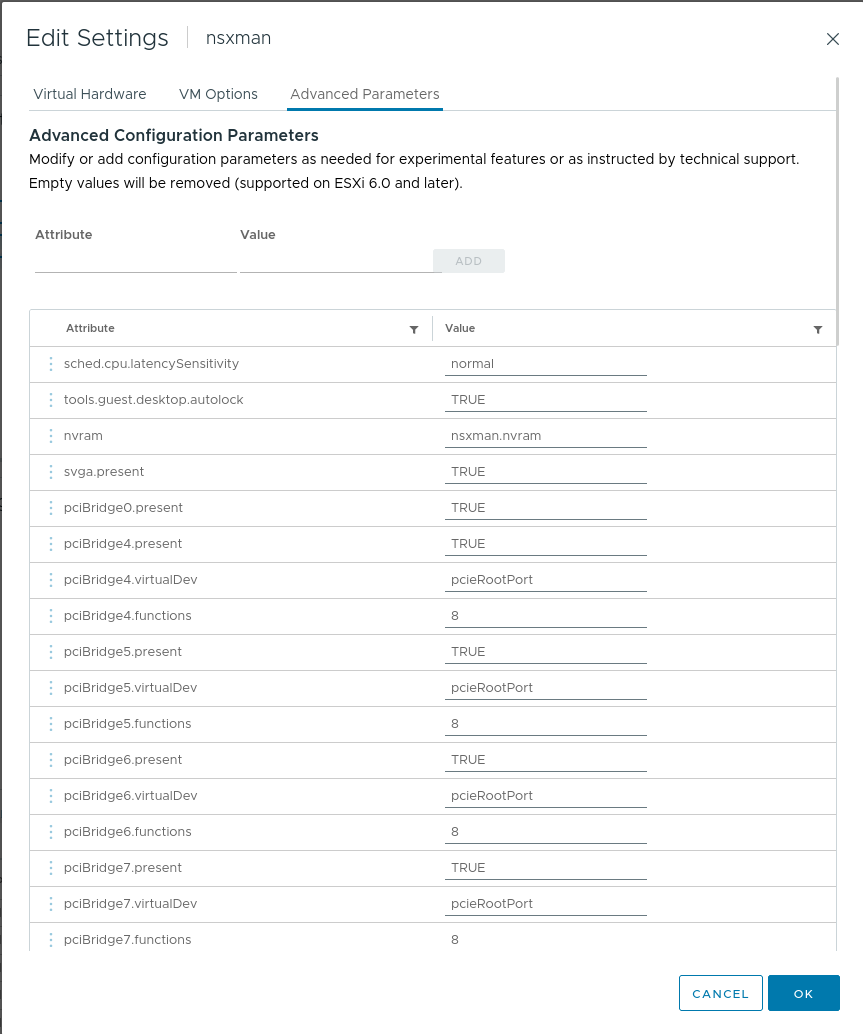
    Sure enough, I found the culprit, a one liner snapshot.maxSnapshots configured to ‘0’ – This meant that no snapshots could be created.

     

    To edit the number of snapshots that can be taken, you will need to power down the VM first. Once powered down, navigate back to the Advanced Parameters and from there update the number.

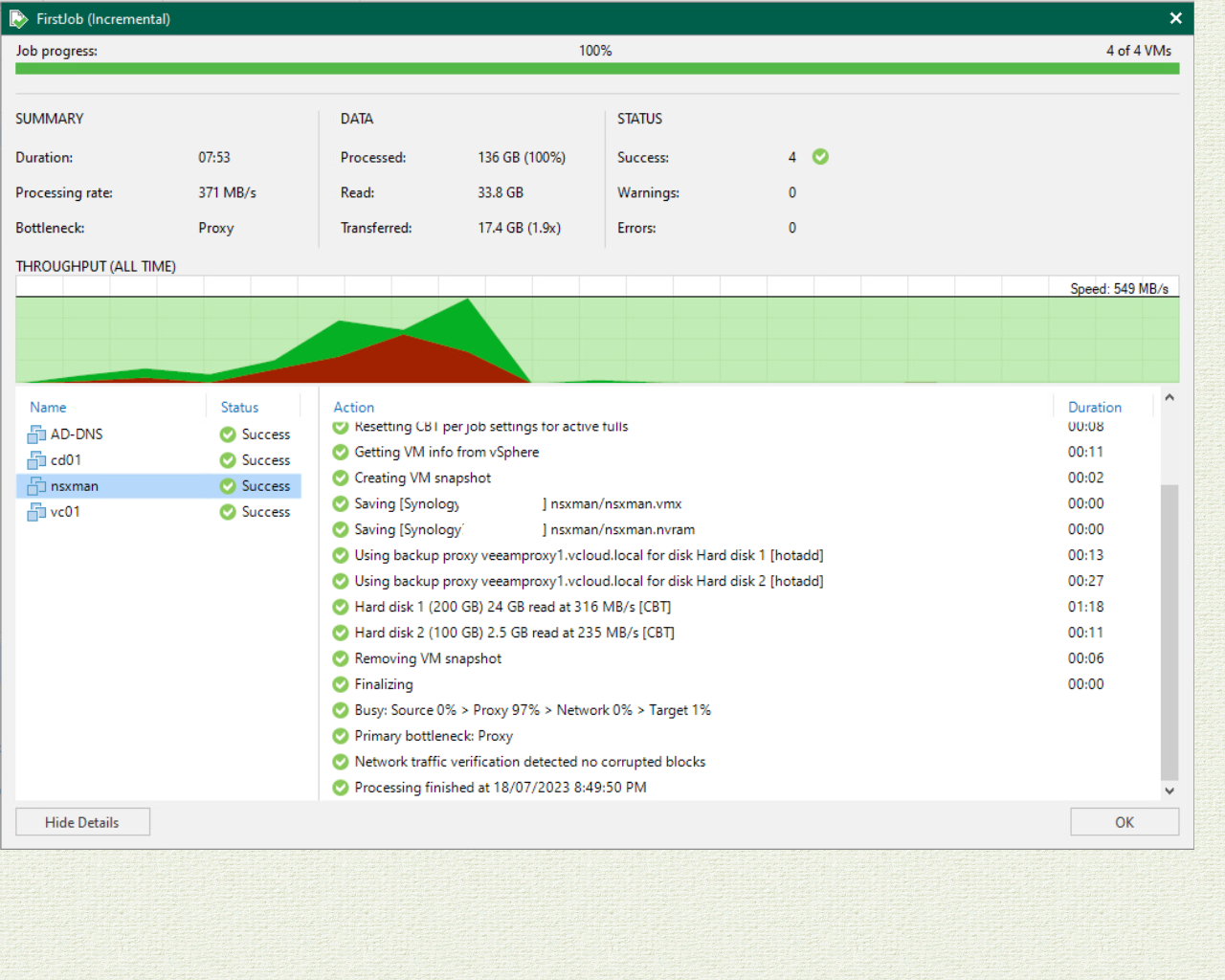
    Once saved, power back on the VM and perform your backup. Confirm that everything is once again successful.


  • Guest Introspection needs to be fully uninstalled first – Error message

    Being half way through a large infrastructure migration, there have been some interesting issues turn up along the way which have then required updating to the design and deployment documentation. One of the steps that I need to perform is upgrade VM hardware compatibility and VMTools. This all seemed an easy enough task to complete, especially with Update Manager, that was until it came to doing the actual VMTools upgrade. Update Manager continued to fail on a large number of VMs. When the installation was manually ran, an error message “VMware Guest Introspection must be fully uninstalled before the installation can proceed.” would

    What was interesting about this was that I had migrated away from a system that did not have NSX or Guest Introspection per se. The old environment was running traditional vShield and had moved to the new environment which was now running NSX Manager and Guest Introspection only.
    After going through a couple of knowledge base articles around the subject, I went ahead and tried the removal of regkeys in VMware, this did not fix the problem; in fact it was a very simple fix.
    In control panel –> Programs and Features -> select VMware vShield Endpoint.
    Uninstall VMware vShield Endpoint.

    Once complete you can successfully go ahead and upgrade VMTools.

  • Guest Introspection Service – NSX

    Continuing on from my last post, I thought I would get in and talk about the Guest Introspection service before I roll back and redeploy my NSX lab.
    In prior versions to vSphere 6.x, part of the VMware vCloud Networking and Security (vCNS) was vShield Endpoint that was installed onto each host to allow for agentless security products to interact with virtual machines through VMTools. This was a two component setup, you would first have the vShield Manager that was connected to your vCenter which then added an installation option on each host for vShield Endpoint. Once vShield Endpoint was installed and vShield Driver (Part of VMTools install), your antivirus/anti-malware software could then protect inside your virtual machines that have been set up.
    Fast forward to vSphere 6.x and the release of NSX taking over the networking and security side of things for vSphere environments. vShield was partially removed in vSphere 6.0, but completely removed by vSphere 6.5. Replacing vShield is now the NSX Guest Introspection Service (GIS) that still gets deployed to each host, but the difference is instead of having a separate vShield manager, it is included with the NSX Manager.
    The GIS is free (Depending on vCloud licensing you may need to double check with your reseller) with the default licensing that comes with NSX Manager. There is a default key that is automatically deployed with NSX Manager giving you this access.
    To set up your Guest Introspection Services, follow the below steps:
    Pre-requisites:
    IP Pool (If you do not have one configured, then you can set up during GIS deployment)

    1. Open up your Network and Security Tab –> Click on Installation –> Select Service Deployments.
    2. Click on the + sign –> Select Guest Introspection –> Choose when you want to deploy Now or Schedule –> click next.
    3. Select your Datacenter and cluster you want to install your Guest Introspection to –>  click next
    4. Choose your storage device and network you want to –> Decide to use DHCP or IP Pool, click Change –> Select IP Pool and Click the + sign to create the Pool.


    5. Confirm and click Finish.

    The process will run through and migrate VMs between hosts if required. Once installed, your security software should detect the hosts and their current state and either require install a filter driver to the hosts and then the appliance (Third party components may vary between vendors).
    This is a very straight forward service setup, but very powerful for the service it provides to your environment.
    Thank you for reading. Please let a comment if you would like to. 

  • Upgrade NSX Manager Version

    I’ve been getting into a bit of NSX lately and have a new fondness for virtual networking of which previously I knew a little about NSX and its use cases, but I had not spent time with deploying it and making some use of it. That being said, I am not a networking guy, but after watching the latest vBrownBag 3 part NSX series with Tim Davis (@ALDTD), I think it’s becoming a new passion for me. See the Series here. Part 1Part 2 – Part 3 (TBU)
    With all that, here’s my first NSX post on How to upgrade your NSX Manager.
    I am currently running version 6.2.7, however last week NSX Ver. 6.3.2 was released and I thought I would take the opportunity to upgrade now before I rebuild my environment and deploy 6.3.2 direct.

    1. Open up vSphere web client and select Networking and Security -> Select NSX Managers -> Then your NSX Manger -> Summary – to check the versionScreen Shot 2017-06-10 at 10.18.06 pm
    2. Download the latest upgrade bundle from my.vmware.comScreen Shot 2017-06-09 at 9.59.34 pm
    3. Log on to your NSX manager via it’s management IP using admin userScreen Shot 2017-06-10 at 10.24.31 pm
    4. Select upgrade from the home page (You will notice in the upgrade screen the version number currently running) -> Click the upgrade button -> Click Browse and search for your upgrade bundle -> Click Continue (This will upload the file)Screen Shot 2017-06-10 at 10.26.05 pm
      Screen Shot 2017-06-10 at 10.27.01 pm
      Screen Shot 2017-06-10 at 10.27.21 pm
    5. Once the upload has complete, you will be present with a warning to create a backup of your NSX Manager before proceeding with the upgrade. You also receive the option to enable SSH and to join the VMware Customer Experience Improvement Program. -> Click Upgrade when readyScreen Shot 2017-06-10 at 10.32.51 pm
      Screen Shot 2017-06-10 at 10.35.37 pm
    6. Once completed, click close and wait for your NSX Manger to restart.
    7. Next log into vSphere webclient and select Network and Security -> installation. here you will see the NSX manager upgraded and the Controller Cluster saying “Upgrade Available” Select Upgrade available and let NSX do its thing.Screen Shot 2017-06-10 at 10.50.33 pm
    8. Your controller node will go off and may say “Disconnected” – Just refresh the webclient.Screen Shot 2017-06-10 at 11.02.40 pm

    Out of habit, I do a host force sync of services. I don’t have any other components set up at this stage as I had only got to setting up my transport zones, but make sure you run through and upgrade any other components you have deployed such as the Guest Introspection Service (New vShield) as well as any Edge services you have deployed.
    Tip: You can go to the Network and Security Dashboard to see if there are any components that are out of date and require an upgrade. Click on the number to bring up more information.
    Screen Shot 2017-06-10 at 11.10.37 pm.png

    Thank you for reading. Please leave a comment if you have anything to say, be it more information/Corrections/requests.