Category: VMware

  • Getting network on Linux servers operational after migrating hypervisors

    Getting network on Linux servers operational after migrating hypervisors

    Recently I made the move to migrate all my VMs from running on VMware ESXi to running on Hyper-V. This was the first time that I have shifted to another platform away from ESXi as my main hypervisor platform.

    As it was a single server, I made a backup of all my VMs with Veeam, taking also a copy of my config file and built a new Veeam Backup and Replication server on Hyper-V with importing the config file, allowing to restore all VMs across to Hyper-V.

    Whilst all VMs booted up, the one issue I did run into was the ethernet adapter had changed from a VMXnet3 to a Hyper-V Virtual Network Adapter.

    For Windows VMs, this was no issue and they all connected as if nothing had changed.

    For Linux servers (Ubuntu in my case), the adapter name did change and the the Netplan .yaml file did not update. Thus, there was no connectivity to the outside world.

    While the adapter in Hyper-V manager looked to have a connection, it was unable to display the IP Address as it was not associated with it. (This would be relevant to any hypervisor migration where the adapters aren’t exactly the same).

    There is a very simple fix, as I mentioned above,  the. netplan yaml file does not automatically update to reflect a new adapter name as there is no detection that runs like it does when installing the OS.

    To find your new adapter, you can run: ip link show – You will be able to match the mac address on the adapter to the results in the ip link output.

    Once you have your new adapters name, you can then update the .yaml file. Using the below commands, you will first search and confirm the name of the .yaml file and then edit with your preferred editor (in my case I will use vi). You can use tab completion to fill in the file name when you have the netplan folder specified

    ls /etc/netplan/
    sudo vi /etc/netplan/00-installer-config.yaml

    Inside the .yaml file, you will need to find the line underneath “ethernets” – this will be your old adapter name and using the correct key combination, enter the insert (i key) function.
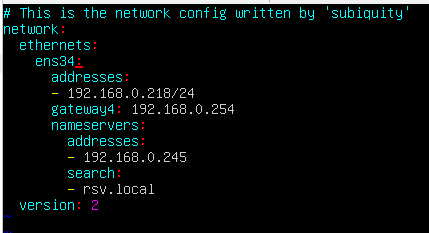
    Using my screenshots, update the “ens34” to “eth0”

    Press esc to escape the insert mode, then use :wq to write and quit vi.
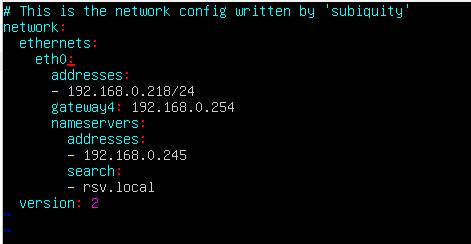
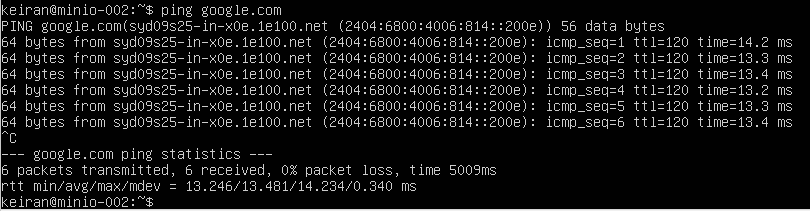
    Lastly, make sure to apply the netplan configuration. This is easily achieved by sudo netplan apply – Once applied, run through a ping test and make sure your network is functioning correctly.
    My understanding, and experience so far, is that with Hyper-V the adapter name is going to be the same followed by ascending numbers (eth0, eth1, eth2, etc.) – However, it is always best to confirm first.

    Hopefully that will save you some time when migrating between various hypervisors where the adapter changes.

  • VCSA 8.x stuck in update staging loop

    VCSA 8.x stuck in update staging loop

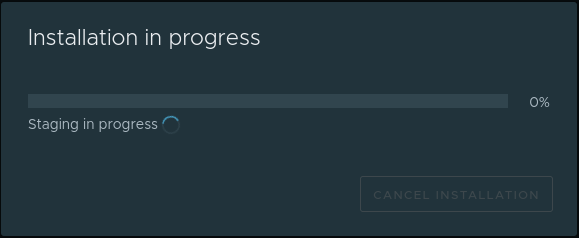
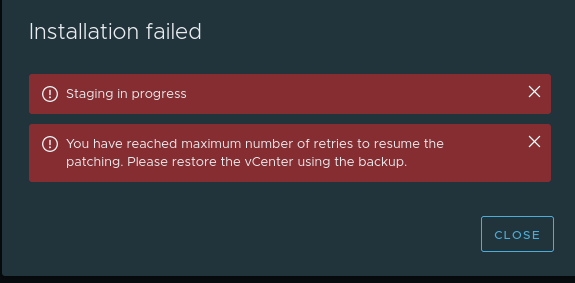
    I ran into an issue with where my VCSA was consistantly throwing me an error regarding “Staging in Progress” and “You have reached maximum number of retries to resume the patching. Please restore the vCenter using the backup”

    As this is my home lab, the system had been turned on and off numerous times, and thus a restart does not resolve this issue.  It also stood out as a bit of an issue as no matter who URL I used to log in, it would popup immediate under https://<vcsa>:5480/ui/update/progress and I had to redirect to another page.

    I was unable to also load any new updates (which I knew I was a few behind by this stage) and so off I went to do some research where I found KB 87238 – This was pretty straight forward and just needed some files removed from the VCSA. While this article is for 7.x I did find that the “Software-pakages” folder did not exist and was unable to cop the json file as required (No issues appeared to occur)

    First make sure you take a snapshot or backup of your VCSA.

    Enabled SSH so that you can get shell access.

    Follow the below commands

    ssh root@vcsaadress

    Command> shell


    # service-control --stop applmgmt
    # rm -rf /storage/core/software-update/updates/*
    # rm -rf /storage/core/software-update/stage/*
    # rm -rf /storage/db/patching.db

    Depending on the version, the next file may not exist – this did not seem to be a problem for v8.x

    # mv /storage/core/software-packages/staged-configuration.json /storage/core
    # mv /etc/applmgmt/appliance/software_update_state.conf /storage/core/
    # service-control --start applmgmt


    Operation not cancellable. Please wait for it to finish...
    Performing start operation on service applmgmt...
    Successfully started service applmgmt

    Once These steps are completed, I was able to then log back into VCSA and run a scan for updates. This found 3 available updates:

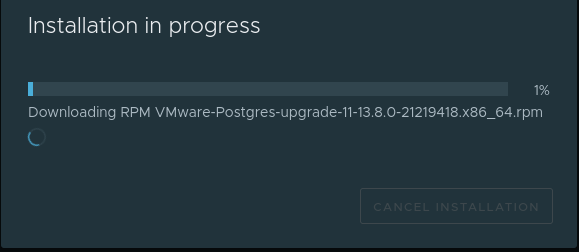
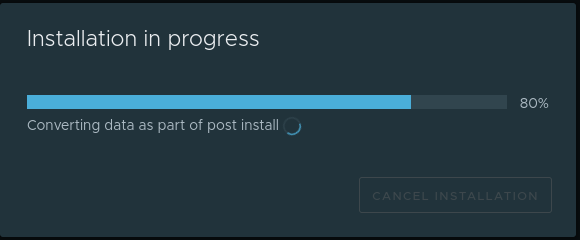
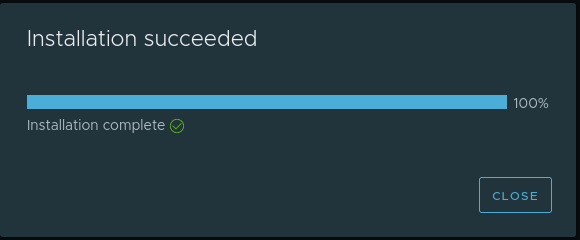
    I was able to select and start staging the updates, there was a successful progress bar running.

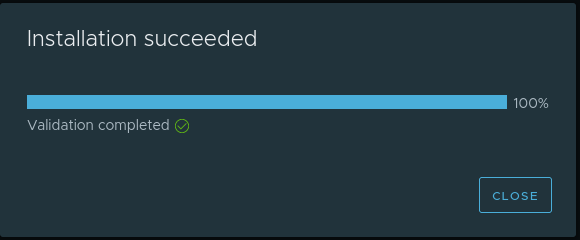
    Although the Validation did complete successfully after staging, the update did not install and I was unable to scan for anything more, in fact, I received another few errors. I decided to give it a reboot and see what happens.

    After a reboot I was given the option to install (without the need for staging) and the VCSA was able to update as it should.

  • VM deployed from OVF fails to create Snapshot for backup

    **Purely for demonstration purposes – Snapshots are not supported with NSX-T Manager – However, this may be applicable elsewhere.

    ** After some further research while preparing this article, I found an KB from VMware advising that snapshots was disabled on purpose for NSX Manager, they advise that Snapshots are not supported – This means you will either need to configure backups through the appliance using SFTP or use Network Block Device backups without snapshots. 

    While I was setting up and running my first job for backing up my lab, I ran into an issue where my NSX Manager appliance was unable to take a snapshot.  I was using Veeam to run my backups, I had several different guest OS types in the job, with 3 being Photon based appliances.

    All 3 of these appliances had been deployed via OVF without issue. There had been no additional changes made.

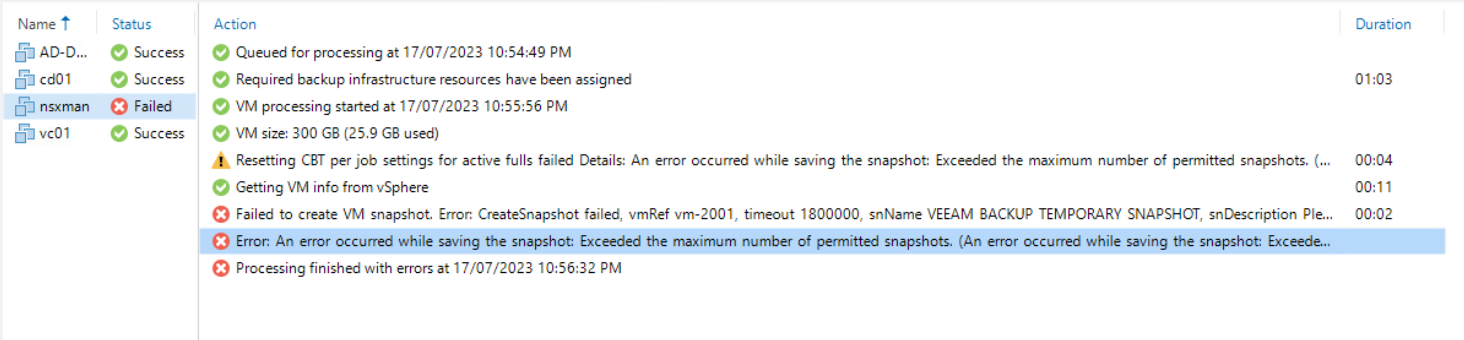
    On first run, the backup job failed on the NSX Manager, this seemed a little unusual as the error message was stating that the VM had reached its Maximum number of snapshots. Given that there was only 2 disks attached, this was quite bizarre, so I attempted to create a snapshot directly though vCenter and received the same error.

    As this appeared to be a single VM issue, I went hunting through the VM settings to first see if the disks were configured as Independent Disks  – However, this was not the case and they were configured just like the others as Dependent.

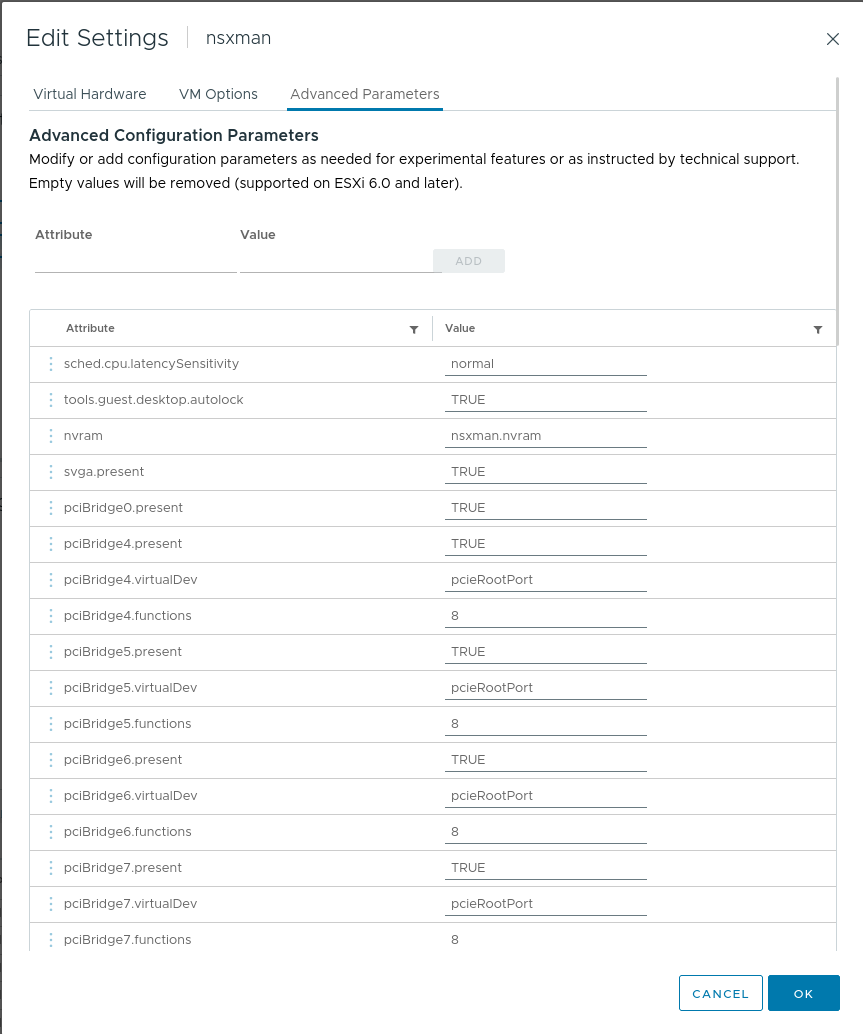
    The next place to look was the Advanced Parameters of the VM, a goldmine of fine-grained settings for a vm.

    Sure enough, I found the culprit, a one liner snapshot.maxSnapshots configured to ‘0’ – This meant that no snapshots could be created.


    To edit the number of snapshots that can be taken, you will need to power down the VM first. Once powered down, navigate back to the Advanced Parameters and from there update the number.

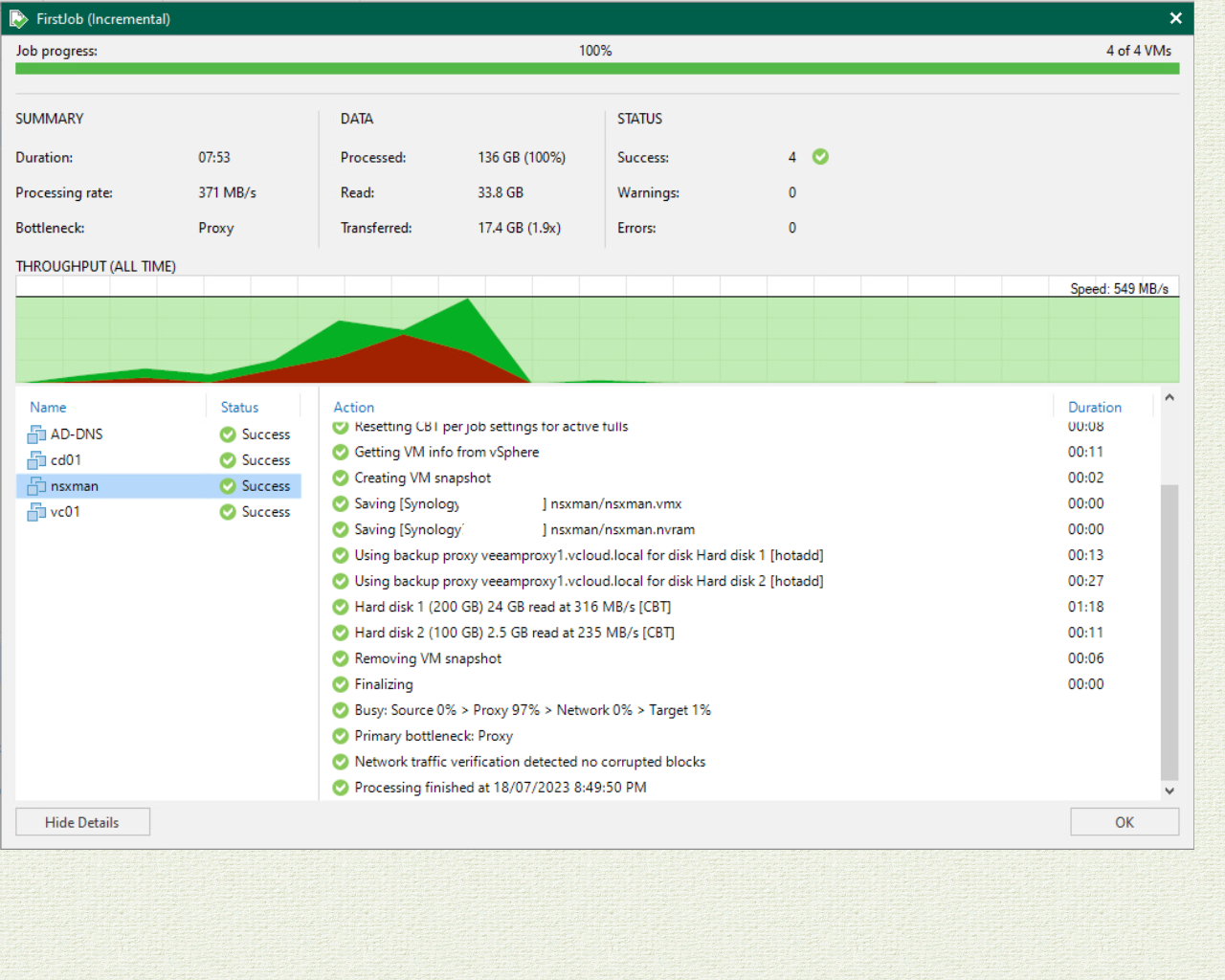
    Once saved, power back on the VM and perform your backup. Confirm that everything is once again successful.


  • Introducing vSphere Lifecycle Manager -vSphere 7

    Introducing vSphere Lifecycle Manager -vSphere 7

    On Thursday we saw VMware release their next major release in the vSphere product line. vSphere 7 was finally GA’d after a number of months since Project Tanzu and Project Pacific were announced at VMworld US 2019. There have been some significant changes in this release where some items have been removed and a large number of new features added.

    In this particular article, I want to cover the changes made to vSphere Update Manager (VUM) or as it is now known as vSphere Lifecycle Manager (vLCM). vLCM incorporates vboth the original vSphere Update Manager controls as well as managing firmware updates for your hosts hardware.

    vLCM is designed to not only apply the standard upgrades, patches, VMware Tools and Virtual Machine hardware updates as the previous vSphere Update Manager, but it is also has the ability to apply firmware updates to your hosts hardware. These new features to apply OEM software updates to your host hardware are only available to hosts running ESXi 7.0. Actions such as host patching, updates and upgrades are still available for lower versions 6.5 and 6.7. When using an ISO through vLCM to upgrade your hosts, you will still only be able to use the matching major version of vCenter, will not be able to use a lower version to say upgrade a 6.5 host to 6.7 while using vCenter 7.

    vSphere Lifecycle Manager is only available under the HTML5 vSphere client, and rightly so as the flash client has been completely removed. There are 5 top menu items and each with related sub-menu’s underneath. These are arranged as below:

    • Image Depot
      o ESXi Versions
      o Vendor Addons
      o Components
    •  Updates
    • Imported iSOs
    • Baselines
    • Settings

    Image Depot
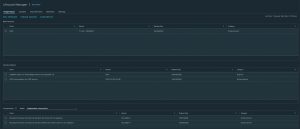
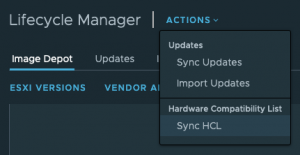
    The image depot displays 3 sets of tables, each presenting a list of items that together will help form your remediate image to manage your host updates. You will start with your Base VMware ESXi Image, then you can either select to use updated firmware bundles provided by the vendor or select individual components to update. The vLCM will sync with the the VMware HCL to provide an up-to-date approved list of firmware.

    ESXi Versions
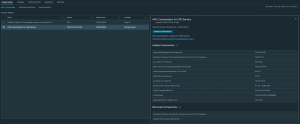
    This is a collective list of VMware base images that are available in the depot. Selecting the image will provide information on the included software and drives that are available and may be installed when the host if remediated.

    Vendor Addons
    In this list, you will find a collection of component updates in a single bundle provided by the vendor. Here you will get a select list which the vendor has approved to work together and information provided on each update. There is also an included list of the drivers that have also been removed from the build.

    Components
    This menu provides a list of available individual component firmware updates that you can include in your remediation images. If you have found that you do not want certain components updated in the vendor addons or that there is a critical fix that is only required for one component, then you will be able to add these components separately to your image.

    Outside of the new Image Deport, there are the standard vSphere Update Manager options avialble to remediate your hosts with the standard Patches, VMware Tools, VM Hardware Version through the use of baselines and baseline groups.

    The introduction of the new Image Depot included in vSphere Lifecycle Manager definitely seems to look promising and is a nice addition. This will certainly help save a lot of time researching and bridging the gap between ESXi and supported vendor drivers and firmware versions. This is certainly a great new step forward.

  • New Release VMware NSX Books – Free Download

    New Release VMware NSX Books – Free Download

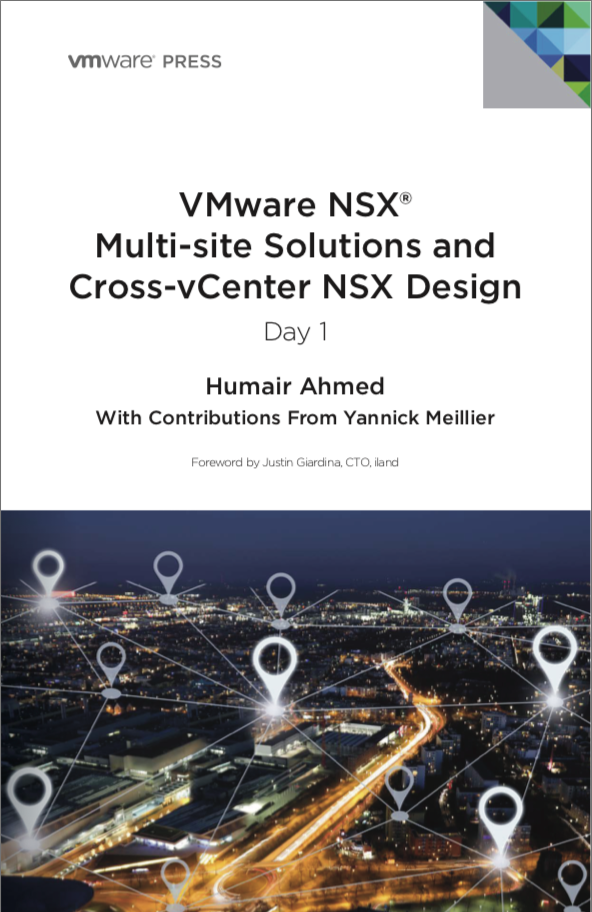
    Following on from last years Free NSX books that were given away at VMworld 2017 and also available for download, there have been another 2 new releases that are now available for download.
    VMware NSCross-vCenter NSX DesignX® Multi-site Solutions and Humair Ahmed with contributions from Yannick Meillier
    Screen Shot 2018-08-03 at 11.15.02 pm

    Screen Shot 2018-08-03 at 11.14.06 pm
    With over 300 pages between the two books full of great content, they are two books well worth having in your collection.

  • Zerto – Not Just Short Term DR Retention Anymore

    Zerto – Not Just Short Term DR Retention Anymore

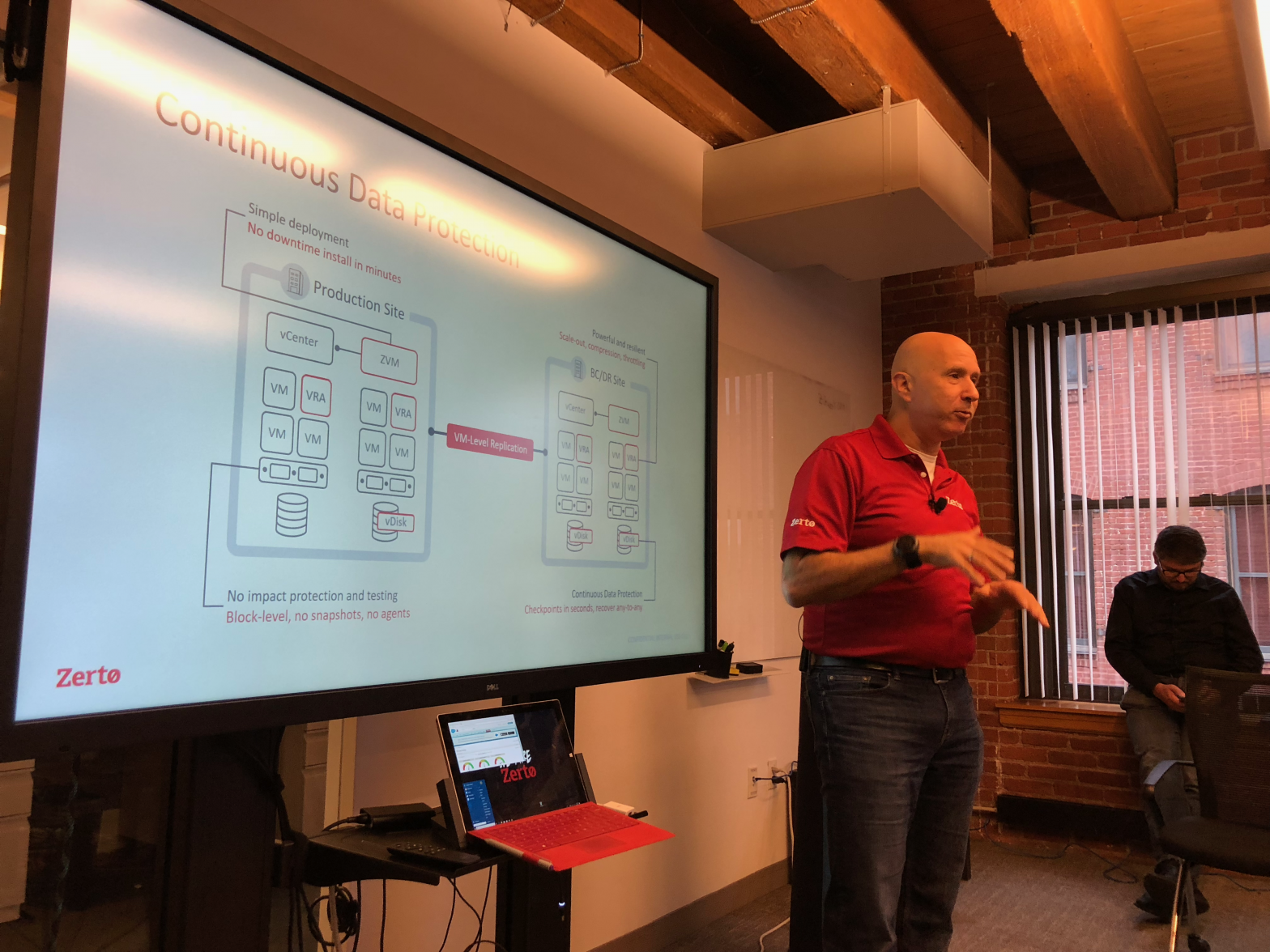
    Last week I had the opportunity to participate in a session with Zerto at their global headquarters in Boston, MA. as part of Storage Field Day 16. This was a session I was really looking forward to after having been a partner for ~3 years and someone who really likes the technology.
    The session started with the companies Chief Marketing Officer, Gil Levonai going over the core details of how the company has grown and how their block based Continuous Data Protection technology has evolved over the years.
    Zerto Virtual Replication (ZVR) disaster recovery product that uses block based replication allowing it to be hardware agnostic. This means you can use any underlying storage vendor between sites. Zerto is building out their cloud portfolio to allow replication across multiple hypervisors and public cloud companies from vSphere and Hyper-V, through to AWS and Azure, and beyond. There are two main components that are required at both sites for the replication to work, the Zerto Virtual Manager (ZVM) and the Zerto Virtual Replication Appliance (ZVRA). The ZVM is a Windows VM that connects to vCenter/Hyper-V Manager to run the management WebGUI and present and coordinate the VMs and Virtual Protection Groups (VPGs) between sites. The ZVRAs are loaded on to each hypervisor as an appliance and is used to replicate the blocks across sites while compressing the data. One storage platform they do no support currently is VVOLs, however, they are a company that will develop for the technology as there is demand.
    You can set your target RPO to a mere 10 seconds and retain your recoverable data in the short-term journal from 1 hour up to 30 days – meaning you can restore data from a specific time rather than when the backup was last run..
    The VPGs are groups of VMs you want to be part of a failover group. This is where you can create a group for say a 3 tier app where you need each VM to restart in a certain order at certain intervals.

    You can see the Gil’s talk here: https://vimeo.com/277582934
    So, what was the technical discussion during this session? Mike Khusid (Product Management Leader) took us through their new Long Term Retention (LTR) piece that is currently under development to extend the capabilities of ZVR. This is  due to to be included in their next Major release, Zerto 7. This requirement for many enterprises is driven by the need to meet compliance standards and be able to retain data from 7 to 99 years. The benefit of this being included in Zerto’s Continuous Data protection means that you will have an available copy of data that was created ~3 minutes prior to being deleted, ensuring it will be recoverable within the set retention period.
    This is certainly a great way for Zerto to extend their product set to be able to meet the compliance demands that many companies face. As a partner using Zerto, I know this will be a great piece to be able to pass on to our customers.
    You can also catch Mike’s segment here: https://vimeo.com/277583291
    Thank you Zerto for taking the time to present at Storage Field Day #16.

  • VMware Current Software Download and Release Notes

    VMware Current Software Download and Release Notes

    I haven’t blogged in a while, so I thought I would put together a quick list of the most current versions of VMware solutions available. Below you will find links to the download and to the release notes. These are the current versions as of this date. Hopefully someone will find this as a useful reference.
    **Please note you will require a valid login/Contract to be able to access a number of these solutions for download.
    Check out @texiwil Linux VMware Software Manager – Only requires a my.vmware.com login (Great option if you can’t access downloads through the site)
    https://github.com/Texiwill/aac-lib/tree/master/vsm
    vCenter
    6.0u3e Download
    6.0U3e Release Notes
    6.5U2 Download 
    6.5U2 Release Notes
    6.7.0a Download 
    6.7.0a Release Notes
    ESXi
    6.0U3a Download
    6.0U3a Release Notes
    6.5U2 Download
    6.5U2 Release Notes
    6.7.0 Download
    6.7.0 Release Notes 
    NSX-V
    6.3.6 Download 
    6.3.6 Release Notes 
    6.4.1 Download 
    6.4.1 Release Notes: 
    NSX-T
    2.2 Download
    2.2 Release Notes
    Horizon
    7.5 Download
    7.5 Release Notes 
    7.4 Download  
    7.4 Release Notes 
     
    PowerCLI
    10.1 Download/Release Notes
    PowerNSX
    Download/release notes 
    vRealize Automation
    7.4 Download
    7.4 Release Notes
    vRealize Operations Manager
    6.7 Download
    6.7 Release Notes 
    vRealize Log Insight 
    4.6.1 Downloads
    4.6.1 Release Notes  
    Site Recovery Manager 
    8.1 Download  
    8.1 Release Notes  

  • VMware vExpert 5th Year in a Row

    4 years ago, I decided to take the plunge at applying for my first year as a vExpert. I thought I was just shooting into the open air not thinking I would receive an award. I had only just started getting into virtualisation, having only done a small amount at work, but I was enjoying the technology so much I decided I would start blogging along my journey. Not long after starting that path, I started to attend our local VMUG chapter and then went on to be a leader for a couple of years. More and more I grew into the VMware virtualisation family.
    It is with great honour today to accept my 5th year as a vExpert. This program has been running for 10 years now and is there to acknowledge those who provide back to the VMware community. This program has given me so much, in terms of resources and community support to get the most out of my virtualization journey and to continue to grow and learn more and more each day.

    Why is this program so special? I’m glad you asked! The program is not only designed to acknowledge publicly those that spend their time blogging about why you should have High Availability turned on, but to use the vExperts as a valuable resources for testing Beta’s for VMware and providing feedback to improve the GA version.  As mentioned in the previous paragraph, the program enables each vExpert to engage in the community as one and this encourages one another to persist push the limits of their blogging, their knowledge and skills. The team we have are a reliable and trusted group who individually, but also together produce content to help the community in their own environments.
    There are additional benefits we receive as vExperts, such as invites to internal VMware calls,  private BETA testing and licenses to be able to continue testing and producing content. These benefits only push you to work harder and create bigger and better content.
    I love being part of this select group. and I want to thank Corey Romero and the vExpert/Community team at VMware for giving me and all this years vExperts the opportunity to be a part of the program once again.

  • Configure ESXi 6.5 Autostart

    I’ve recently rebuilt my homelab, and as part of bring a nested lab, I like to have my nested host VMs to poweron automatically as I do for my VCSA. However, I configured (Or at least I thought I had) the Autostart option on sll 3 of the nested hosts. After sitting down powering on the physical host, I waited approximately 10 minutes for it all to boot up, which is about normal, unfortunately, I could not connect to anything but the physical ESXi host, to which I found all 3 VMs powered off all with AutoStart option on them.

    As you can see above, all VMs have Autostart enabled on them with their start order, and yet they are all powered off. What I found was that there is a separate service for Autostart that need to be enabled before the start order will operate.
    To enable:
    Select Manage -> Autostart -> Edit Settings
    Under Settings, select Enable = Yes -> Click Save


    Once completed, restart your ESXi host to ensure the settings are operation.

  • Extended Unstun Times with VVOLs and Veeam Proxy Fixed in 9.5 Update 3

    Recently Veeam released Veeam Backup and Replication 9.5 Update 3″ This update has brought a number of fixes and additional features that you can read about in Anthony Spiteri’s post VEEAM BACKUP & REPLICATION 9.5 UPDATE 3 – TOP NEW FEATURES
    This particular release brings a welcomed fix for backing up VVOL backed VMs when using a proxy server. The symptoms occur when you backup a VM that is utilising VVOL storage and a proxy server with hotadd. The snapshot attempts to remove too soon before the HotAdded disk finishes its unbind process. When this occurs the VM can freeze anywhere from a number of seconds up to 80+ seconds.  These issues were not present when the backup proxy was on the same host as the VM that was backing up. The workaround prior to this release was to run in NBD mode which uses the host as a proxy and is a slower method.
    So, what am I looking for? The most obvious symptom is when your VM freezes and can not perform any actions, however performance graphs, etc all should a healthy VM. The other is in your VM log file, you will find a line similar to below. this is a standard line in your log, the difference is the the length of time the process runs for.  In this sample: 56 seconds

    Checkpoint_Unstun: vm stopped for 56223314 us

    In Veeam B&R 9.5U3, you can now add a registry value to set a wait time to allow the unbind from the proxy to complete before the snapshot is removed. to do this, open up your Veeam B&R server -> Open RegEdit -> navigate to:

    HKEY_LOCAL_MACHINE\SOFTWARE\Veeam\Veeam Backup and Replication\

    Create a new REG_DWORD: HotaddTimeoutAfterDetachSec
    Using decimal set your wait time (value) in seconds for how long you require.
    Once added, you can restart your server\services for the settings to take affect. After testing overnight with a few Backup jobs, I re-enabled all jobs to run through proxies and  have not seen any issues yet.