Year: 2023

  • Stepping up and taking on my Imposter Syndrome with the ISN Podcast

    Stepping up and taking on my Imposter Syndrome with the ISN Podcast

    It was July 13, the day was only just starting as I was coming up the elevator to my work’s office floor, and just as I usually do, I flicked open my phone for any notification badges. Although I had checked earlier, there weren’t really any notifications, but one caught my eye, it was a LinkedIn email informing me I had a new direct message from Chris Grundemann, whom I was very lucky to have met In Austin, TX at Tech Field Day 18 back in February 2019.

    Chris is a fantastic dude and together with Zoe Rose, they run the Imposter Syndrome Network Podcast, a podcast I was a huge supporter of before the first episode with Ethan Banks dropped. They really started promoting the idea early on, and it got my excited for what was to come.

    My mind is always running at 130% all the time, there is so much going on that there usually isn’t ever time to finish thinking through the last thought. The one place where I find that my thoughts can slow down and process more thoroughly is in the car, this is where I am usually listening to podcasts or thinking through a problem (but it is also the place where the solution will get lost because I can’t write it down). That being said, I’ve listened to every episode of the Imposter Syndrome Network Podcast, each and every week. Just like any other podcast, I start thinking of what I could contribute to that episode, what my opinion of the topic might be, or the answer to a quiz. I had also thought on many car trips that I would like to be asked on the Imposter Syndrome Podcast – of course, I had all the topics and answer right there in head, however I would forget it all once the car engine was turned off – although I didn’t actually think I would end up on an episode, especially as time went on and the guest just became ever so much more amazing with their long lists of achievements.

    However, on this particular day, that message arrived. Here was a message from Chris asking me to come onto the show and tell my story. Immediately my imposter syndrome kicked in and my mind started racing in all of the thoughts of how could I just say, “I really appreciate the offer, but I’m not the person you’re looking for..” I didn’t think I had any of the chops to be on the show. But the strange thing is, I actually wrote back “..My imposter syndrome is yelling at me to say “No” but the one thing I’ve taught myself is to just answer “Yes” and be terrible to be successful.” that last bit was key. “Be terrible to be successful.”

    So, from that point, I was signed up and I booked in for my recording session with both Chris and Zoe for 2 weeks time, Friday at 3:30am in the morning. That’s right, 3:30am. The 3 of us together were able to split the earth in 3 even sections with our locations. The recording went well, and it was quite clear at the start that the cogs hadn’t really started turning and my answer to Chris’ first question was restarted 3 times. We spoke a lot about my 10 year history as a vExpert and what it takes to join and be a part of those community programs and the motiviation to produce content. As all three of us have been delegates with Tech Field Day, we also talked about that small close-knit family that community groups create, and the different levels of experience and opinions of technology. 

    I’ve done some podcasts in the past, when I did Nerd Journey Pod, I was nervous, the only thing going through my head was “What if I say the wrong thing publicly – what is everyone going to think?” and it really got to me, you can hear it throughout. My next podcast was with The On-Premise IT Roundtable with Gestalt IT, but was joined by Pure Storage – whilst I was there for Storage Field Day, talk about being thrown into the deep end of having to discuss a product I barely knew anything about – but I managed to get through it by focusing on the business side rather than the specific technology (phew!). I then made several appearances over the last few years on the Tech Breakfast Podcast just joining in on the conversation which had no real agenda except to discuss current technology events.

    So you can see my podcasting history is fairly short, and one thing I’ve learnt about myself over the recent years is that I am just 1 person in among 7 billion others, if I sink like a lead balloon doing a podcast or a video, then it won’t be long and I’ll be forgotten. It has taken me a VERY long time to learn that. Sure, there are people who are close to me, but they seem to move on pretty quick, too many other things that are happening, it’s just myself who dwells on my own past.

    Immediately after I said my first opening line on the show, I squirmed in my seat, I started focusing on that thinking it was terrible and very cringe worthy, although I had originally thought it would be a nice little joke, because really, I was an imposter being there – this continued to play on my mind all the way up to me hearing it when the recording was released. But, it was one of my friends who heard the episode and his first reply was “That first line reminded me of Fight Club” and yeah, that was exactly what I needed to hear, it tied it together nicely.

    I am always hesitant to listen to myself after any recordings I’ve done, but I do it anyway, I use it to help learn and make adjustments on what to do different next time. I was extremely nervous to listen back to the episode, the only things I could remember saying were the bits where I started to focus on where I felt I said the wrong thing. In the end, I actually enjoyed the episode and started to promote it in some of my channels with friends across the world – this is something I usually would be very strategic with and would wait until the episode was released out of my control, but on this occasion, I couldn’t wait.

    What happened over the next 24 hours was certainly a first from any of the other podcasts I had done, several people I had no direct connection with started reaching out on LinkedIn telling me how much they enjoyed the episode and they wanted to connect. This truly created some highlights, like anything I produce, as long as someone gets something out of it, then I’ve done something worthwhile, I just didn’t expect the response I got.

    Earlier this year, I accepted an offer to do a co-presentation with a friend at an event next year, it was a whole year away, and it still took some time to accept the offer, but the thing is, if I don’t take the opportunity, I’ve only got myself to blame for not taking the leap.

    While it might seem obvious that I process every word in real-time, it isn’t the voice that the audience is there listening to, they are there for the content and to learn something. You can be anxious, but don’t let that stop you because there is always a brighter outcome – it just takes 1 person.

    It doesn’t matter if someone has a longer list of credentials than you, it doesn’t matter if someone has written a post on a topic you were planning to. It doesn’t matter how you present. Step up, take the challenge and say “Yes”. There is at least someone out there who will appreciate it very much that you did.

    You can check out my Imposter Syndrome Network episode here:
    ISN Linkedin group
     

  • VCSA 8.x stuck in update staging loop

    VCSA 8.x stuck in update staging loop

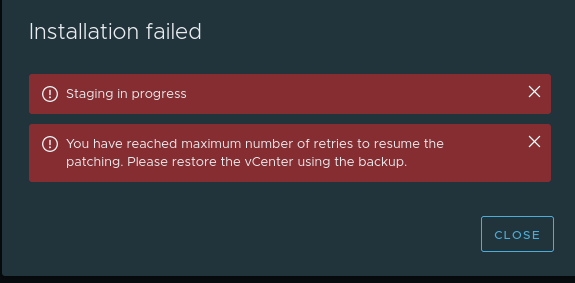
    I ran into an issue with where my VCSA was consistantly throwing me an error regarding “Staging in Progress” and “You have reached maximum number of retries to resume the patching. Please restore the vCenter using the backup”

    As this is my home lab, the system had been turned on and off numerous times, and thus a restart does not resolve this issue.  It also stood out as a bit of an issue as no matter who URL I used to log in, it would popup immediate under https://<vcsa>:5480/ui/update/progress and I had to redirect to another page.
    I was unable to also load any new updates (which I knew I was a few behind by this stage) and so off I went to do some research where I found KB 87238 – This was pretty straight forward and just needed some files removed from the VCSA. While this article is for 7.x I did find that the “Software-pakages” folder did not exist and was unable to cop the json file as required (No issues appeared to occur)
    First make sure you take a snapshot or backup of your VCSA.

    Enabled SSH so that you can get shell access.

    Follow the below commands

    ssh root@vcsaadress

    Command> shell


    # service-control --stop applmgmt
    # rm -rf /storage/core/software-update/updates/*
    # rm -rf /storage/core/software-update/stage/*
    # rm -rf /storage/db/patching.db

    Depending on the version, the next file may not exist – this did not seem to be a problem for v8.x

    # mv /storage/core/software-packages/staged-configuration.json /storage/core
    # mv /etc/applmgmt/appliance/software_update_state.conf /storage/core/
    # service-control --start applmgmt


    Operation not cancellable. Please wait for it to finish...
    Performing start operation on service applmgmt...
    Successfully started service applmgmt

    Once These steps are completed, I was able to then log back into VCSA and run a scan for updates. This found 3 available updates:

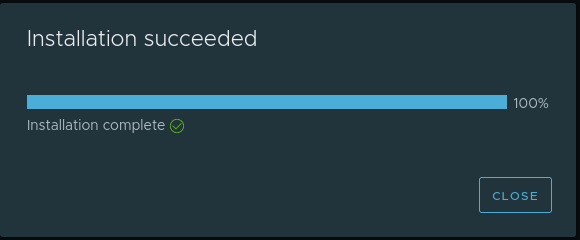
    I was able to select and start staging the updates, there was a successful progress bar running.

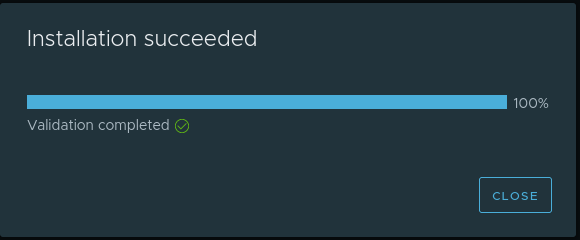
    Although the Validation did complete successfully after staging, the update did not install and I was unable to scan for anything more, in fact, I received another few errors. I decided to give it a reboot and see what happens.

    After a reboot I was given the option to install (without the need for staging) and the VCSA was able to update as it should.

  • VM deployed from OVF fails to create Snapshot for backup

    **Purely for demonstration purposes – Snapshots are not supported with NSX-T Manager – However, this may be applicable elsewhere.

    ** After some further research while preparing this article, I found an KB from VMware advising that snapshots was disabled on purpose for NSX Manager, they advise that Snapshots are not supported – This means you will either need to configure backups through the appliance using SFTP or use Network Block Device backups without snapshots. 

    While I was setting up and running my first job for backing up my lab, I ran into an issue where my NSX Manager appliance was unable to take a snapshot.  I was using Veeam to run my backups, I had several different guest OS types in the job, with 3 being Photon based appliances.

    All 3 of these appliances had been deployed via OVF without issue. There had been no additional changes made.

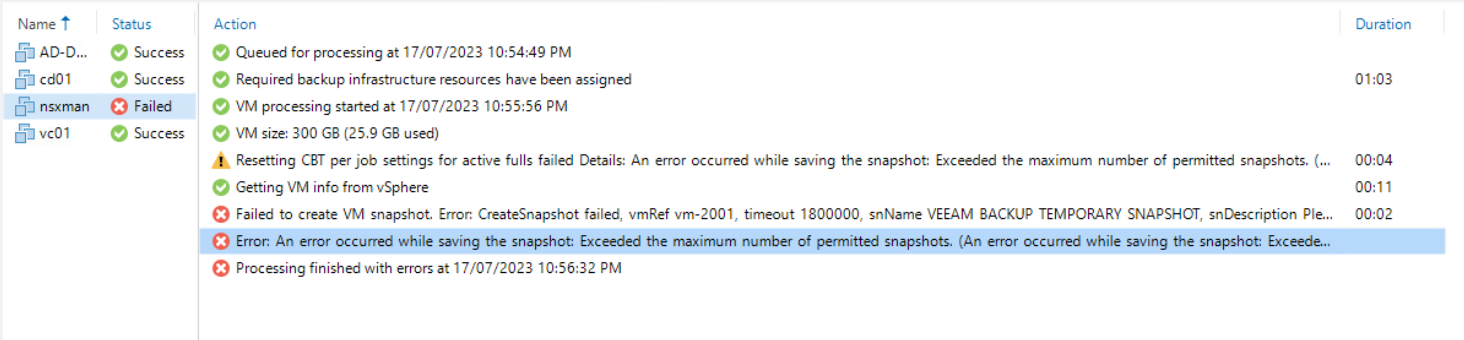
    On first run, the backup job failed on the NSX Manager, this seemed a little unusual as the error message was stating that the VM had reached its Maximum number of snapshots. Given that there was only 2 disks attached, this was quite bizarre, so I attempted to create a snapshot directly though vCenter and received the same error.

    As this appeared to be a single VM issue, I went hunting through the VM settings to first see if the disks were configured as Independent Disks  – However, this was not the case and they were configured just like the others as Dependent.

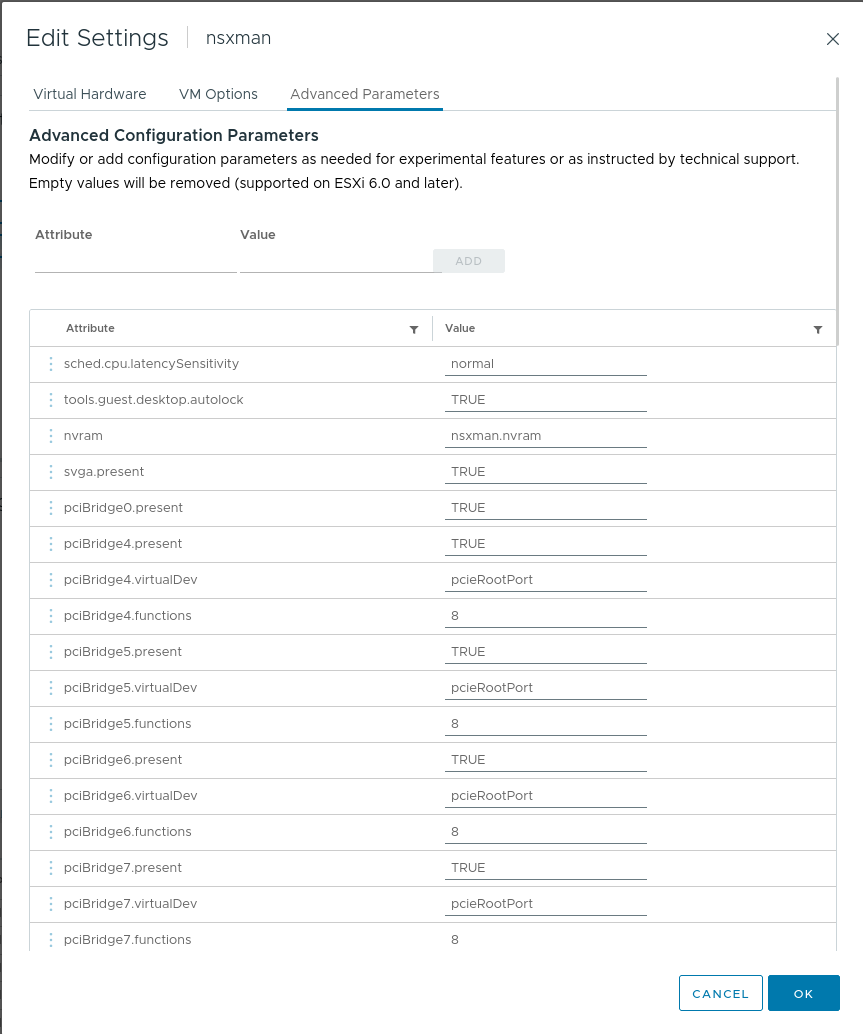
    The next place to look was the Advanced Parameters of the VM, a goldmine of fine-grained settings for a vm.

    Sure enough, I found the culprit, a one liner snapshot.maxSnapshots configured to ‘0’ – This meant that no snapshots could be created.


    To edit the number of snapshots that can be taken, you will need to power down the VM first. Once powered down, navigate back to the Advanced Parameters and from there update the number.

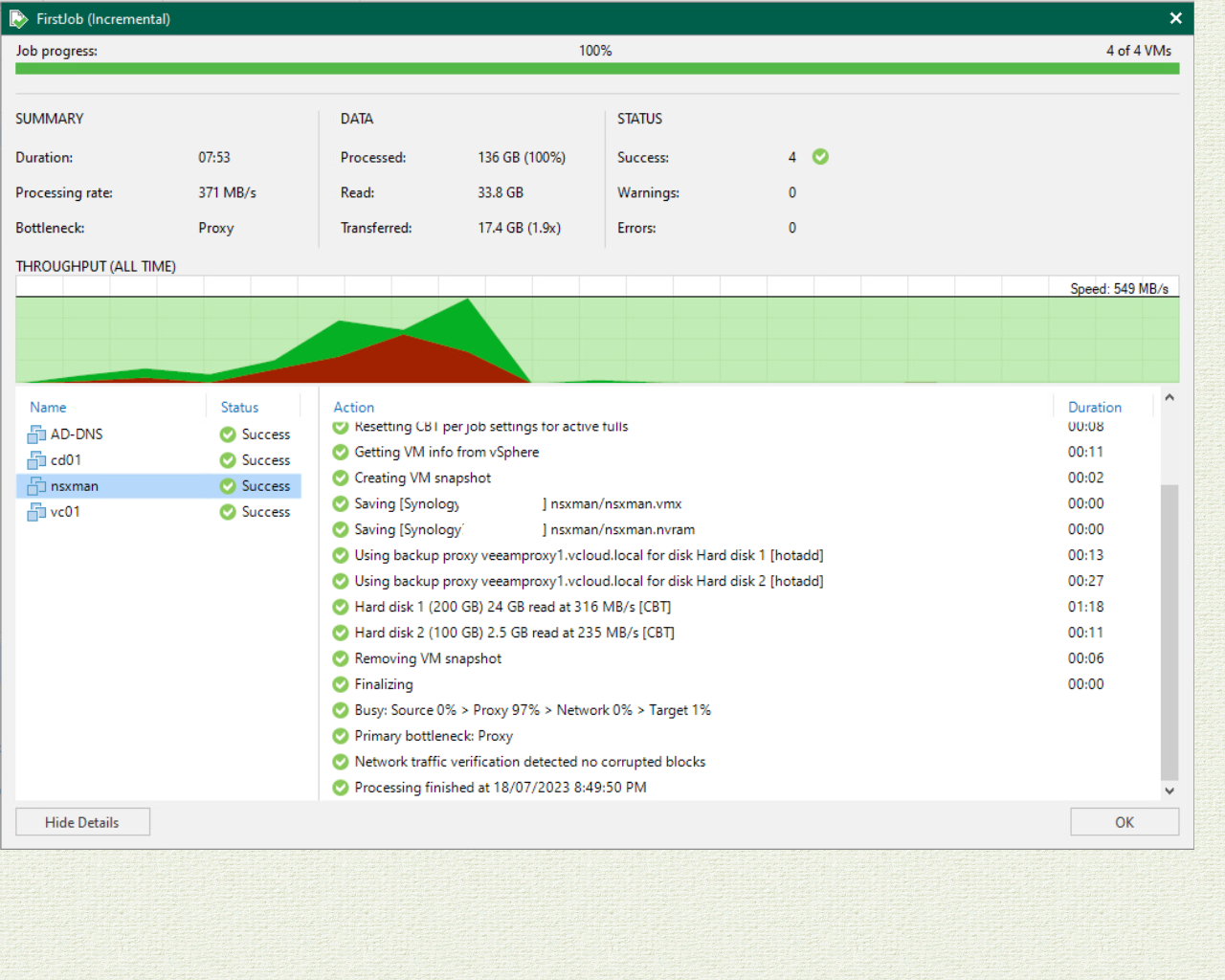
    Once saved, power back on the VM and perform your backup. Confirm that everything is once again successful.


  • Failed to configure Linux Server – Veeam Backup and Recovery

    Veeam has been embracing Linux servers to host the Veeam backup infrastructure with certain componets being expanded to support running on Linux alongside the Windows infrastructure.  Whilst the Windows side is fairly well understood for those who have been using Veeam for a long time, the Linux infrastructure piece is starting to take hold with many starting to make the move, however there are still some admins who shy away thinking that deploying Linux is ‘too hard.’ – this couldn’t be further from the truth.

    While configuring my first Linux server for hosting my Veeam repository, I ran into only 1 issue that was easily solved with ticking a couple of extra boxes.

    For this particular server, I was utlising Ubuntu 22.04.02 – the installation was very seamless as the installer walks you through one step at a time.

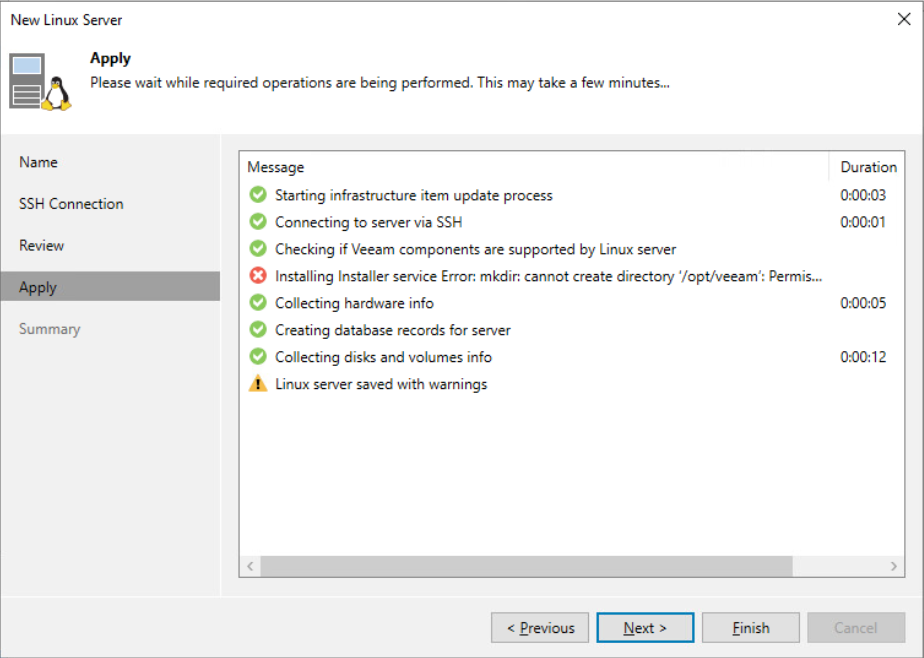
    The issue that I ran into was during the ‘Apply’ stage of adding the Linux server to Veeam in order to be able to use it for a Proxy or Repository. I received the error Installing Installer service Error: mkdir: cannot create directory ‘/opt/veeam’: Permission Denied.   Those last 2 words there are the hint.


    In order to resolve, you will need to update and ensure that the user account has either the right escalated permissions configured on the Linux server or you need to enable and set the credential in the Managed Credentials for the user to have escalated rights.

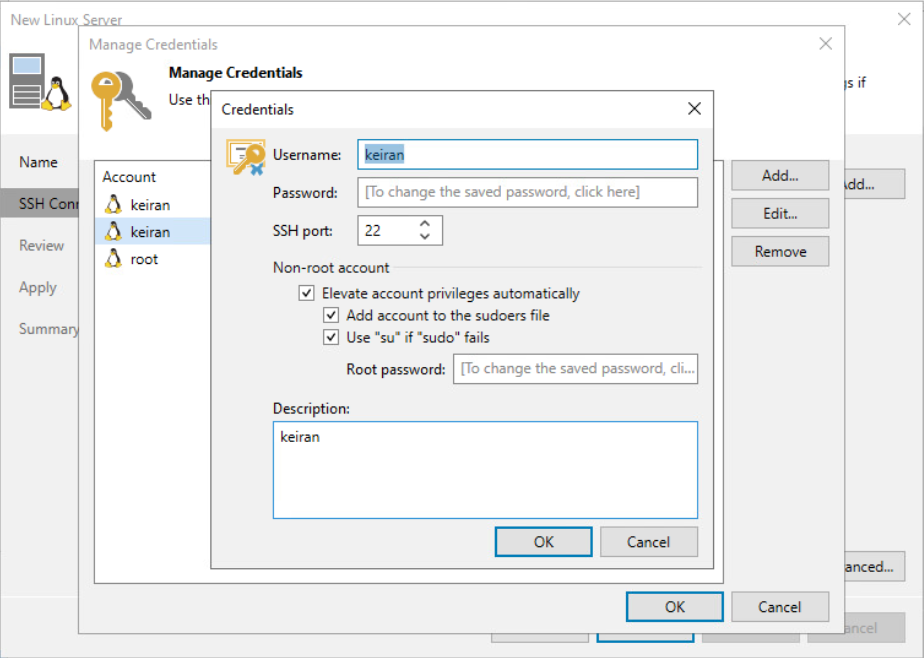
    There are 2 options that you will need to enable under the Managed Credentials, and you can just click backwards in the wizard to update them.

    Once you have entered the Managed Credentials, you just need to edit the user in which you want to create the Veeam BR and Linux server connection with. here you will find the section ‘Non-root Account’ – this is where you will need to select “Elevate account privileges automatically.”  By selecting this, you are allowing Veeam to do the heavy lifting by configuring the account as needed.

    The next 2 tick boxes allow you to have the account placed in the sudoers file so that it has the full access that it needs to the server. The ‘Use “su” if “sudo” fails’  is a fallback option allowing Veeam to be compatible with more Linux distros as some require the use of su rather than sudo  to elevate access.

    You will then be required to supply the root password so that Veeam can make the required change for the account access.

    Once the changes have been made, you can then proceed to applying the configuration – you should see the remaining tasks be completed successfully.

    From this point, you can add this server to be your repository or proxy, depending on what it is intended for.


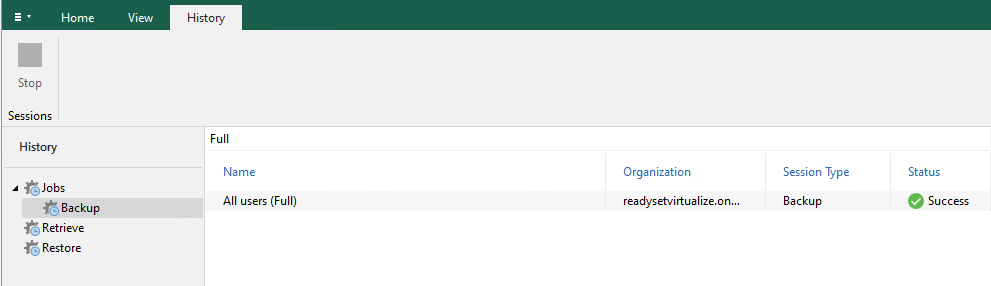
  • What’s New in Veeam Backup for M365

    What’s New in Veeam Backup for M365

    It’s another week and Veeam has yet again realeased a new version. This time it is Veeam Backup for Office 365 and it is backing up the truck and dumping a sizeable amount of new features. Release notes here

    Interface Changes

    In v6, Veeam introduced the Self-Service Restore portal allowing customers to be able to log in with their M365 account and restore from their backup. In v7, this has since had an update and a facelift allowing user a greater experience.

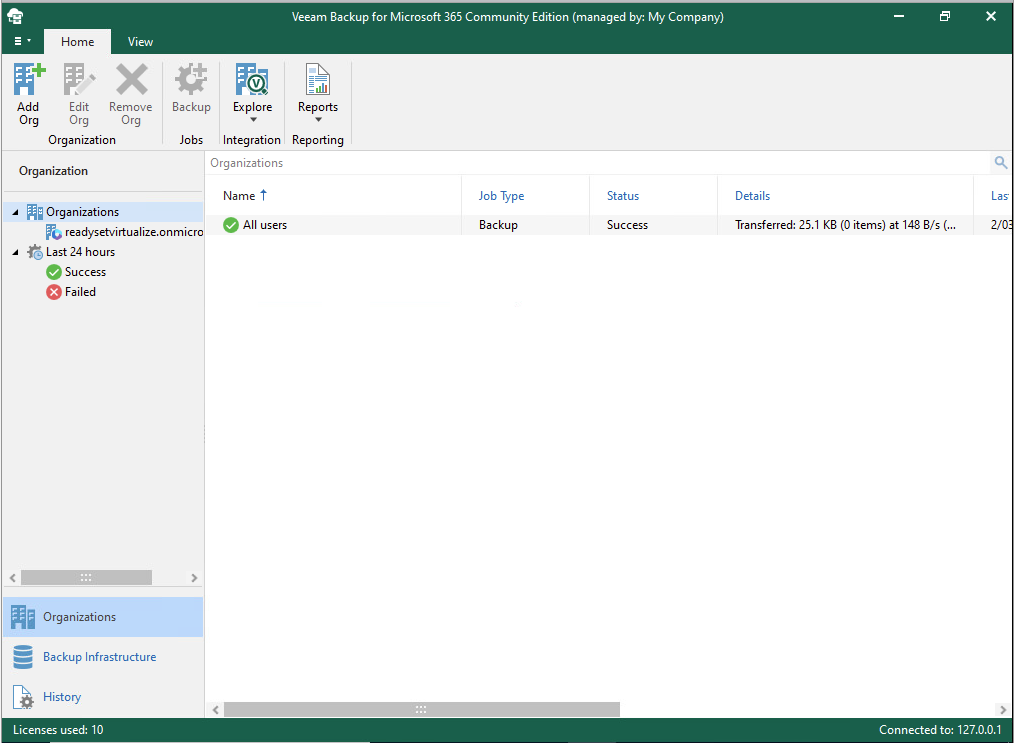
    While there have been some portal changes, the console has also had some minor changes made to it with colours and styling. Whilst only appear to be minor, if you spend enough time in the earlier versions, you will notice the difference.


    Immutability

    One of the newest features that has been around in the VBR world for the last few versions is Immutability. Having a backup is one thing, but is it truely a backup if it is able to be removed or minipulated? Veeam takes care of this by providing the addition of immutability, locking down your backups to ensure that they go untouched and continue provide a safe and secure copy.

    Backup Copies

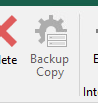
    In keeping a safe and secure copy, Veeam have now impleted Backup Copies to help get closer to the 3-2-1 rule. (3 Copies – 2 Media types – 1 Offsite). Backup copies have been around for a very long time in the Backup and Replication product set allowing for multiple copies of the backup to be placed in another repository, whether that ben connected locally or via Cloud Connect.  Veeam Backup for M365 allows the backup to be created on the attached local/on-prem repository and then the backup copy to push to a secondary location such as Azure Archive tier.

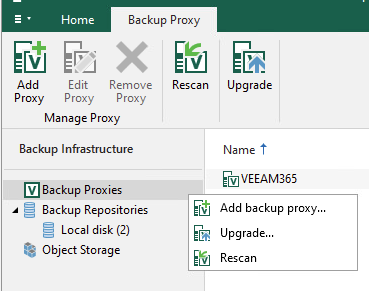
    In order to create your backup copies, you need to create a location that will be able to accept the copy. If you are an Azure shop, for example, a new option in creating an Azure Blob Storage type has been added. Here you can select to use Azure Archive Storage for cost-efficient storage, which is a great place to send your backup copies to. If you do not have a repository configured similar to this, then backup copies will not be an available option.

    New Object Storage Locations

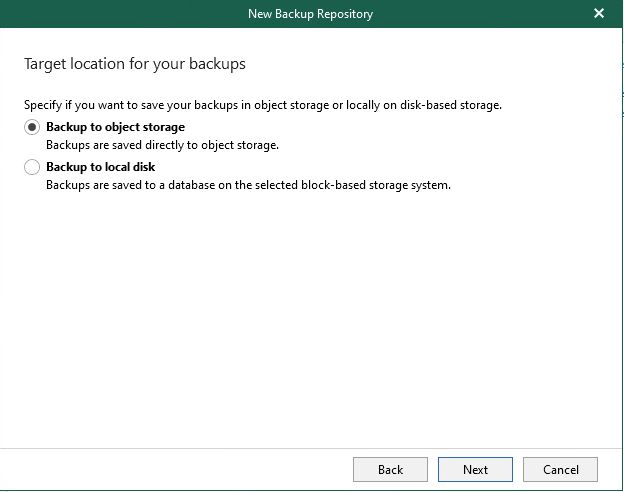
    It’s been no secret that Veeam have really been knuckling down to implement Object Storage across their product set, and slowly they have been adding it to each of their products. This year we saw Veeam Backup and Replication v12 introduce direct to Object Storage backups, whereas this has been in the M365 product set for some time as an offload target for the repository. Along with the interface changes, there is a new selection page when starting to create your repository. You will need to have created an Object Storage location under the Object Storage menu, but once that is available, you can select which repository type you would like to create as your primary target storage.

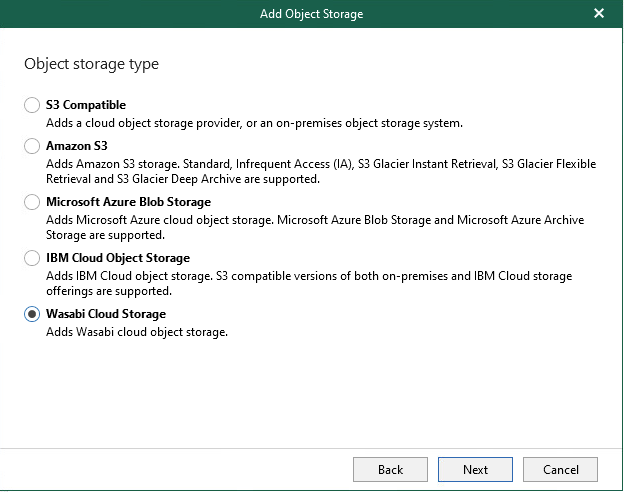
    With the full support of direct to Object Storage, Veeam has also added native support direct to Wasabi Cloud Storage allowing for cheap, reliable Object Storage. In the past, you would need to configure a connection to Wasabi via an S3 Compatible storage type.

    History Search

    It might seem a little strange, but for me, this has been one of my biggest gripes with the Veeam Backup for M365 console. The lack of being able to search easily in the console when looking for historical backup reports has now been resovled with the introduction of the search bar. Here you are able to drill down to key words to find a log file for a particular job instead of needing to scroll through the long list of logs.  This has been a very welcomed enhancement.

    Conclusion

    Overall, even though my list above doesn’t appear to be very extensive in the number of items, each one of these has a huge impact on productivity, efficiency and the ability to ensure your backups are both safe and secure and available for when you need them.

    If i had to choose, my two favourite additions are Backup Copies and Immutability. These are critical to ensure that your data is safe. Data protection is one of the highest priorities a business should have on their list for running a business, it ensures that when the inevitable happens, you can get your business backup and runnings as quickly and efficiently as possible, no matter what the disaster is.

  • Backing Up with the Veeam Agent for Linux

    Backing Up with the Veeam Agent for Linux

    When new products are released, we generally see other products in the line up being updated with new features and improvements. We saw quite a number of new features added to the Veeam Agent for Mac. During the Veeam v12 launch where the focus was on Veeam’s new Data Platform, Veeam Warranty and Veeam Backup and Replication v12, there was also some other products that received updates and new release numbers and in among those was the Veeam Agent for Linux v6.

    Over the years, Linux has grown in popularity in the desktop world and new distros continue to pop up, but in the enterprise space, Linux continues to dominate, whether it be as a virtual machine or a bare metal appliance. Regardless of what the distro is used for and it’s underlying hardware\hypervisor, it still needs to be backed up. Your data is important. So, with that said, let’s dive in.

    Installation

    So this is something very easy, especially if you have any Linux skills. You will first want to make sure you check the release notes to ensure that you have the a supported distro (or flavour) of Linux. All the main distros are there; Ubuntu, Debian, RHEL, SLES, and many more. You will also want to make sure that all you have all the required dependencies. If you are are planning to backup to a Veeam Backup and Replication or Cloud Connect Repository, you must target VBR 12 or higher. Head on over to the downloads page over at Veeam, here you can grab the latest and appropriate version for your distro. Again, make sure you have all the required dependencies and have read the release notes so you can familiarise yourself pre-install.

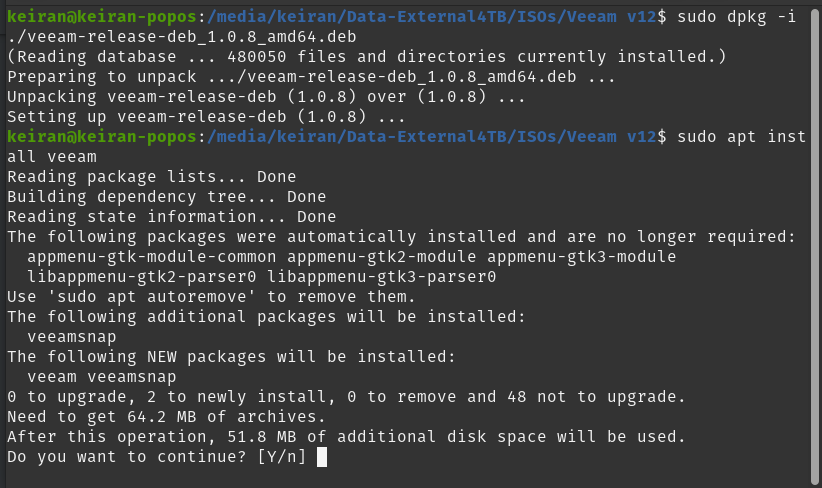
    In the below, I will be installing on Pop-OS, a distro based on Ubuntu/Debian with a desktop environment, so I will be installing the .deb package and using the Apt package manager.

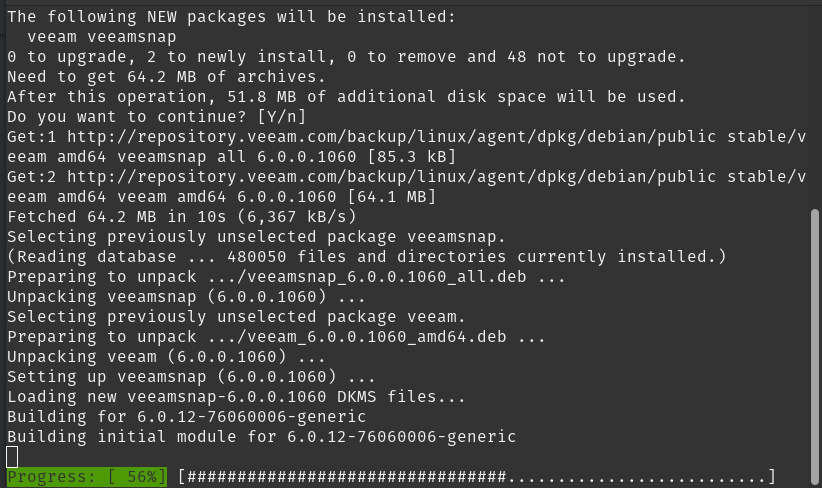
    Once the package has been downloaded to your preferred location, open up terminal (If you didn’t use wget or another terminal based download method) and set your new core directory to that folder. Once in the path, you can run the dpkg install line and then update your apt repository. Once the repository has updated you can go ahead and install Veeam.

    # cd path/to/folder

    # dpkg -i ./veeam-release*

    # apt-get update

    # apt-get install veeam


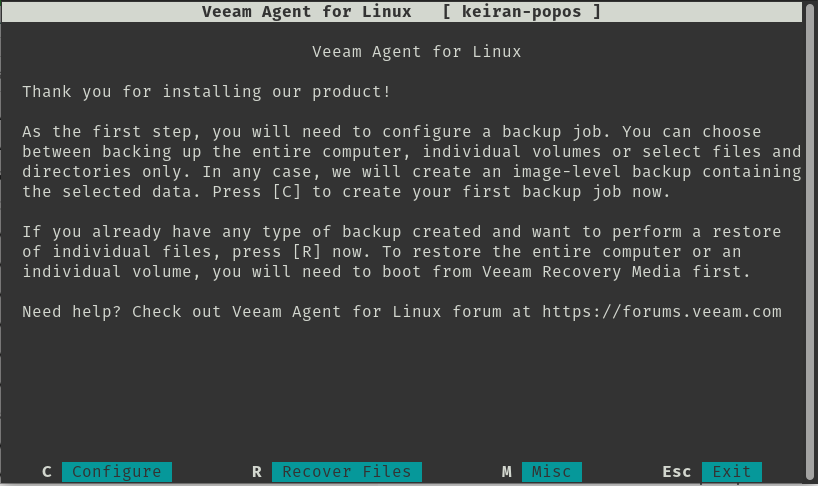
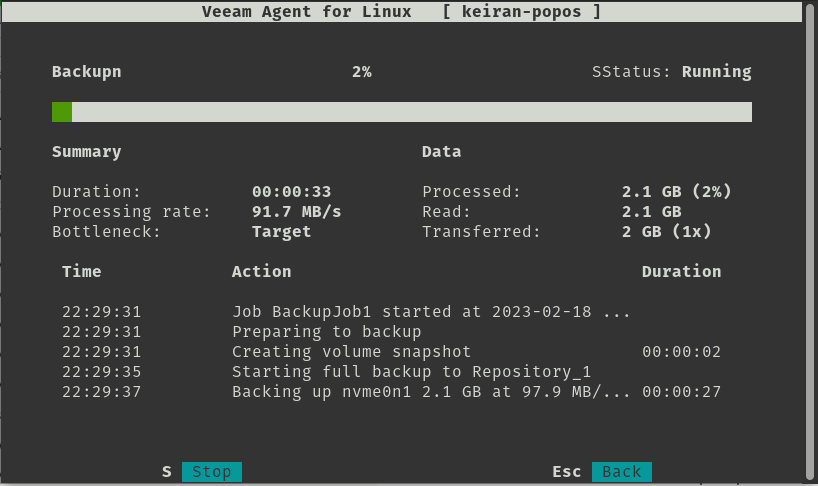
    As soon as the install has completed successfully, you can go ahead and launch Veeam. This will bring you to a ELUA splashscreen that you will need to read and accept to continue. You will then be able to move on and configure your first backup job.

    $ veeam


    Backup

    Using the keystrokes, you can navigte around the menu. c will take you to configuring your first backup job.

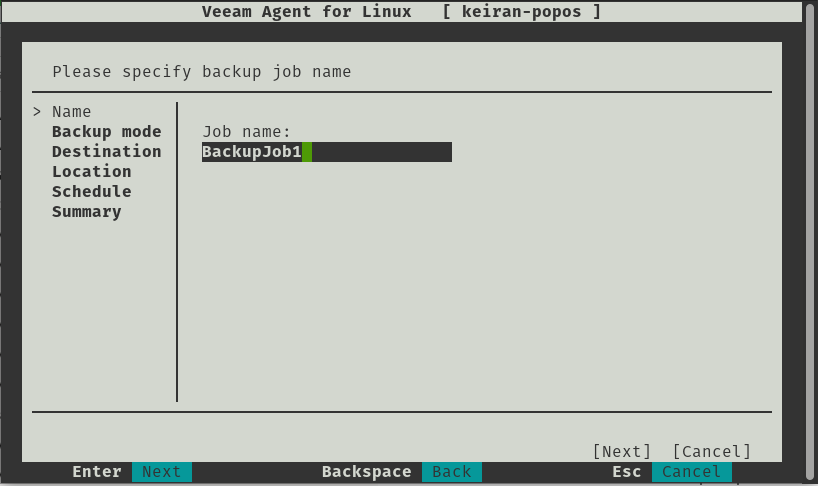
    Configuring a job is very straight forward and easy to navigate, you have a plethora of options for destination, retention and how you want your files backed up.

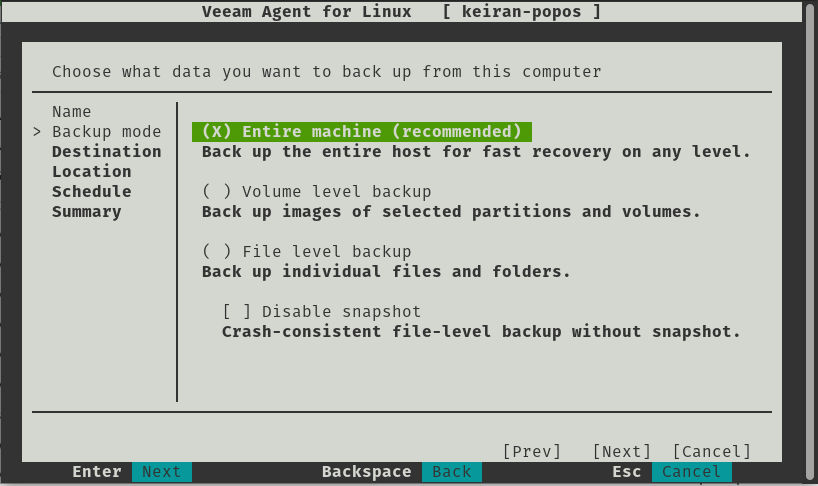
    As mentioned, you ahve a number of options in how you would like to back up your files. You can select from either backing up the entire machine, volume level backup, file level backup and the additional option to disable snapshots giving you a crash-consistent file-level backup without the use of snapshots.

    • Backup Entire Machine
      • With this option, you will be able to take a complete in-place backup of your system, allowing you to either restore specific files, or restore the entire system back to the last backup. This includes all partitions. If you run something like df – h  Here you can see the list of all the partitions that are mounted.
    • Volume Level Backup
      • In this option, you can select the volumes that you would like you backup to take a copy of, for example, if you only want a copy of your data drive or partition without the system root or swap partition, you can select just the data drive.
    • File Level Backup
      • Here you can select specfic folders and file in which you want backed up. This is a great option if all you want is to back up your desktop and document folders.

    Only one option is able to be selected.

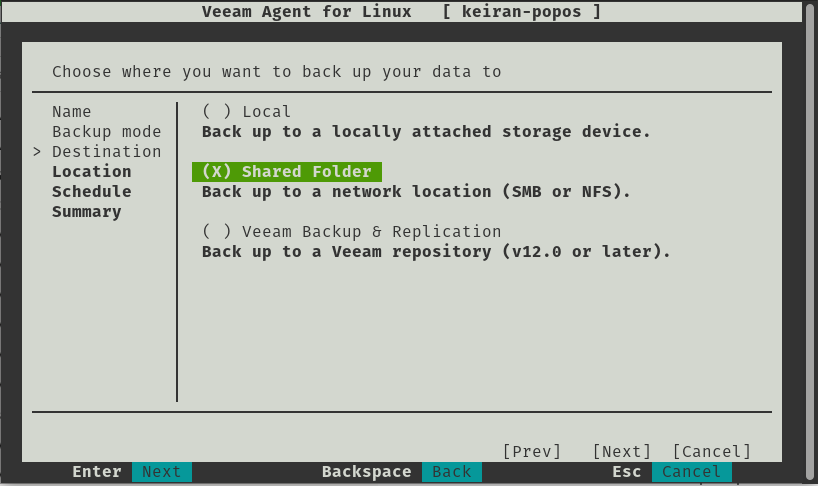
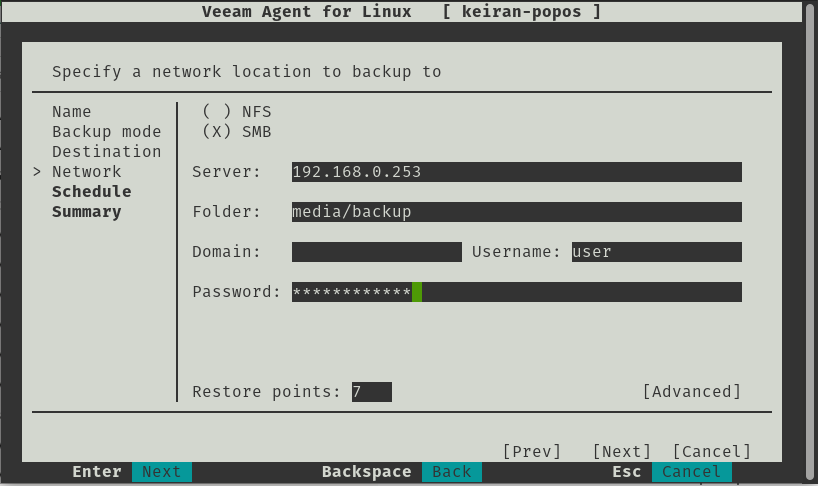
    The destination is a very important selection, if you select a local storage device that is built into your computer, than you may have trouble if there is physical damage to the machine. If you were to select a local drive attached, you will need to ensure that the drive needs to be removed safely, and stored in a safe place.  Shared folders allow you you to be able to backup to an SMB or NFS share, this allows you to select a destination that might be in another room in the house, or allows your backup to take place over wireless so you can be sitting in any room of the house working away while the backup takes place. Backing up to a Veeam Backup and Replication repository is similar to a shared folder, however you have more control over the backup and it is easier to mount from within the console in the event you need to restore – The Linux agent version 6 is only able to connect to VBR v12 or higher.

    It worth noting that the above options are avilable in the free version, however there are also 2 other options available with a valid license. Object-Storage is becoming increasingly popular and there are many vendors that offer both an on-premises installation and a cloud hosted option. With a license you will be able to backup to an object storage repository, or utilise Veeam Cloud Connect and backup to a service provider – both for off-site copies.

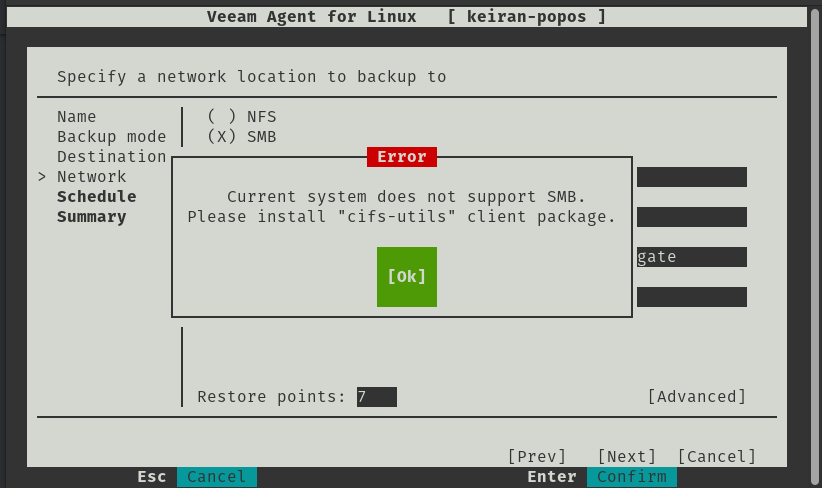
    If you attempt to run the SMB share, you may run into an issue where an error message advises that the “Current System does not support SMB” – This is an easy fix and you just need to install the cifs-utils package and once installed, you will be able to continue on with the setup.

    # apt-get install cifs-utils

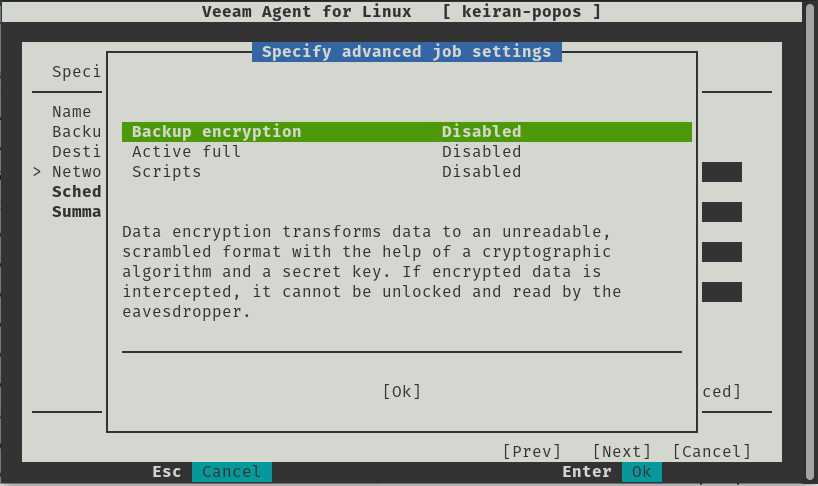
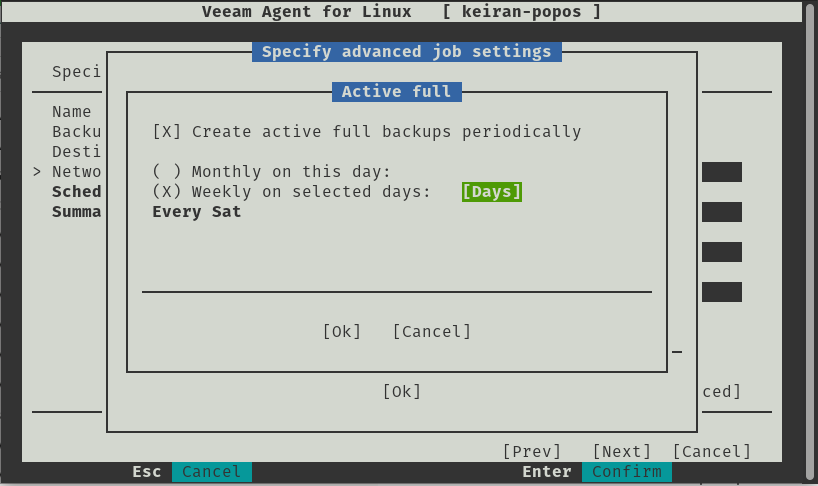
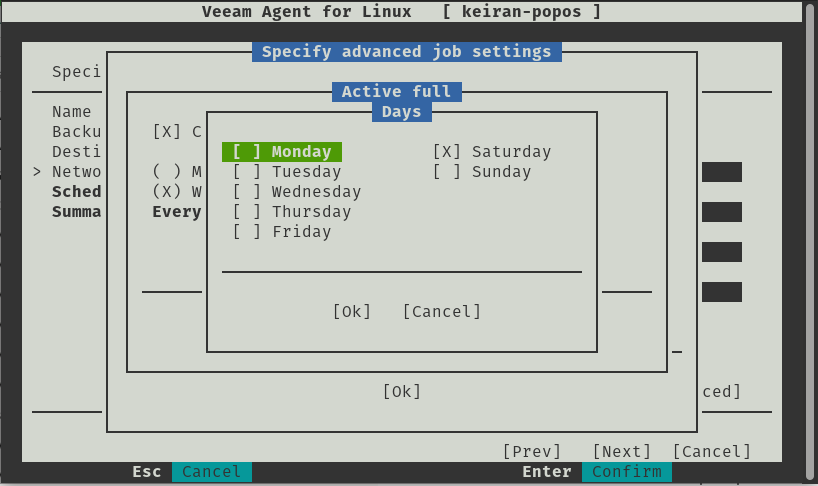
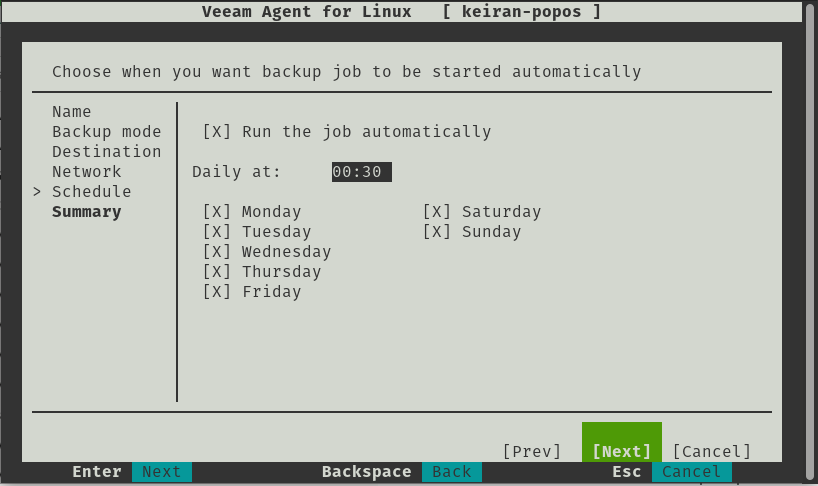
    When designing your Backup and DR plan, it is crucial to plan for how long you need to retain your restore points for. The type of restore points is also as important, whether you want all incrementals or a full created once a week, but planning from the beginning can save pain later on. With the Linux Agent, you have the option to enable Active Full and set a schedule for how often you would like the process to run. Veeam also offers some other advanced features when configuring your backup job. Encryption is certainly important, especially for sensitive data, and Veeam’s gives the option in the free version to add an encryption password, but make sure you save that password somewhere secure otherwise your backup will be scrambled and unreadable.  You can also run scripts after the restoration.

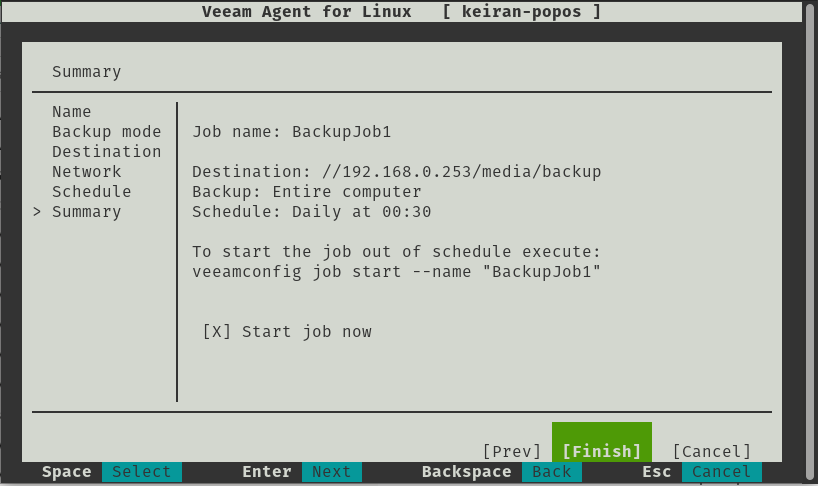
    Simply, the last two options allow you to set your schedule, what time and what day would you like your backup to run. Once you’re happy with that you can review your backup configuration and continue – if you desire, you can start the job immediately.


    Restore

    This is where I felt the product really shined, as much as having an easy backup with a lot of options to make it as efficient as possible, if you can’t access and restore your data then why are you even bothering with a backup?

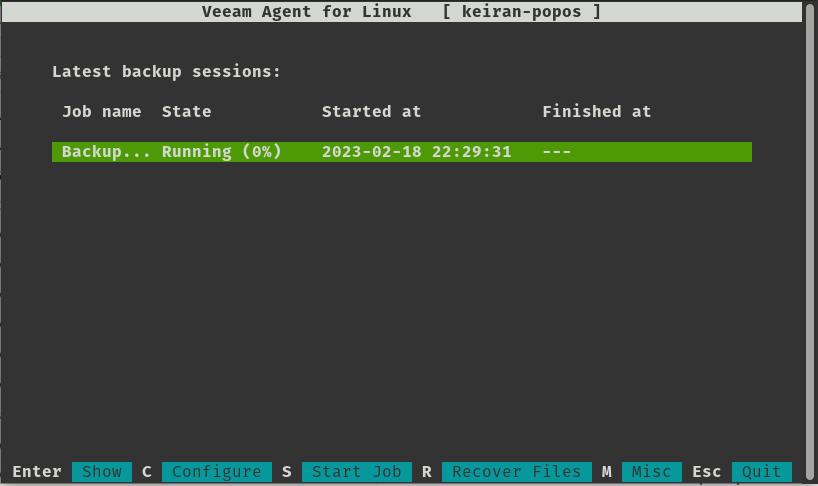
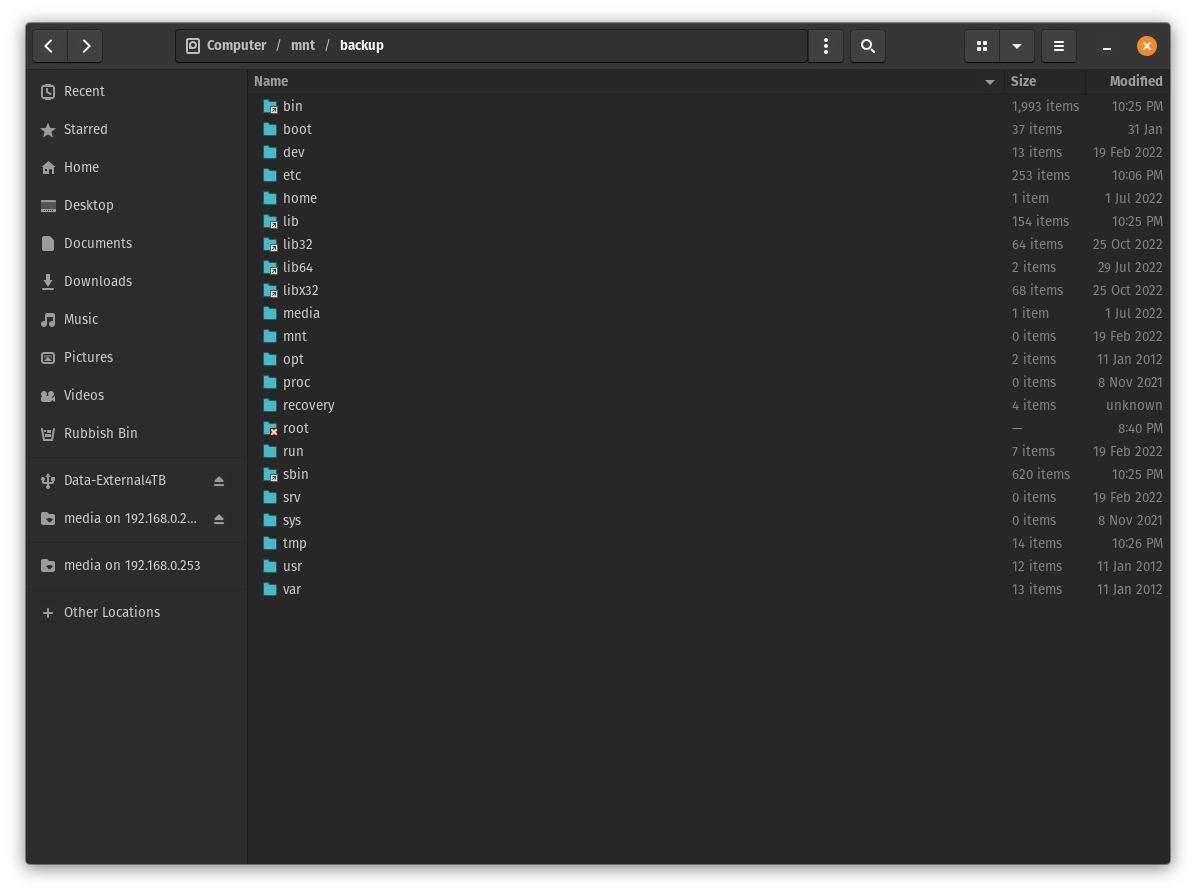
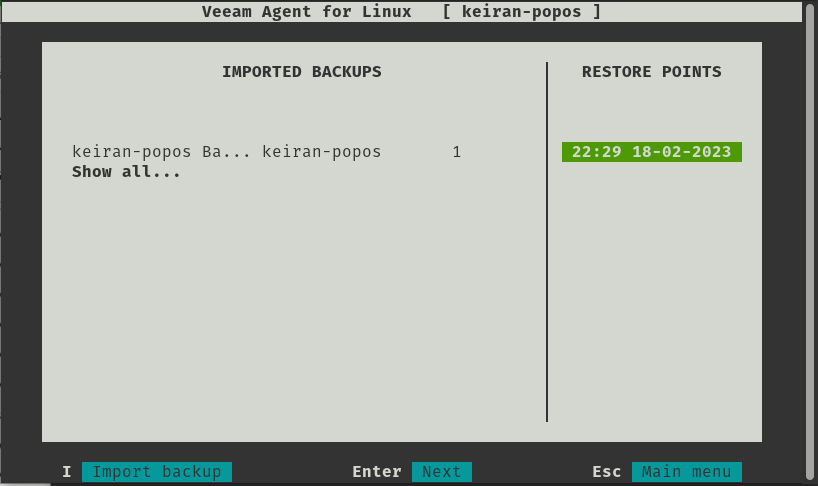
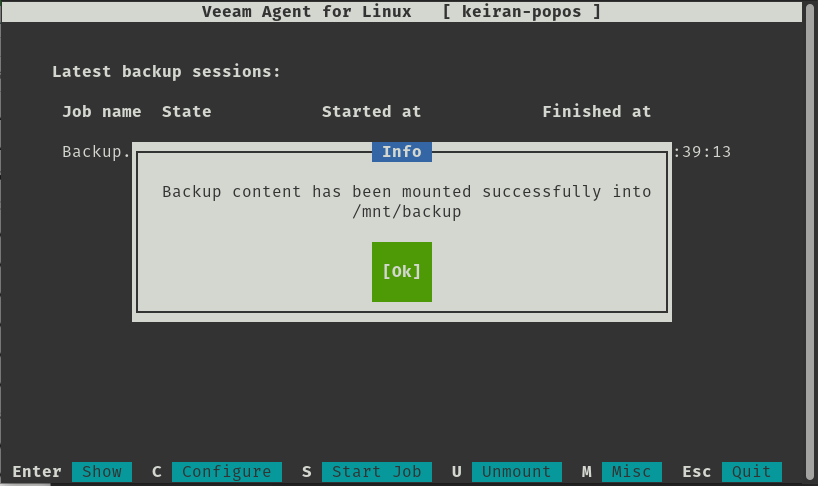
    Once the first backup has been successful, select R for Recover Files takes you to another screen that displays your backup jobs and their restore points. Once you select a restore point, your system will mount that point to /mnt/backup and from here you can fully browse your backed up files. If you are using a desktop environment, you can open this up in your file manager, and if you are using all cli then you can navigate to the mount point and copy the files as required.

    It really is that simple.

    Conclusion

    Another great product, not only because it does exactly what it is meant to, plus more, but it is also free with a limited set of options. Veeam have really put a huge effort into making a great backup tool so easy to use on Linux. Yes, there are a number of dependencies that are required, but that is just Linux, and majority of them are already installed. Hats off to Veeam for sticking to making another easy to use tool, and also for making it freely available.

  • Introducing Veeam Mac Agent v2.0

    Introducing Veeam Mac Agent v2.0

    Over the years we have seen Veeam release some great products, and with each release they continue to build in more and more features and there is no exception when it comes to the the updated release of the Veeam Agent for Mac v2.

    Like the Windows agent, the latest Mac agent is available as a standalone install. The previous version was completely managed from Veeam Backup and Replication where you had to cut a config and package the install. With v2, you can install straight from the pkg file allowing you to have more control and freedom.

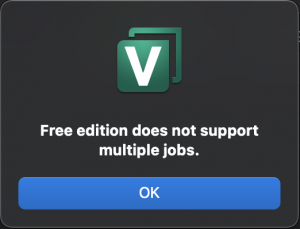
    Like the Windows and Linux agents, Veeam is providing the Mac agent with a limited free license which allows up to 1 job created and limited backup locations. However, it still has a ton of functionality and gives you access to backing up either individual files, directories or the entire computer.

    So let’s dive in and take a look at what is available under the free license.

    Straight off the bat, there is a really nice UI to work with, the layout is easy to work with and everything is very much self explainatory. There are heaps of features that are wrap into this tight little bundle and are easily accessible. The locations in the UI make sense are all in logical locations.  I did, however struggle to find how to delete the job as my instict from using other Veeam products was to Right click > Delete . This was simple enough in the end as it was just in the top menu, which I guess just makes it safer.

    Backup

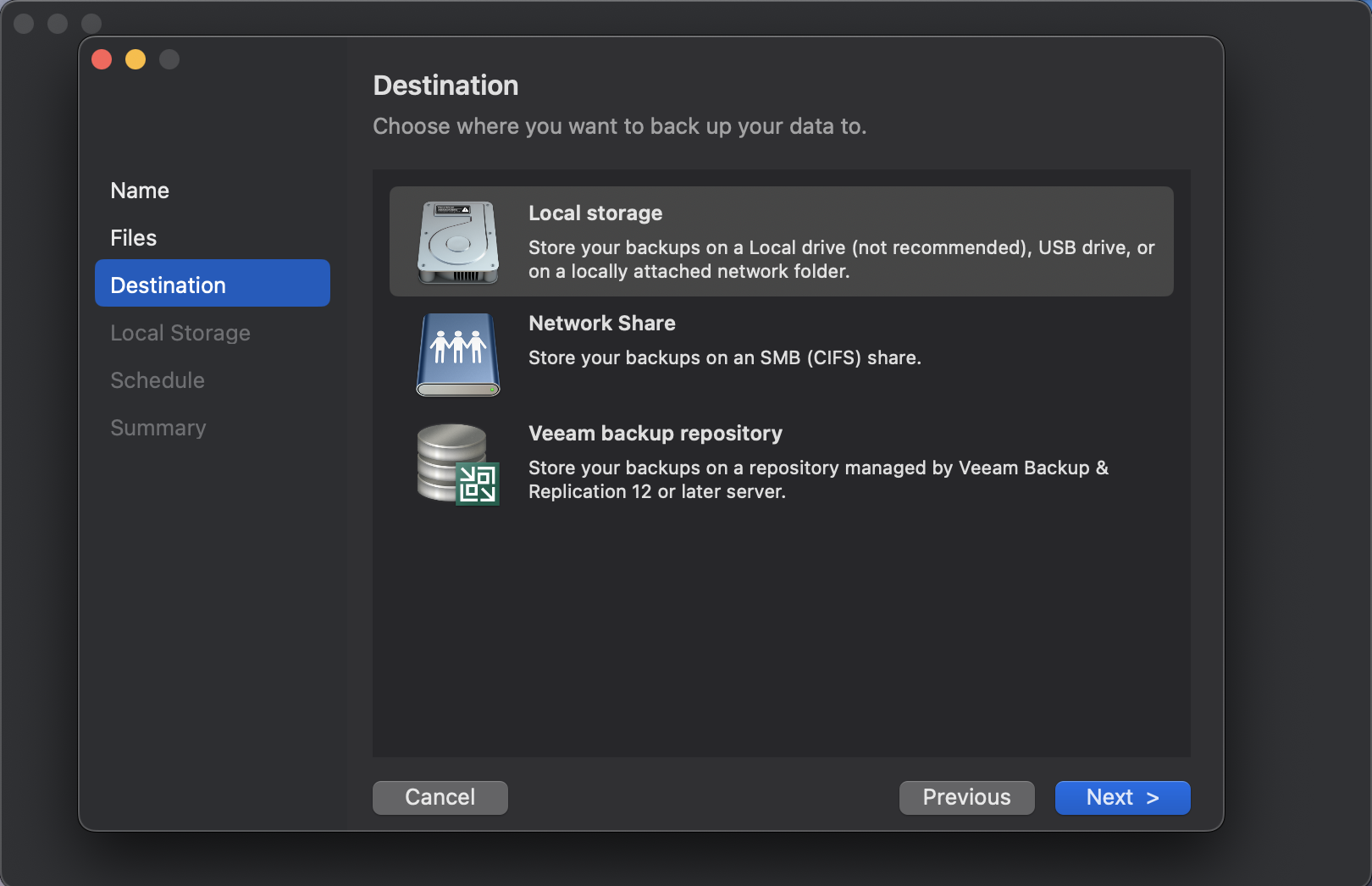
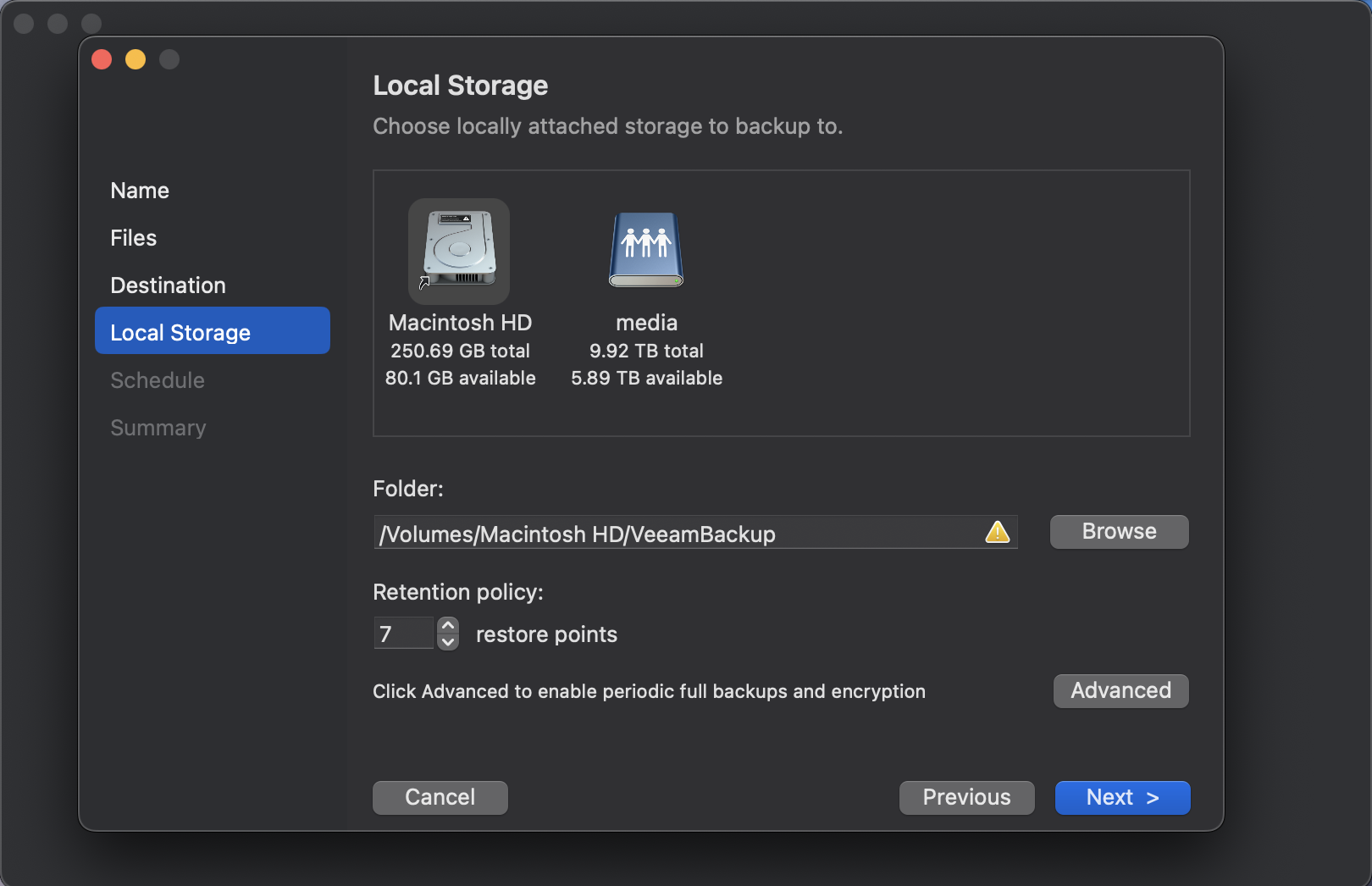
    As mentioned above, there is a number of new repositories that are available for backing up your workstation to. Previously you were limited to only backing up to a Veeam Backup and Replication repository, but the Mac agent has now been extended to locally connected repositories and SMB shares.

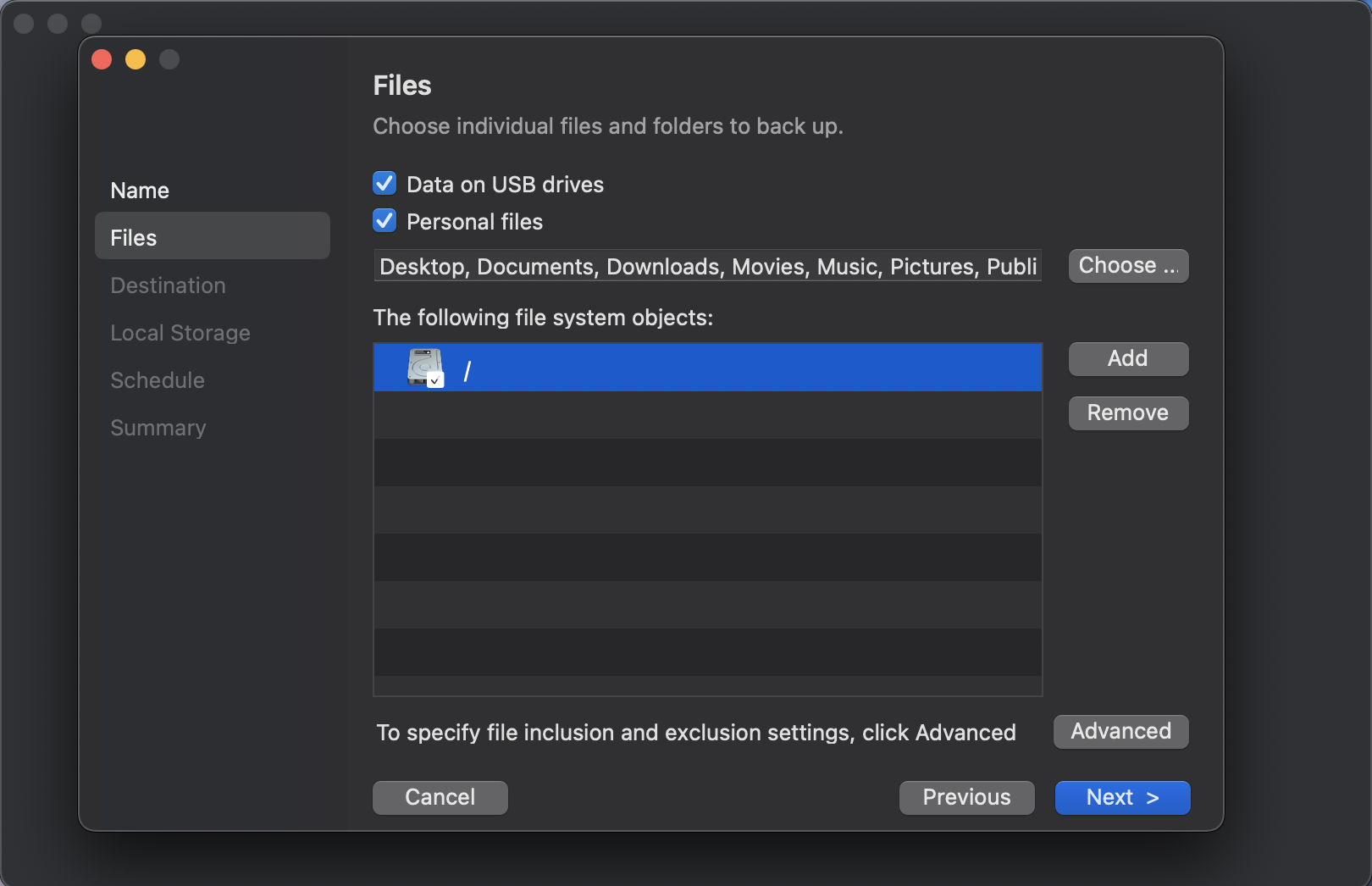
    Some people like to only backup certain files and others prefer to backup their entire directories and Veeam knows this well which is why they give you the ability to choose your precious files or your entire root/sub directories.  You can even enable backing up locally attached USB drives in case you have an external drive that holds other working files.


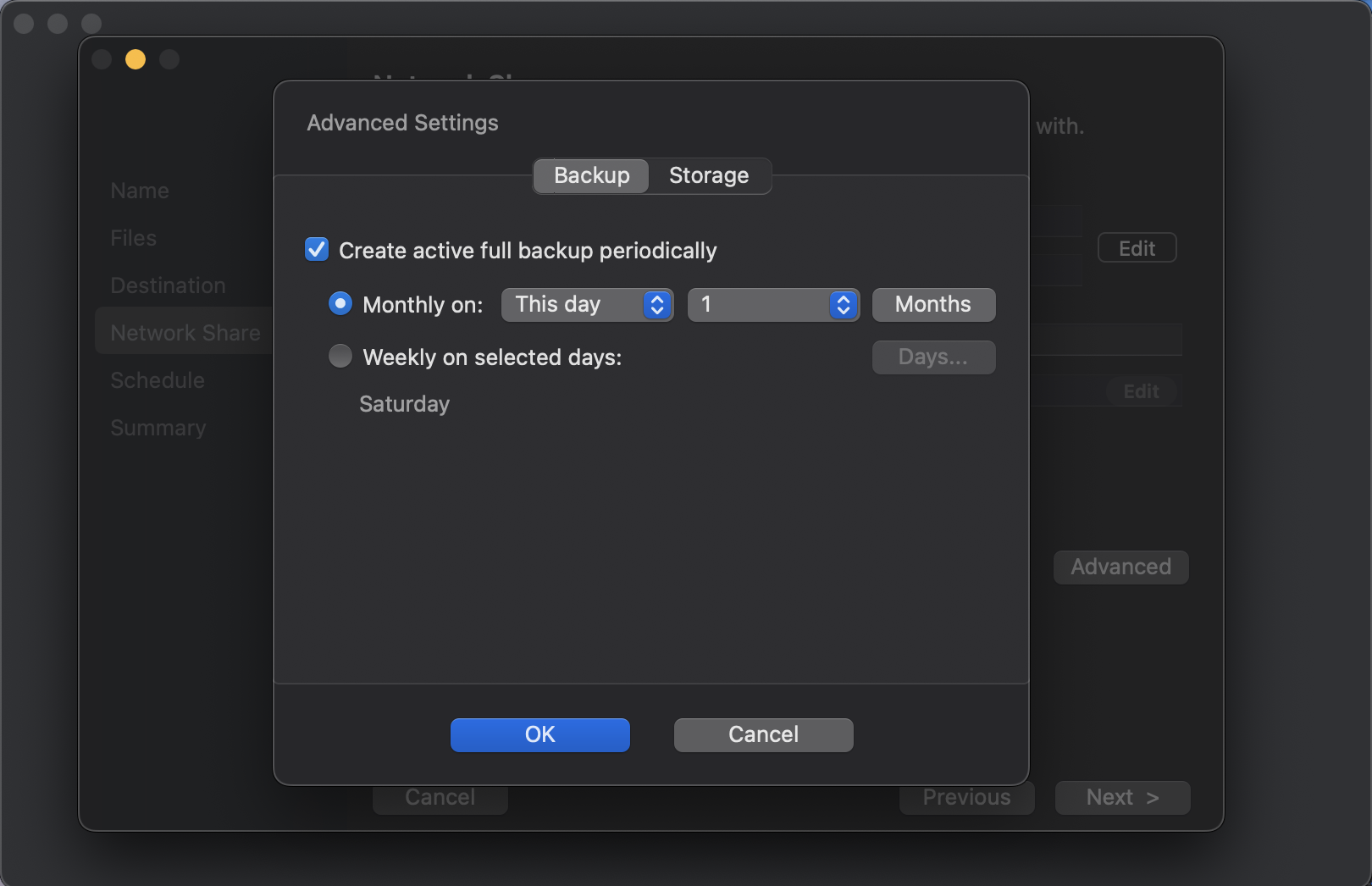
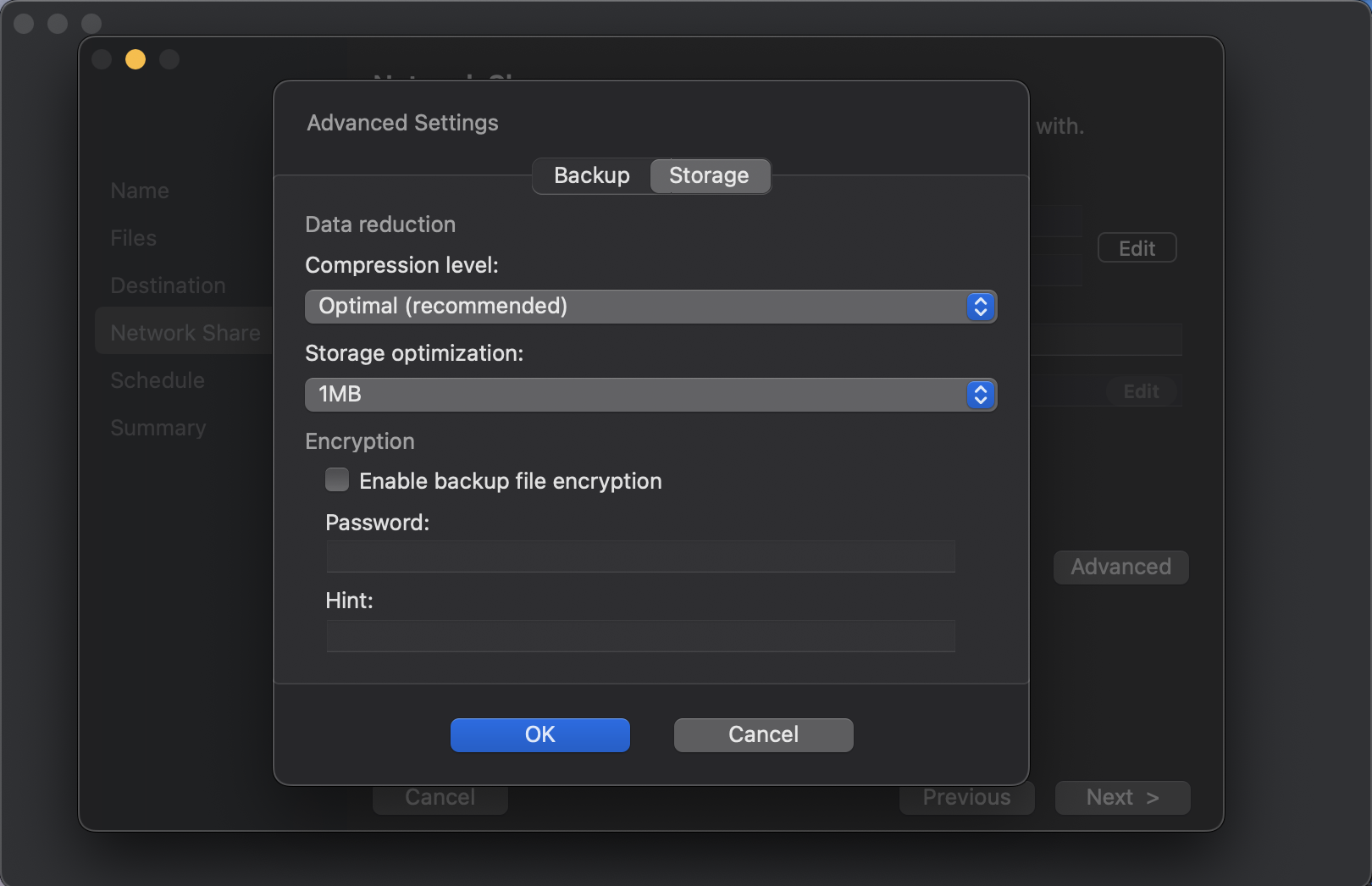
    The Mac agent is still quite packed full of features and functions to ensure you get the most out of your backups. You have access to advanced features, such as; Active Full backup schedules, Compression, Storage Optimizations and Encryption.


    Restore

    What’s the point of a backup if you’re never able to restore from it when you need to? While dealing with enterprises, we always say to have a test plan in place, but I feel fairly certain that a lot of folks wouldn’t have one in place for their home network. we should also remember to treat our backups as a copy of our data and not as the only copy.

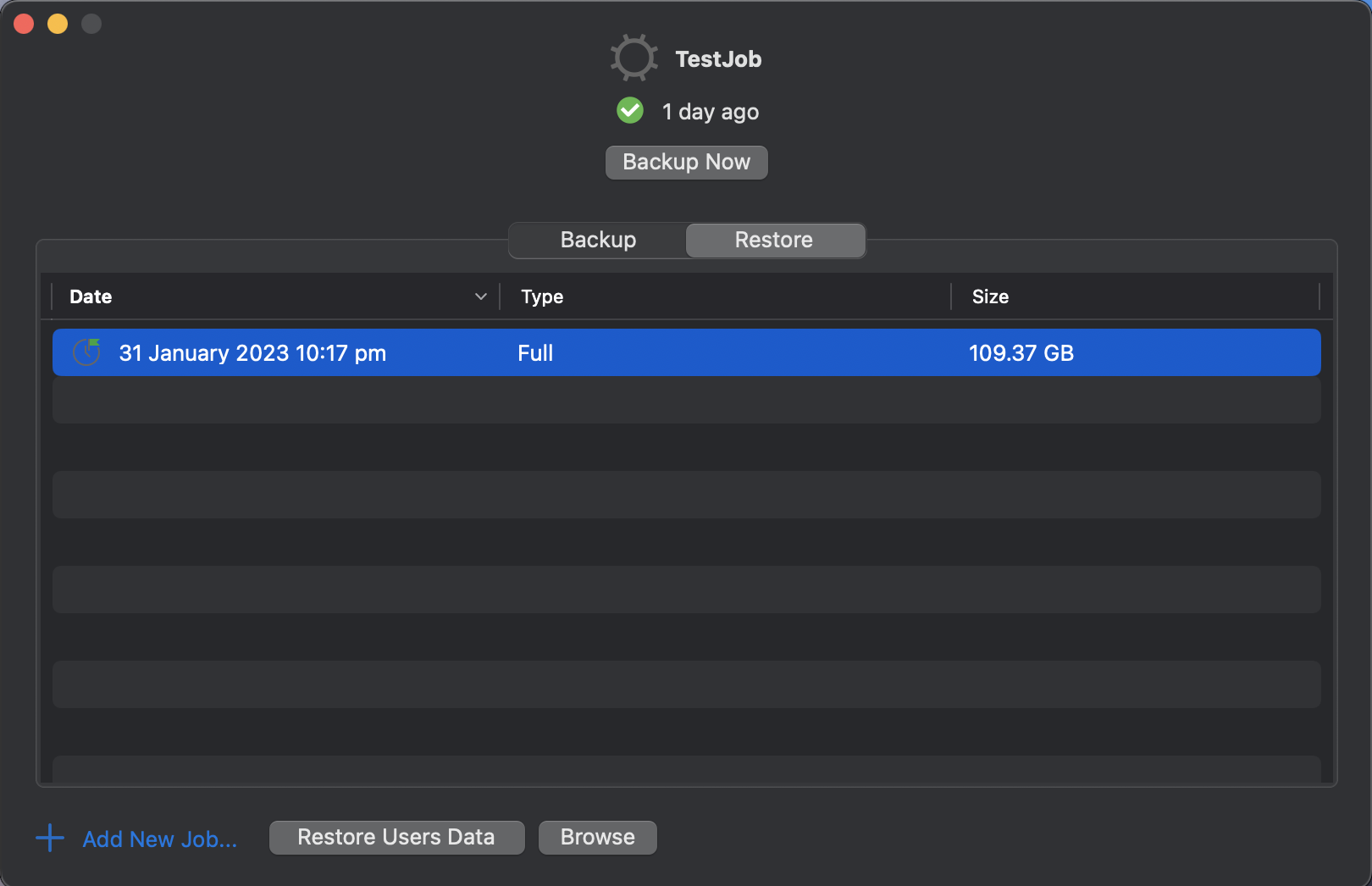
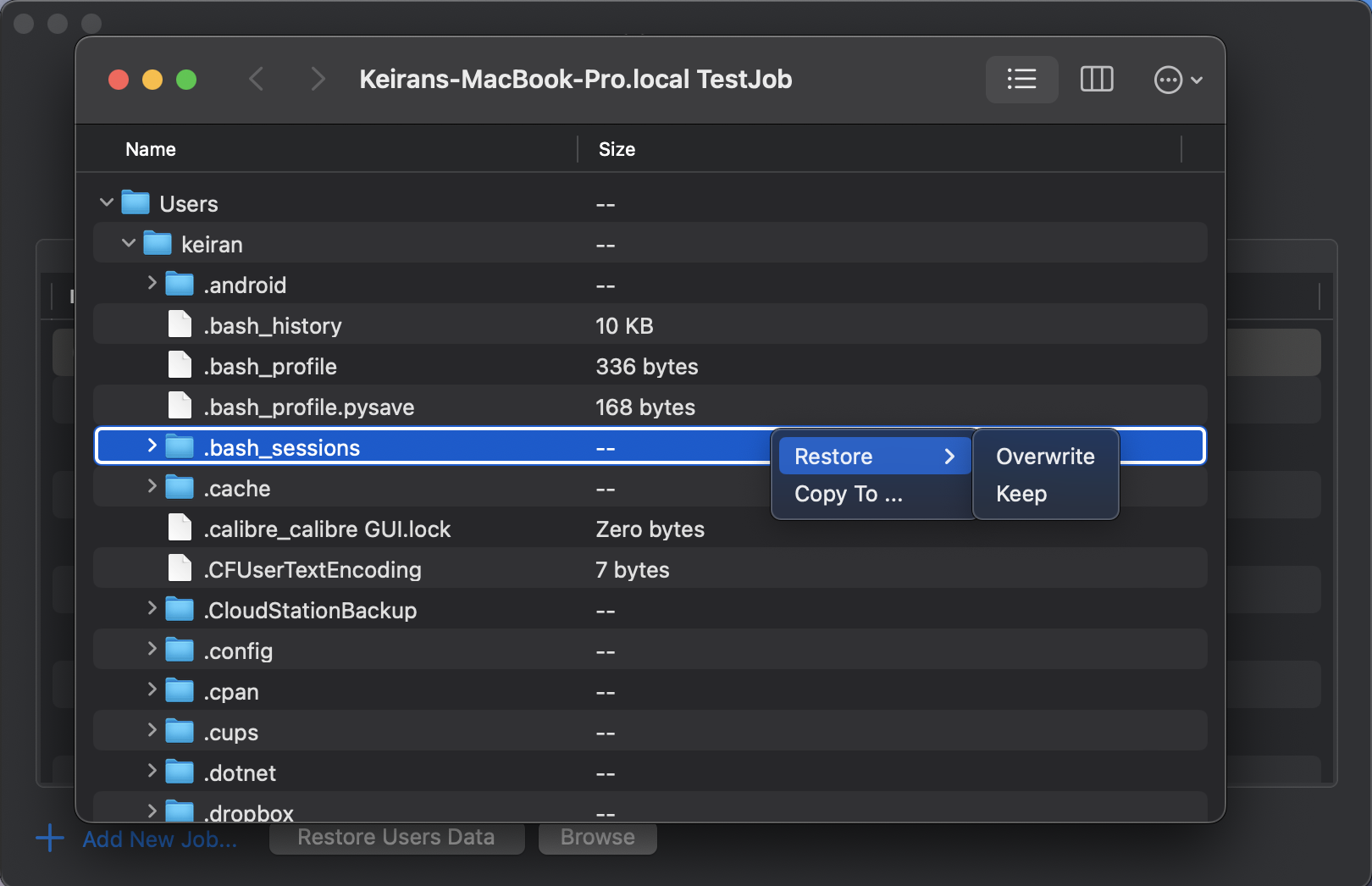
    The Veeam Mac Agent makes restoring a very easy task. Click on the restore tab, select your restore point and then browse your backup. Simples.

    Just like restoring in Backup and Replication, you can choose to either OVERWRITE or KEEP your existing copy of the document (Keep is usually ideal so you can check your restored copy first).  KEEP will place a second copy in the same directory and rename to <filename_RESTORED_date&time> so that you will know exactly which copy it is. There is also COPY TO which will allow you to restore to another location – This is great if you want to place the restored file on an external hard drive or in another folder.


    If you choose the “Restore Users Data” option, then you will receive a big pop-up to advise you that you will overwrite your User Profile. So, you have been warned!


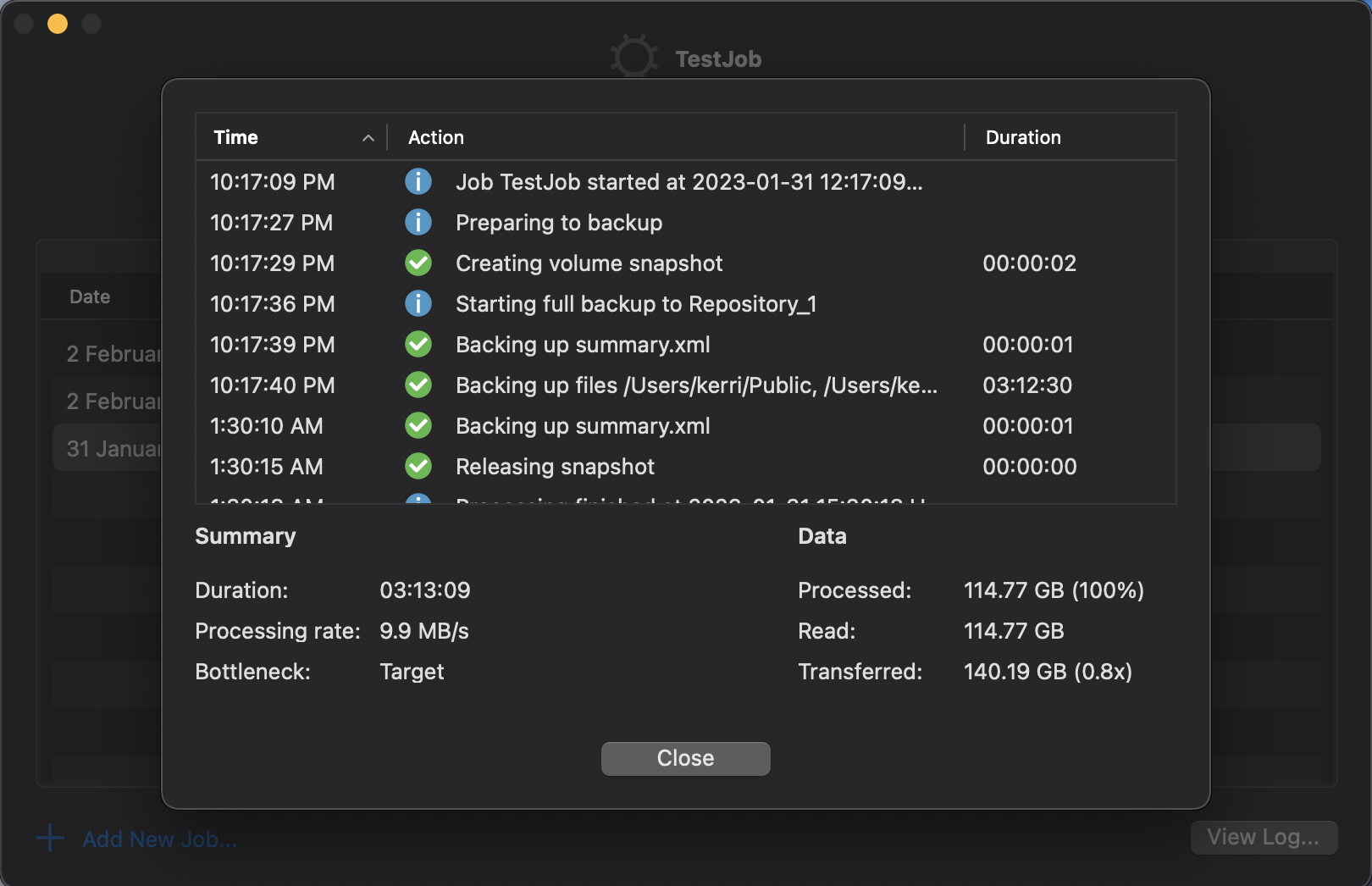
    Veeam have also done a fantastic job with their job logs and have a very detailed, but human consumable log output directly in the interface.

    Consclusion

    Yet again, Veeam have hit it out of the park with their products and to be able to provide a a free product that is packed full of features is very generous of them.  I think the Mac Agent has come a long way from v1 and is worth trying out. It certainly is a replacement for TimeMachine and much easier to understand and configure. I would like to see a few more menu items in the right click menu, but these are available in the Apple top bar, so no real issues there.

    Make sure you check out the new Veeam Mac Agent once it is GA and be sure to check