Year: 2019

  • California, Show your teeth… Storage Field Day 19

    California, Show your teeth… Storage Field Day 19


    That’s right, another year and another Tech Field Day event is just around the corner. This time, I will be returning for my 2nd Storage Field Day (SFD19) event in late January, 2020. This will be my 3rd Field Day that I will be attending, and it will be my first in sunny California, right in the heart of Silicon Valley/San Jose.

    So, what is in store for the SFD19 team and you? We will be checking out some new technology and some cool automation from various vendors. There are 9 presenting companies that will be at SFD19, including a secret company that the delegates aren’t even aware of yet!

    There will be a panel of 12 delegates again, each from various storage backgrounds with a focus to open up discussions and dig deeper into the technology.

    Arjan Timmerman
    Becky Elliott
    Chin-Fat Heoh
    Chris M Evans
    Dan Frith
    Enrico Signoretti
    Gina Rosenthal
    Joey D’Antoni
    Keiran Shelden
    Ray Lucchesi
    Ruairi McBride
    Vuong Pham

    This is going to be one full on event, looking at the time table, there is just presentation after presentation, so there will be plenty of information flowing.

    If you would like to stream live, check out the SFD19 page or Tech Field Day home page, or Facebook to watch the presentations. These will be available on YouTube and Vimeo after the event, so you can always catch up afterwards.

    Finally, if you are interested in attending any of the upcoming events, please reach out to the Tech Field Day crew and let them know you are interested in attending an upcoming event.

    A big thanks goes out to the Tech Field Day crew for inviting me to another event, and I look forward to sharing my views with you all after SFD19 concludes.


  • Rubrik Build Roadshow – Brisbane Event Overview

    Rubrik Build Roadshow – Brisbane Event Overview

    On Monday, I took part in the Rubrik Build roadshow. This was an awesome opportunity to learn about working with Open Source projects and how to contribute from writing code, to writing/editing documentation, testing and version control and much more using GitHub, but that wasn’t all. Back in February, Rebecca Fitzhugh, Chris Wahl and their teams at Rubrik launched “Build” as project to bring awareness and education to working with open source projects and APIs. These events are not meant to be focused on Rubrik, but the lessons do connect to a Rubrik cluster as the API docs and software is readily available.

    I came across Build back when it launched in February and I have been a member of their slack group since it’s birth. After joining and looking through the plethora of content readily available through build.rubrik.com. I decided that I would attempt to write my first full script from scratch, just to put up on Github. Having always struggled with starting scripts from scratch, I started with planning out each step, in fact, I stepped through the process manually and event created a blog post about those steps – then Roxie set the challenge.

    https://twitter.com/RoxieAtRubrik/status/1120415276795928576

    I knew what I wanted to achieve and after having looked through several PowerShell scripts already up on the Build github repo, I had an idea on how it should look. After a couple of weeks writing and testing, I had a full script ready to put up.

    Once I had my script up publicly on Github, I linked it to the Build slack group where I got some great feedback, and even one of the main Rubrik PowerShell maintainers made a comment he was going to take part of my script and incorporate it into some of his.

    https://twitter.com/RoxieAtRubrik/status/1127946416523886592

    There was one hiccup with the Rubrik PowerShell module, but I’ll talk a little bit about that later.

    That is only a basic outline of my story of getting started, but without the Build community, I would not have dived as deep into APIs and scripting as quickly as I did here.

    So tracking back to the Build event, this was jam packed full of information, the session kicked off with Rebecca talking about the project, the idea behind it and the future outlook of build. She went as far as to talk not only about working with GitHub and the scripts and repositories available, but also the process and level of alerting her team receives when an issue is submitted on GitHub. This showed the level dedication the team has to ensuring that it’s contributors are looked after and have a fantastic experience while contributing. I found out first hand during my first script how enthusiastic the team is in helping as I was unable to find a call within the SDK to install a Volume Filter Driver. I went ahead and posted in the slack group about what I was trying to achieve and said that I was unable to find how to perform this particular action, and in no time, there was a response from Andy Draper who immediately went out of his way to write and test a call. I have since been informed that it is currently being worked on to be added to the SDK.

    After the first lesson and practice modules of using Github and how forks, branches, conflicts, etc. work, Chris then kicked off the main part of talking about APIs and about the different ways you might come across APIs and how to use them. The lesson took you through how to use the API Explorer (Similar to VMware’s API Explorer if you have ever use that). The lessons took you through how to authenticate using cURL and how to use tokens within the Rubrik cluster when making a call using an API.
    Chris then followed up with a crash course in PowerShell and giving a fairly in-depth look into how PowerShell came about and how easy it is to work with. This then went into discussing the different components and how modules are used and how easily they can be created.

    Overall, I thoroughly enjoyed the sessions, I learnt a lot about automation, APIs and working with the Open Source community that I didn’t know beforehand. I highly suggest that If you are a novice or even an intermediate at working with APIs and Automation that you seek out when Rubrik Build is coming to a city near you and get over to it and see for yourself what it is all about.

    If you are unable to make it to a Build event, then get involved through the build online community and start looking at how you can contribute to the wider Open Source Community. There are use cases available on the website so you can get a good idea on where you can get started.

    You can find out more about Rubrik and Build by checking out the videos from Cloud Field Day 5 

  • Rubrik Backup Service Windows Host Install Walkthrough

    Rubrik Backup Service Windows Host Install Walkthrough

    To be able to get the most flexibility out of your data management and backups, sometimes you need more to be able to interrogate your OS to be able to backup the applications that are running inside. Some backup providers use VMware Tools\Hyper-V Integration Tools to be able to perform application consistent backups, such as; MS SQL and MS Exchange. Whilst this may seem like a great idea to minimise the number of services running, this also means that the backup vendor loses some control over what their product can leverage and limiting them to the virtualisation eco-system.

    Rubrik delivers control and flexibility with their Rubrik Backup Service (RBS) which is available for Windows, Linux, AIX and Solaris, but also allowing for the ability to backup virtual and also physical servers. The RBS allows for granular control over applications such as MS SQL where it can backup each database with different SLA domains, as well as backing up file systems.

    This post will walk through deploying the RBS to a MS Server 2019 Server manually, although, there are several methods available to automate the installation, this walkthrough will show you . To automate check out the Rubrik Inc. Github and Rubrik Build for sample scripts and API documentation. For Example: Install-RubrikBackupService with PowerShell

    Required Opened Ports: 
    tcp 12800
    tcp 12801

    First off, downloading the Rubrik Backup Service installer is easily achievable by 2 methods. You can obtain the installer from under the Windows Host section on your Rubrik CDM web UI or via the hyperlink https://<rubrik cluster Ip-hostname>/connector/RubrikBackupService.zip


     

    Once downloaded you will need to extract the contents. Ensure that you keep all files together in the same folder as they are all required for the install. Each installation package is specific to the cluster it was downloaded from and will only work with that cluster.

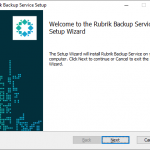
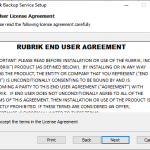
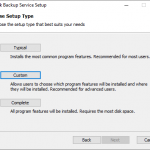
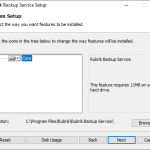
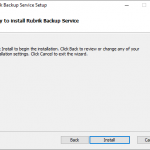
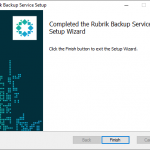
    The wizard is a simple “Next, Next..” process. Open the MSI file. When you select custom, you do have the ability ti change the installation location. Once completed, click Finish.

    Open up the computer Services manager and check that the “Rubrik Backup Service” is running.

    At this point, you will not see the host show under Windows hosts under the web UI, you will need to click on the “Add windows hosts” button – either in the main screen or in the top bar.
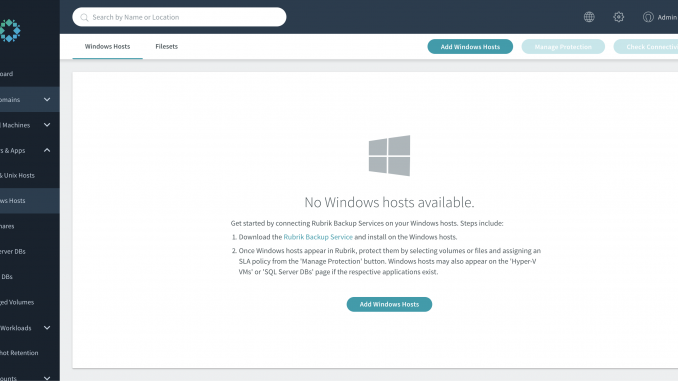
     

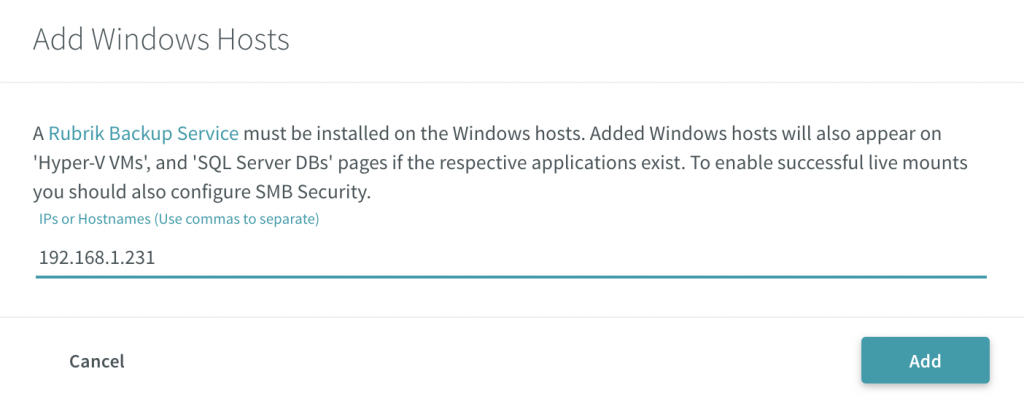
    When adding the hosts you can either do this by IP or hostname. Ensure that your DNS is configured correctly prior to trying to add via hostname – click Add. Adding the host will create a secure connection between the host and the cluster.
     

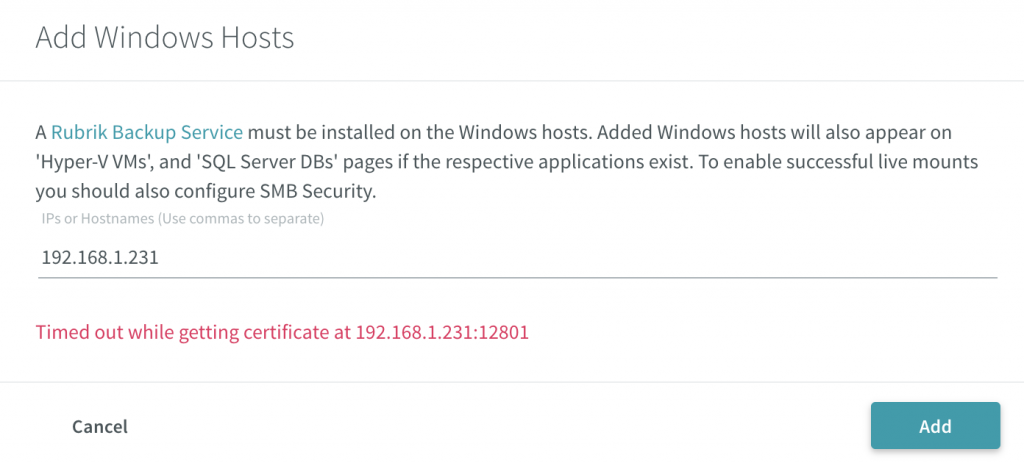
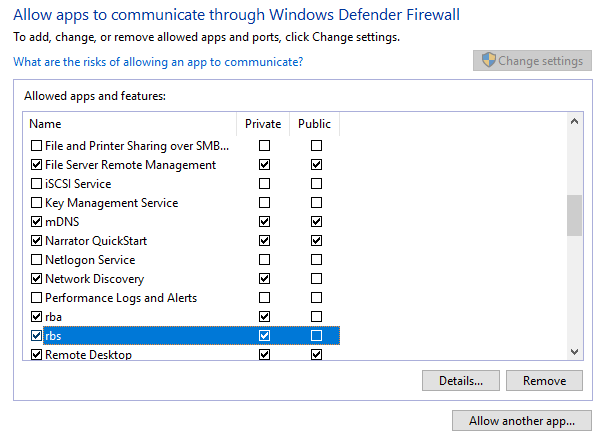
    If you run into an issue where the cluster is unable to connect to the host or display an error regarding retrieving the certificate, make sure you configure your firewall. As this lab is on a single subnet the cause for the error was the Windows Defender Firewall. Add the required allow access and retry added the Windows host to the cluster.


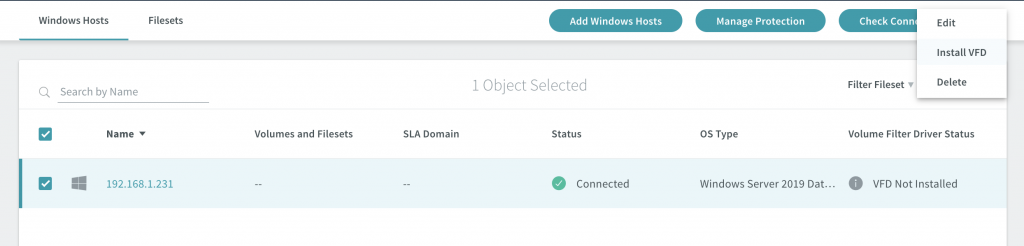
    The host will show a status of “Connected.” You will need to install the Volume Filter Driver (VFD) to enable the cluster to track changes to the blocks as well as assist with the performance of the incremental backups. Select the host you want to install the VFD on and click the 3 dots in the top right corner -> Select Install VFD -> Wait until the Volume Filter Driver Status changes to “Host Restart Required” and reboot the host. (Refresh the UI if you don’t see it update after some time.)
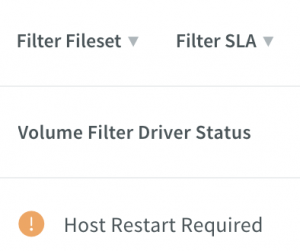
     

    After reboot, you should now see the status change to “VFD Installed”
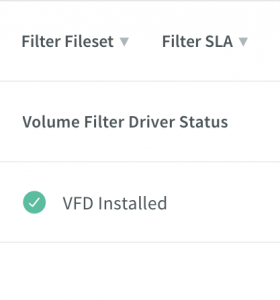
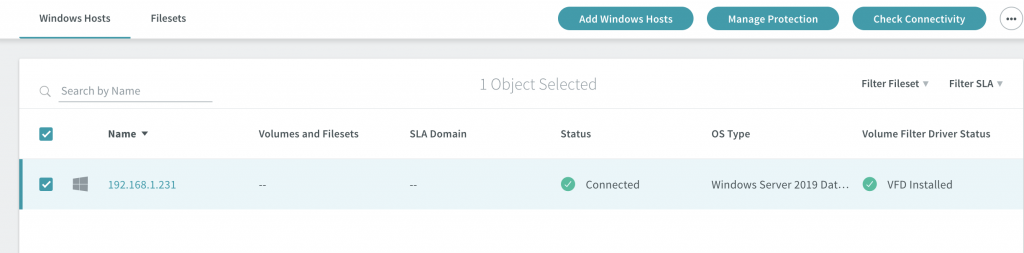
    The Windows host is now looking ready to go and the last two items are to set up the protection by adding the SLA domain and content to be protected

    .
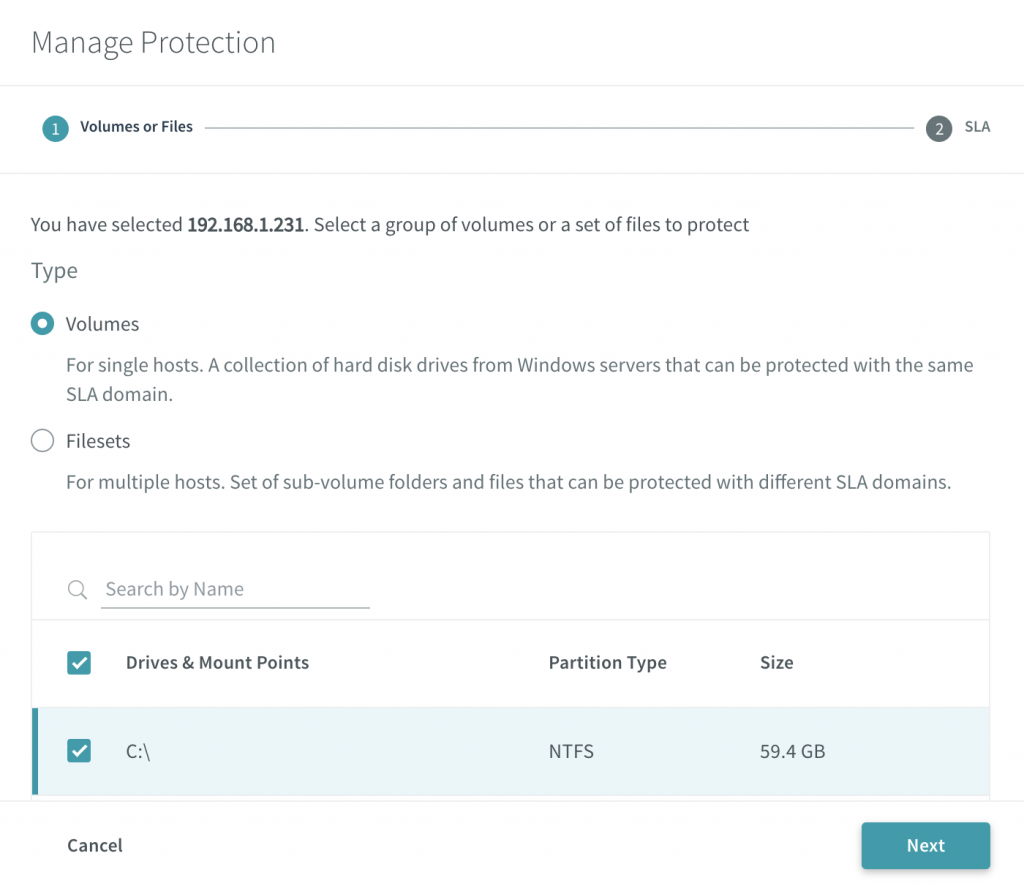
    Select the host and click the “Manage Protection” button. Here you can choose to backup set you want to protect, whether it is the volumes or filesets.
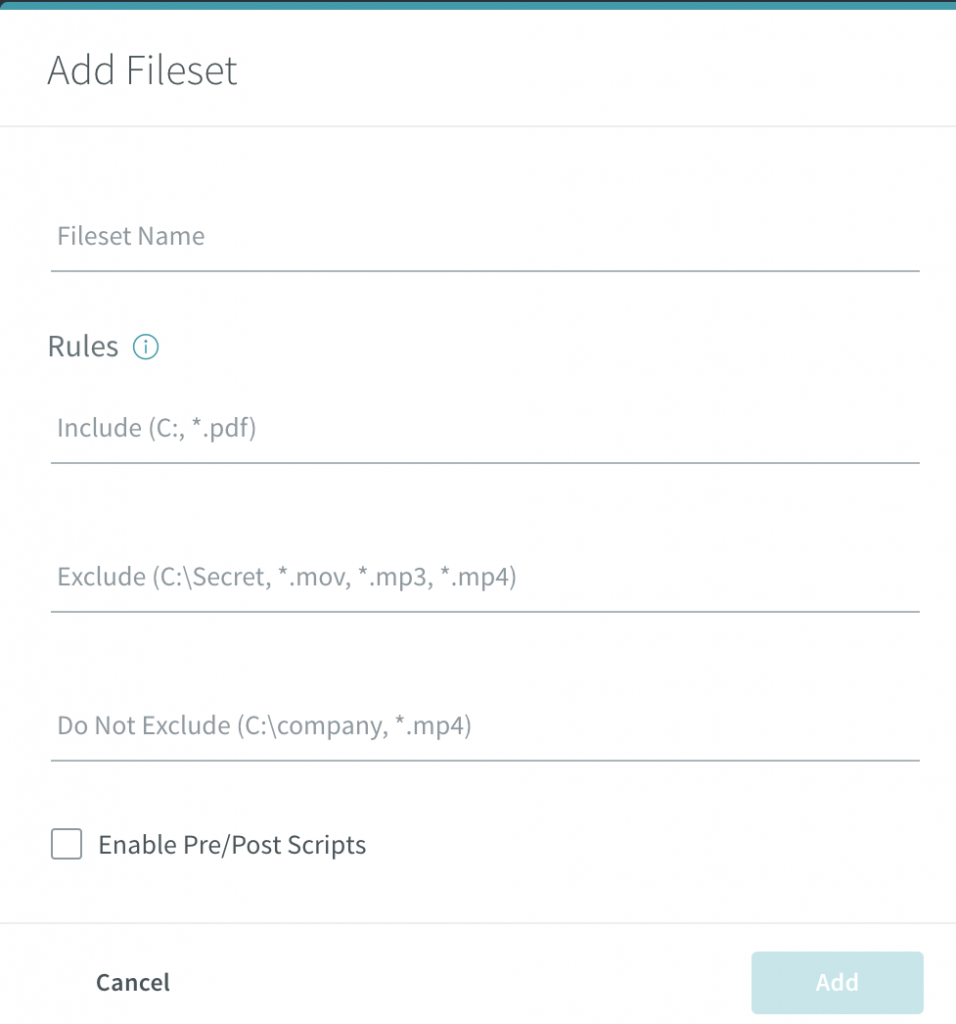
    When adding a fileset, you can set rules around whether to include or exclude certain folders and file types.


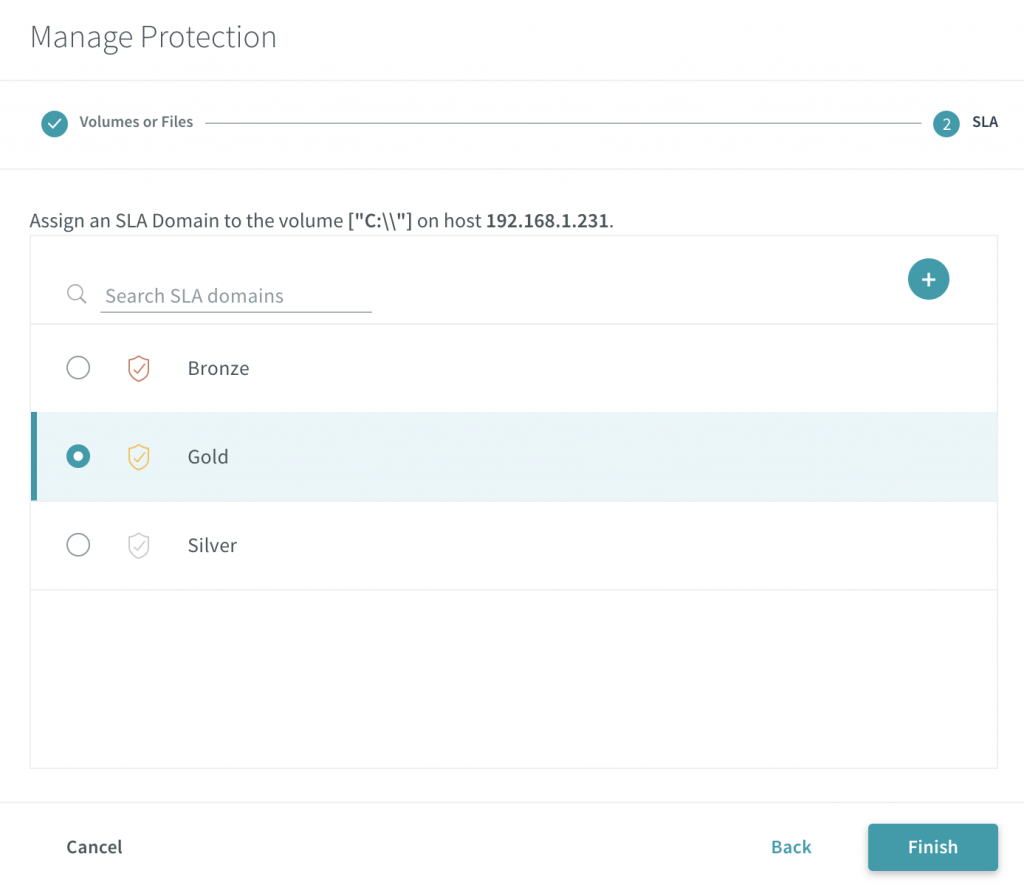
    Once you have set your backup set, you can then assign the SLA domain that meets your requirements for your backup SLA. For more about SLA Domains see SLA Domains Global Scale
     

    It is a very simple process which, as mentioned above, this can be automated through the use of scripts and APIs, however this was just a walkthrough of the process. Ensure to check out the Rubrik Build site. There are also other scripts available on the Rubrik Build GitHub repo along with various SDKs for use with Rubrik CDM.
  • Veeam Announcement Round Up

    Veeam Announcement Round Up

    So mark today as a good day as two announcements from Veeam have surfaced. I’ll start with the minor announcement and move onto the good stuff so you will read the full post.

    Veeam 9.5 Update 4a. 
    That’s right, 2 months after releasing the GA of Veeam B&R 9.5 Update 4, the next minor release has surfaced with some fixes as well as improvements.

    One of the bigger items on the list is the readiness for vSphere 6.7 U2 and Hardware Version 15. This means that the code has been tested against the up and coming update for vSphere.

    Second is the support for Microsoft System Centre Virtual Machine Manager 2019 

    There is a list of items in the release notes – Check them out!


    Veeam Backup and Replication Community Edition. 

    That’s right, Veeam have jumped on the bandwagon and release their Community Edition, allowing up to 10 VMs, Cloud Instances, Physical and/or Workstations to be backed up. However, the even cooler part is that you can even use this in production!

    The community edition is packed full of features, and you would think that there would be some that were missing, but that is surely not the case here. Veeam is putting it out there for you to get your hands on and to build your environments and see the full potential of Veeam B&R.

    You can get started with Veeam B&R:CE here 


    So that’s it for now, very quick overview announcement, but there is tons of information in the links. Go and check them out and get your hands on some awesome products!

  • Tech Field Day 18 – Here we come!

    Tech Field Day 18 – Here we come!

    That’s right, another year and another round of Tech Field Day events and this year I am lucky enough to be heading back over again to the US for the title event – Tech Field Day 18! This month, TFD is landing in Austin, Texas running for two days (7-8 Feb). There are 12 individual delegates from around the world flying in for this event. They will be travelling around to visit 4 different vendors to learn, discuss and publish content about certain technologies that are either currently on the market or soon to be released.

    This is a great opportunity for the vendors to be able to get real world feedback from those who implement/manage various technologies in many different environments. This is also a chance for companies to get into the grains of their product and do technical deep dives without the marketing behind it. Tech Field Day is all about the tech.

    We will hear from Datera, NetApp, Solarwinds and VMware. Each session will be live streamed on Facebook and on the Tech Field Day site. You can also follow the live feed on twitter by following the #TFD18 tag – you can also ask your own questions as well 🙂 .

    For more information about the event or about Tech Field Day and GestaltIT, head over to the website and check out the links!

  • Veeam Backup & Replication 9.5 Install – Back to Basics.

    Veeam Backup & Replication 9.5 Install – Back to Basics.


    Sometimes it is good to go back to basics, somethings change between different versions of software and the installation process isn’t always the same. Sometimes, you may have never installed that piece of software before, but the only installation guide is 3 versions in the past and they have since introduced the need for IIS for a new web portal or something. So here we go in the first post of my new Veeam series “How to install Veeam Backup and Replication” 

    1. Download the latest Veeam VBR ISO from the support download page. 
    2. Depending on version downloaded, you may need to extract the ISOs from the ZIP
    3. Mount the “VeeamBackup&Replication” ISO and open the setup.exe
    4. Click the install icon for Veeam Backup & Replication.
    • Read and Accept the EULA (You can’t proceed if you don’t agree) 
    • If you have a license file, attach it. Otherwise, you will get 30 days free trial
    • Choose your components to install. 
      • Veeam Backup & Replication– This is the main application for configuring and running backup & replication tasks.
      • Veeam Backup Catalog– Used to index the files into a GuestOS backup file for easy restoration. 
      • Veeam Backup & Replication Console– The console is the GUI used to perform tasks and configure Veeam Backup & Replication. 
    • The System Configuration check is used to ensure the correct components are available and installed ready for Veeam B&R to install and configure.
      If there are components showing as Failed, click on the “Install” button to get them installed.  
    • One installed, re-run the check and ensure each component passes. Click “next”. 
    1. Review the default configuration, this includes directory locations, ports and SQL instances. You can select “Let me specify different settings” if you need to make any changes. Click Install to continue. 
    • Wait until installation completes. The installation will take approx. 10 minutes, and if there is an update as part of the install, you will see this occur towards the end of the process. 
    • You will be notified once completed. 
    • Double click on the Veeam icon on the desktop to open the console and put in your Username and password and click connect.
    • By default, the Component update will open up and require you to run the update on any components that require it. They will be listed. Select and apply the updates.
    • Under “Inventory” > “Virtual Infrastructure” > select “ADD SERVER” > Select type of server (in this case, VMware vSphere). NB:You will need to run this process before you can set up your proxies.
    • Input your vCenter (or host) details for Veeam to connect to. 
    • Add your server credentials into the credential manager. 
    • Trust the certificate if it is Self-signed. Please see KB2806 regarding 9.5U3 self-signed Cert bug. 
    • Confirm settings are all correct and click “finish”. 
    • Confirm under “Virtual Infrastructure” > VMware vSphere” that you can see your vCenter hierarchy. 
    • Under “Backup Infrastructure” > “select Backup Proxies”

    • Add in your proxy server’s IP/hostname and a description
    • Add your credentials for the proxy server, or reuse pre-configured.
    • Wait for components to all install. 
    • Confirm the Proxy service details
    • Once you click “finish”, you will return back to the VMware Proxy screen, here you will be able to set your Transport Mode and Datastores. 
    • Select “Choose” for Transport Mode. This will show you a number of options with descriptions to help you choose the correct transport mode to meet your infrastructure requirements. If unsure, select Automatic Selection.
    • Once you continue on, you will have the opportunity to set up traffic rules where you can create bandwidth restrictions. Here you can get granular and create policies for certain IPs. 
    • Once you have finished setting up your proxy, you will then need to set up your repository for storing your backups and/or replications. Select “Backup Repositories” and Set up a new repository. Start off by giving your repo a name. 
    • Veeam offers support for a number of different types of repositories. Select the best option for your infrastructure. (This tutorial will just be a Windows Server.) 
    • Under “Server” choose the repository server from the list or click  “Add New…” server. Once added click the “Populate” button to see the capacities and free space available. Once identified, select the disk you want to use. 
    • In your Repository settings, you can setup the path for which you want your backups to go to. Once set, click the “Populate” button again. Veeam also offers Load Control to assist with your bandwidth and disk performance for your backups, use and adjust as required. 
    • With Windows Server 2016, Microsoft introduced ReFS, their new volume format that allows for greater capabilities. Veeam acknowledges these abilities and advises you of the benefits of using ReFS over NTFS.  *Proceeding will not prevent you from using the Datastore. NB: ReFS is reasonably resources heavy.
    • Under Mount Server, you can set which server will take the load when mounting a restore point with Instant VM Recovery, SureBackup or On-Demand Sandbox. If you have the ability to provide write caching for the mount server, you can enable vPower NFS Service to assist with those mount points.
    • Once all configured, the review stage will confirm if any of the additional components will need to be installed on the new Backup Repository. Once confirmed, you can apply and let Veeam set up the repository. 
    • During the apply process, you will be able to confirm all steps completion. 
    • Once your infrastructure is configured, it is down to business and time to test and create your first Backup job. Under “Backups”, Right click and Select “New Backup Job.” Set a Name and then select your Virtual Machines you would like to backup.  
    • Click recalculate to ensure the total size is updated to reflect the size of the disks to backup. You can also exclude objects from being backed up. 
    • Select your proxy, if you have a Proxy server setup, then choose that one. Otherwise, if you did not setup a proxy earlier, you can use VMware as the Backup Proxy, however this will be a slower process. 

    • Select your Repository for the backup job. In this screen, you can also set the amount for restore points you want to keep and any advanced settings such as additional scripts, Email notifications, backup modes (Incremental, Active Full, etc.) etc. 
    • The Guest Processing page is used to configure the backup job to leverage Application Aware processing and also file indexing and exclusions, and much more.
    • The schedule is fairly self-explanatory. Here you can configure how often the job will run and how many retry attempts before failing the job. 
    • Once all settings have been configured, apply the configuration and if appropriate, Run the job once created. 

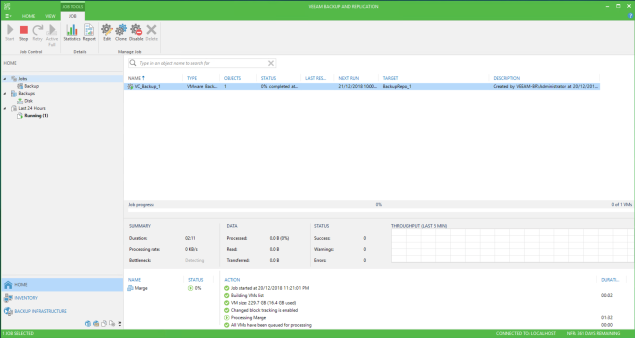
    • Watch the progress and if there are any errors, adjust your components where required.