Category: Data Protection and Management

  • Introducing Veeam Mac Agent v2.0

    Introducing Veeam Mac Agent v2.0

    Over the years we have seen Veeam release some great products, and with each release they continue to build in more and more features and there is no exception when it comes to the the updated release of the Veeam Agent for Mac v2.

    Like the Windows agent, the latest Mac agent is available as a standalone install. The previous version was completely managed from Veeam Backup and Replication where you had to cut a config and package the install. With v2, you can install straight from the pkg file allowing you to have more control and freedom.

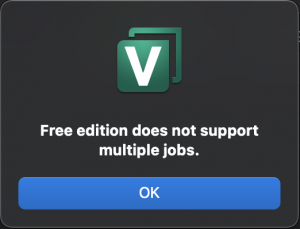
    Like the Windows and Linux agents, Veeam is providing the Mac agent with a limited free license which allows up to 1 job created and limited backup locations. However, it still has a ton of functionality and gives you access to backing up either individual files, directories or the entire computer.

    So let’s dive in and take a look at what is available under the free license.

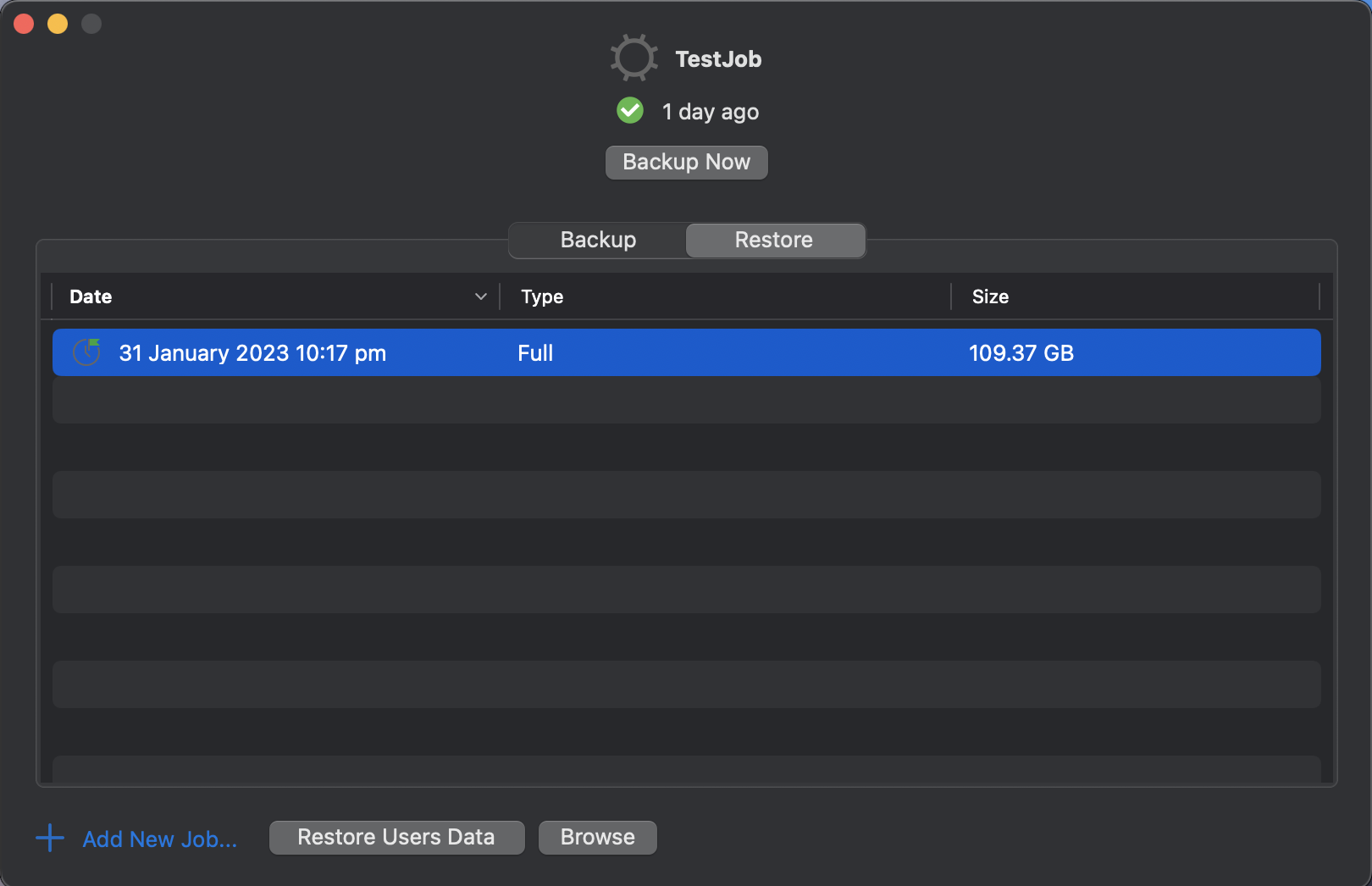
    Straight off the bat, there is a really nice UI to work with, the layout is easy to work with and everything is very much self explainatory. There are heaps of features that are wrap into this tight little bundle and are easily accessible. The locations in the UI make sense are all in logical locations.  I did, however struggle to find how to delete the job as my instict from using other Veeam products was to Right click > Delete . This was simple enough in the end as it was just in the top menu, which I guess just makes it safer.

    Backup

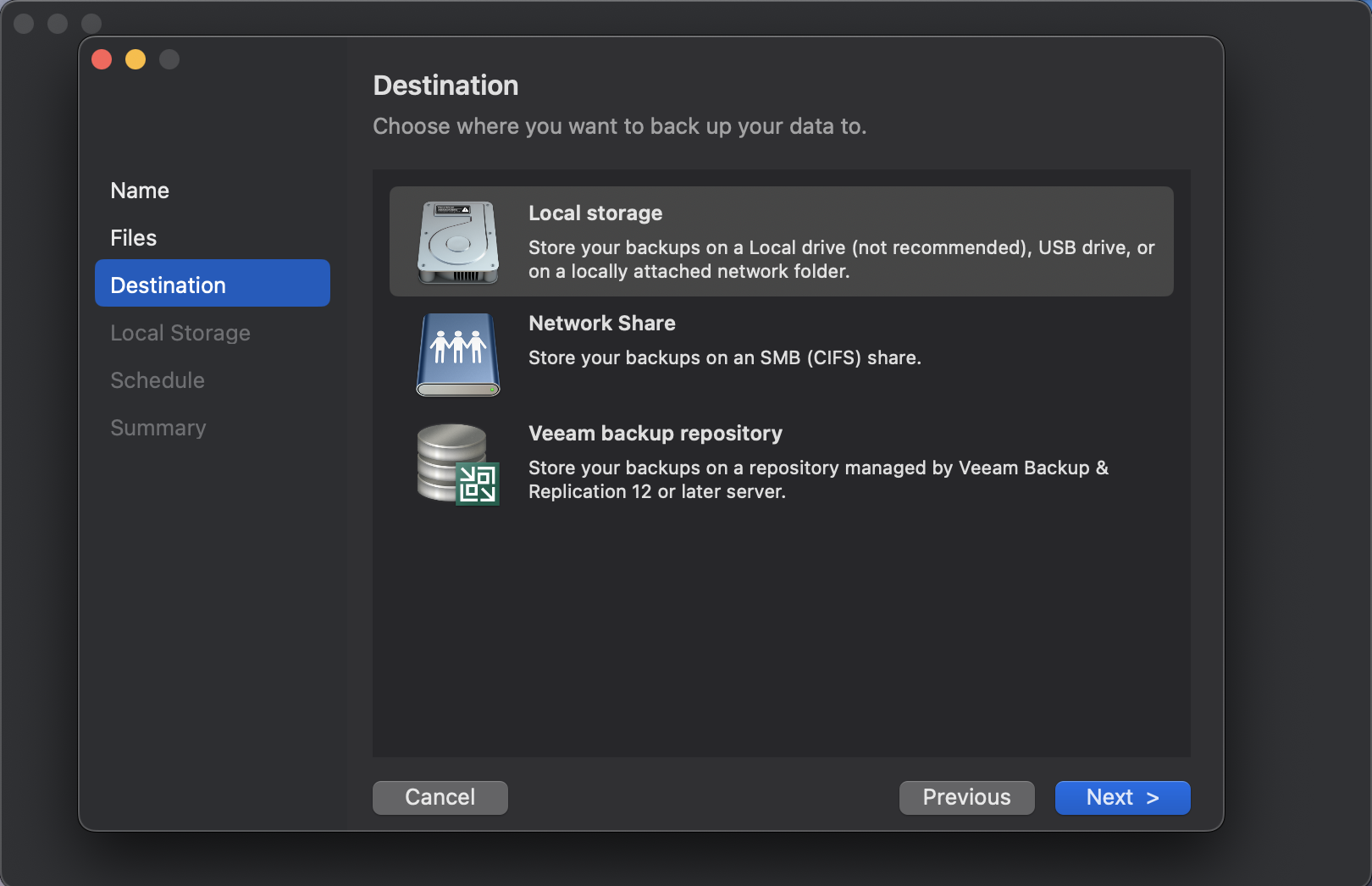
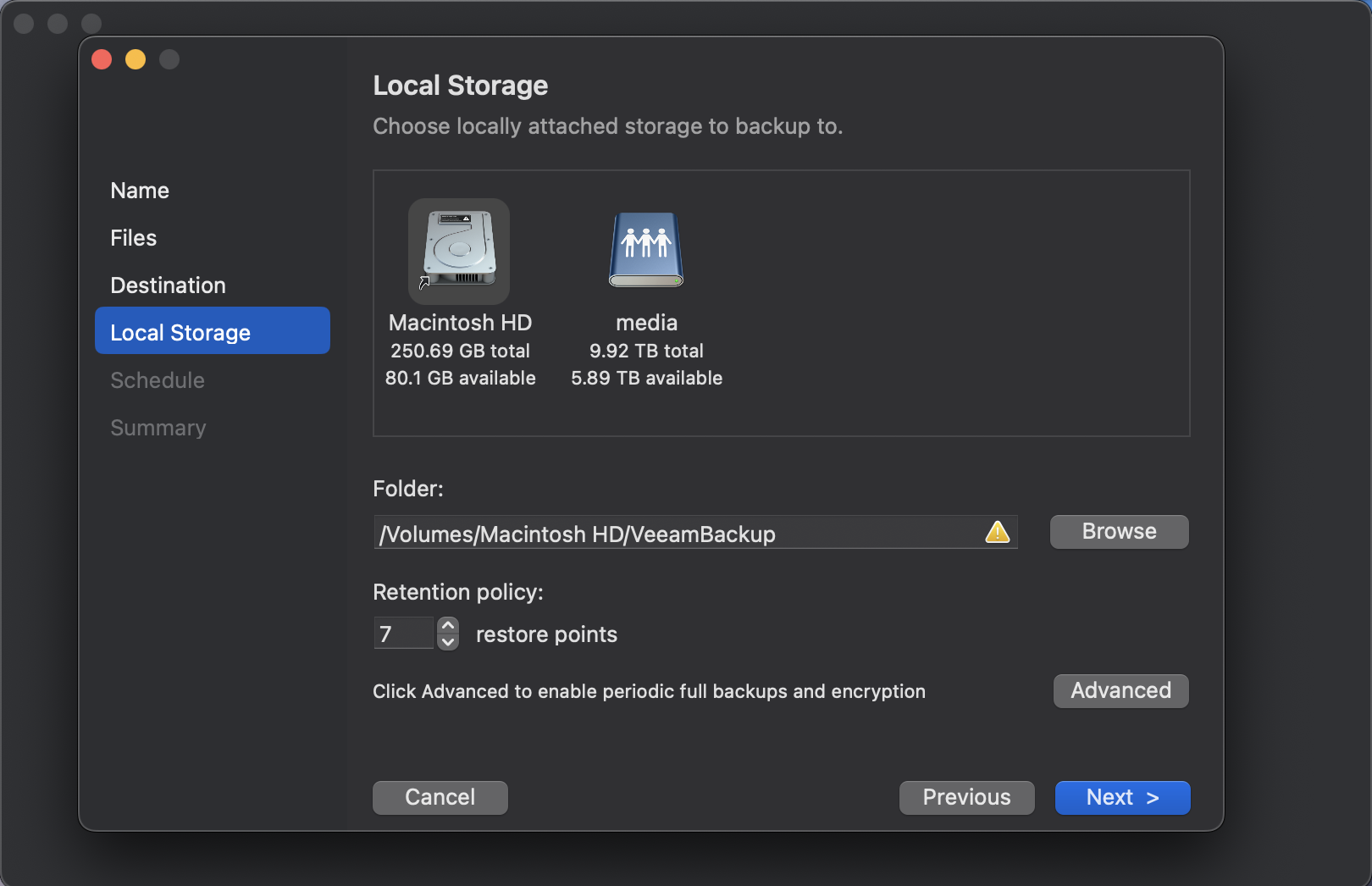
    As mentioned above, there is a number of new repositories that are available for backing up your workstation to. Previously you were limited to only backing up to a Veeam Backup and Replication repository, but the Mac agent has now been extended to locally connected repositories and SMB shares.

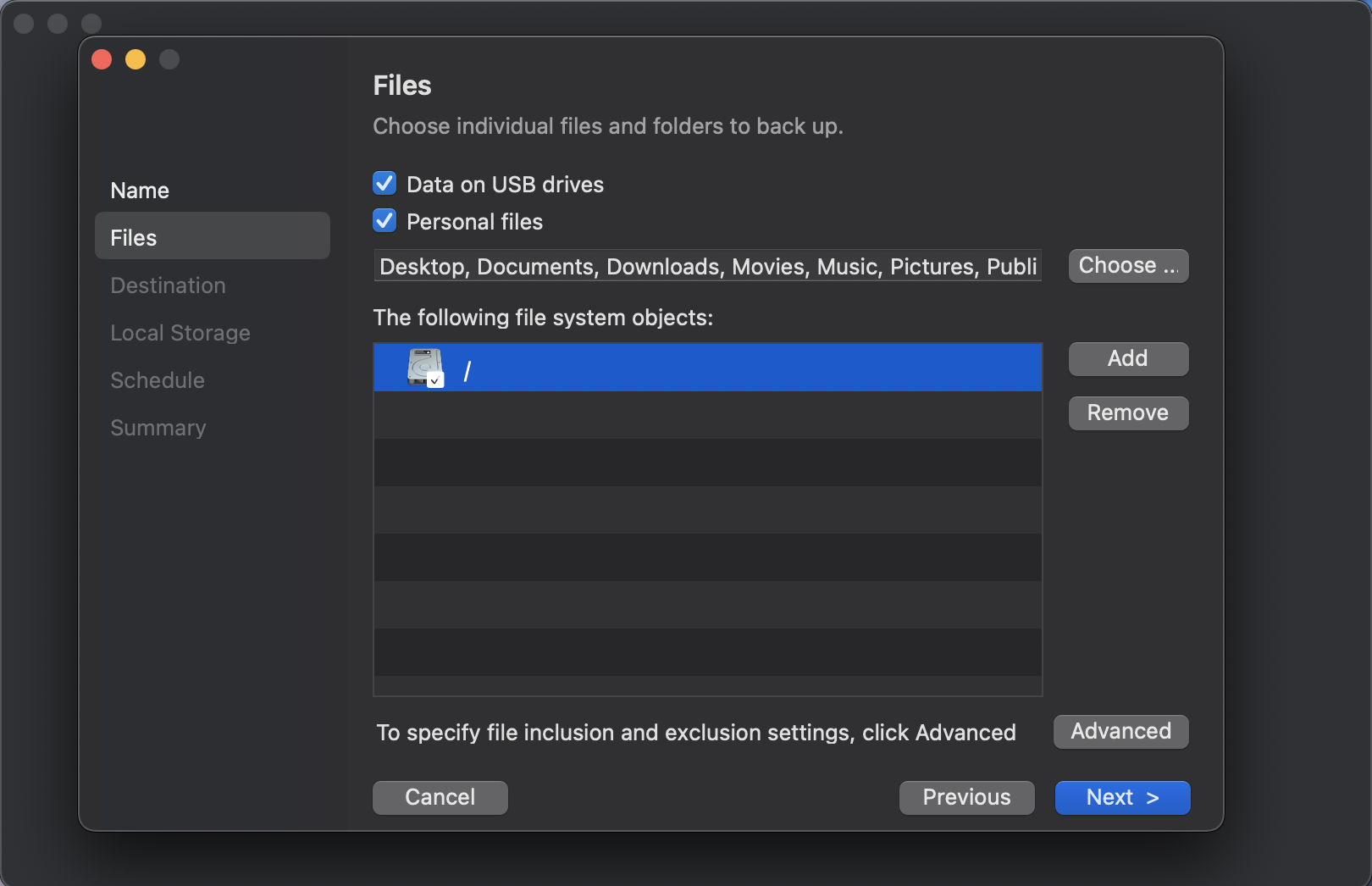
    Some people like to only backup certain files and others prefer to backup their entire directories and Veeam knows this well which is why they give you the ability to choose your precious files or your entire root/sub directories.  You can even enable backing up locally attached USB drives in case you have an external drive that holds other working files.


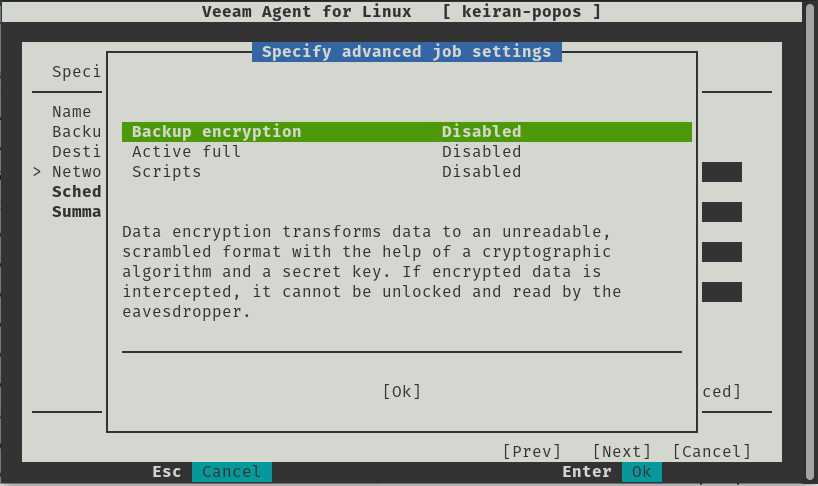
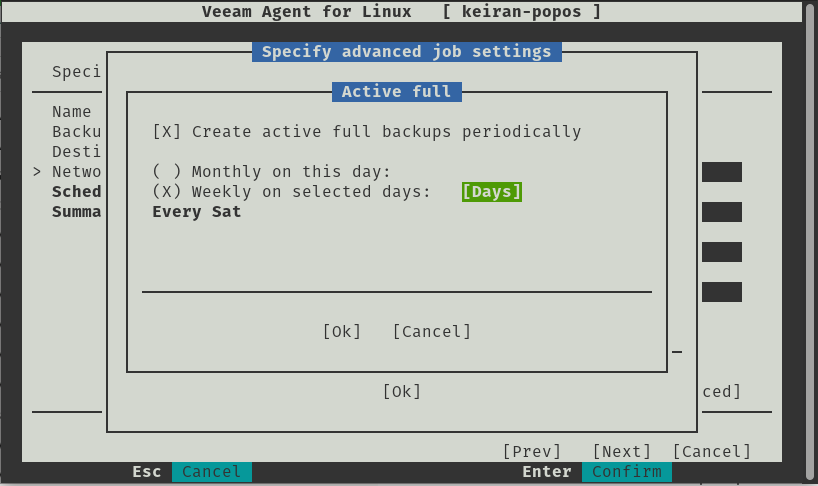
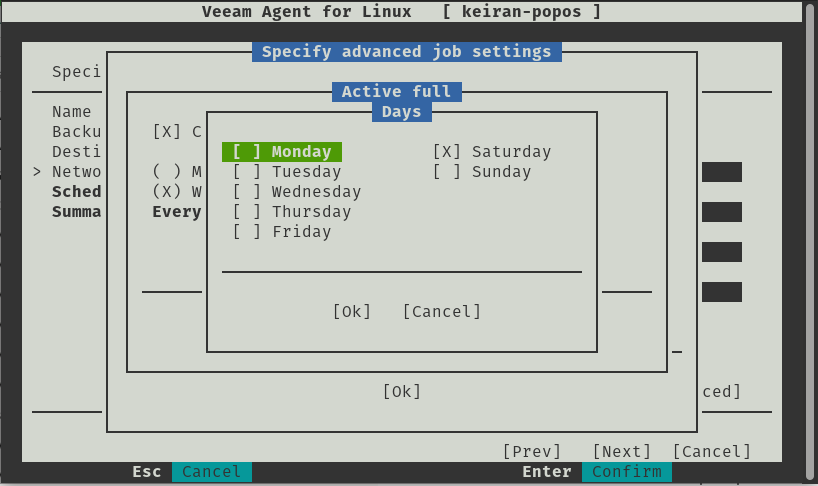
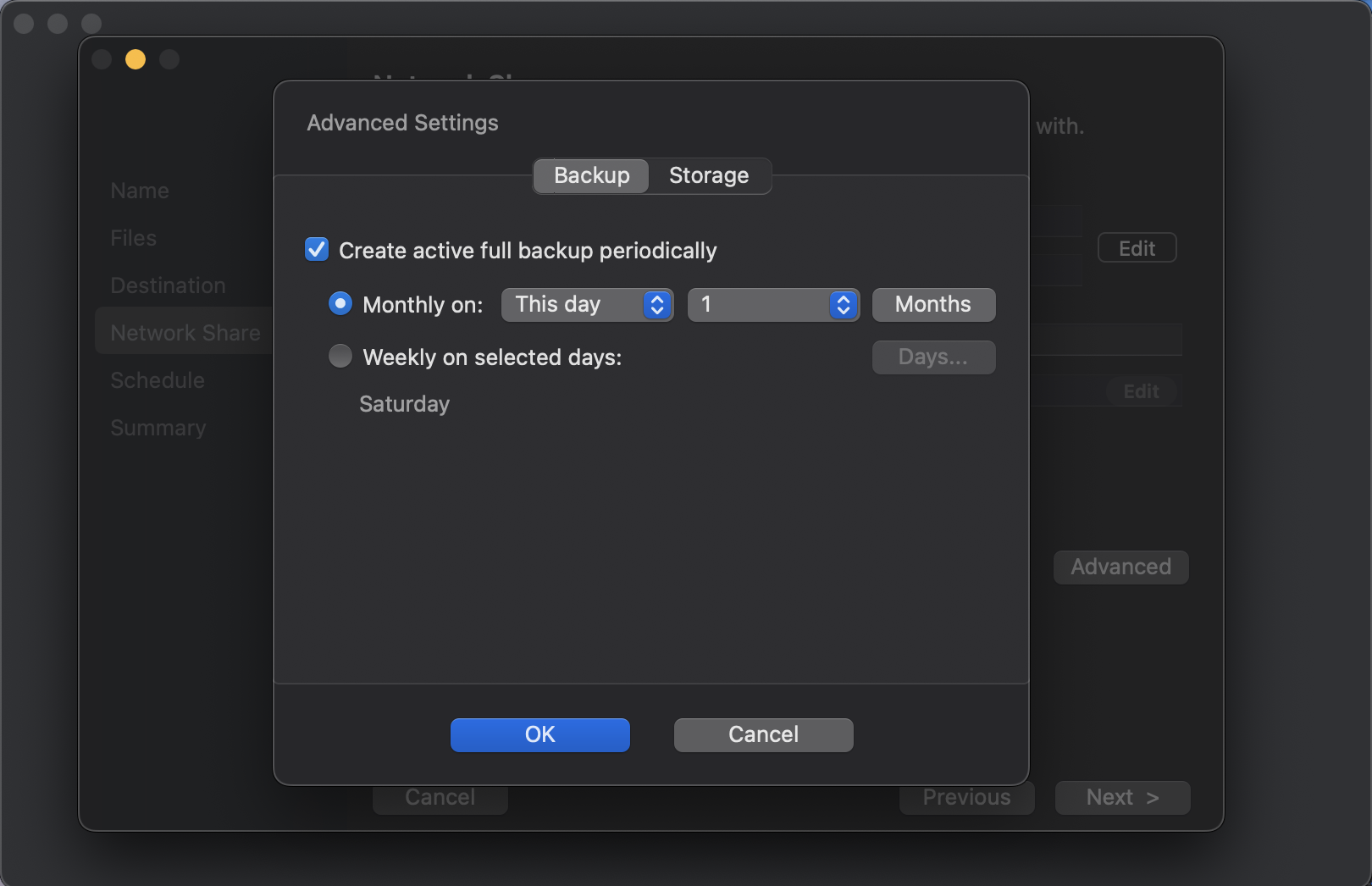
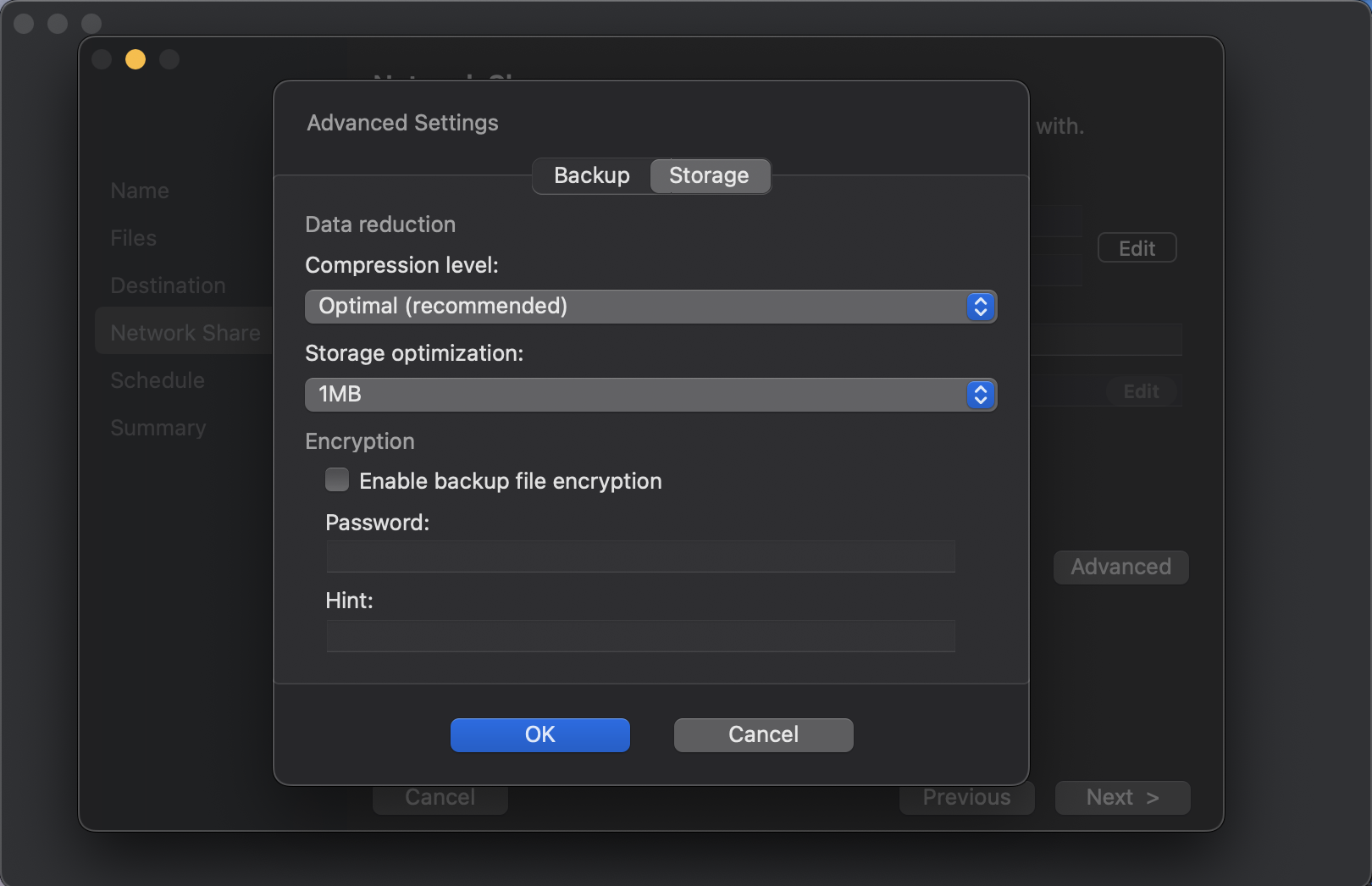
    The Mac agent is still quite packed full of features and functions to ensure you get the most out of your backups. You have access to advanced features, such as; Active Full backup schedules, Compression, Storage Optimizations and Encryption.


    Restore

    What’s the point of a backup if you’re never able to restore from it when you need to? While dealing with enterprises, we always say to have a test plan in place, but I feel fairly certain that a lot of folks wouldn’t have one in place for their home network. we should also remember to treat our backups as a copy of our data and not as the only copy.

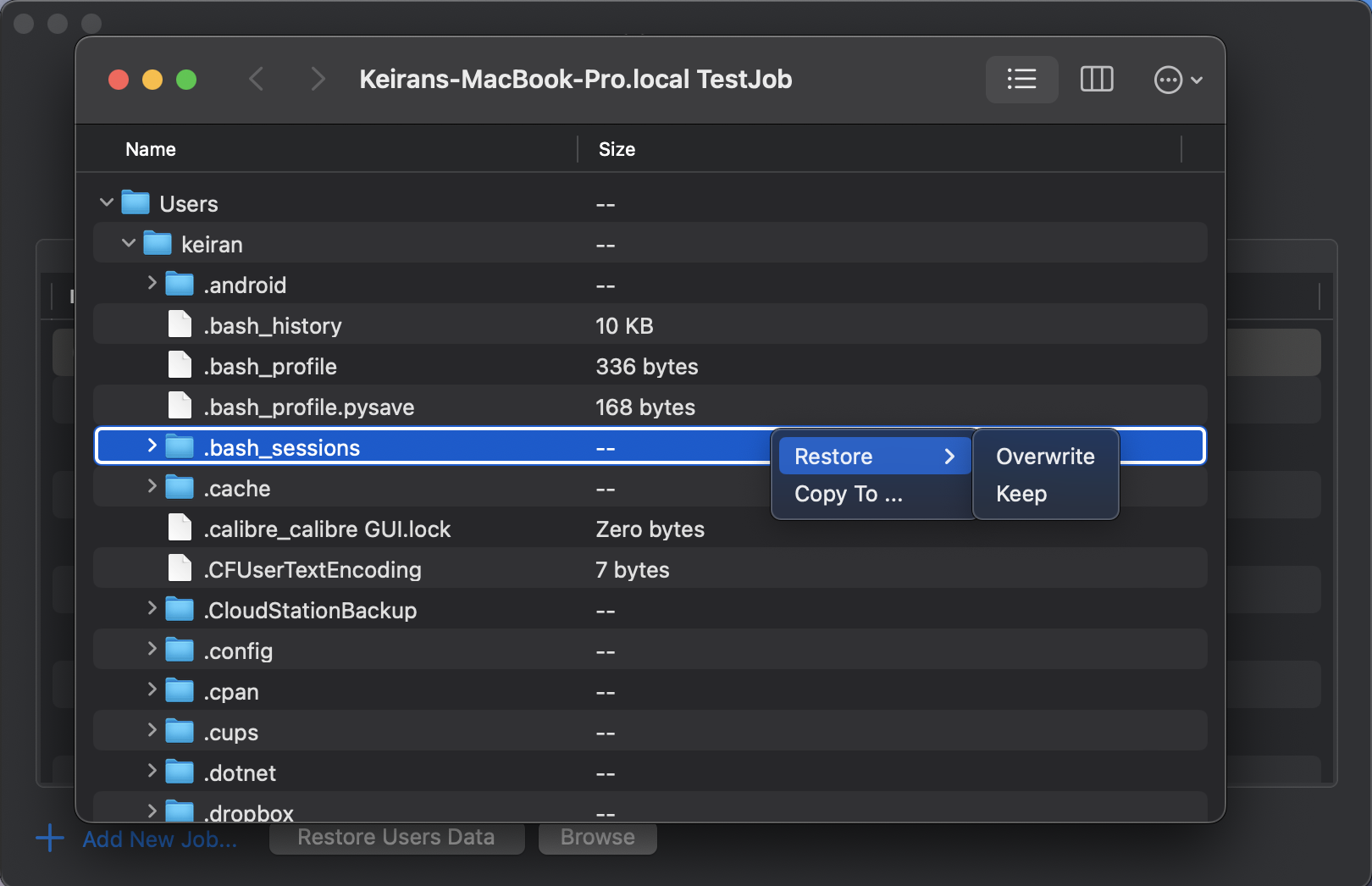
    The Veeam Mac Agent makes restoring a very easy task. Click on the restore tab, select your restore point and then browse your backup. Simples.

    Just like restoring in Backup and Replication, you can choose to either OVERWRITE or KEEP your existing copy of the document (Keep is usually ideal so you can check your restored copy first).  KEEP will place a second copy in the same directory and rename to <filename_RESTORED_date&time> so that you will know exactly which copy it is. There is also COPY TO which will allow you to restore to another location – This is great if you want to place the restored file on an external hard drive or in another folder.


    If you choose the “Restore Users Data” option, then you will receive a big pop-up to advise you that you will overwrite your User Profile. So, you have been warned!


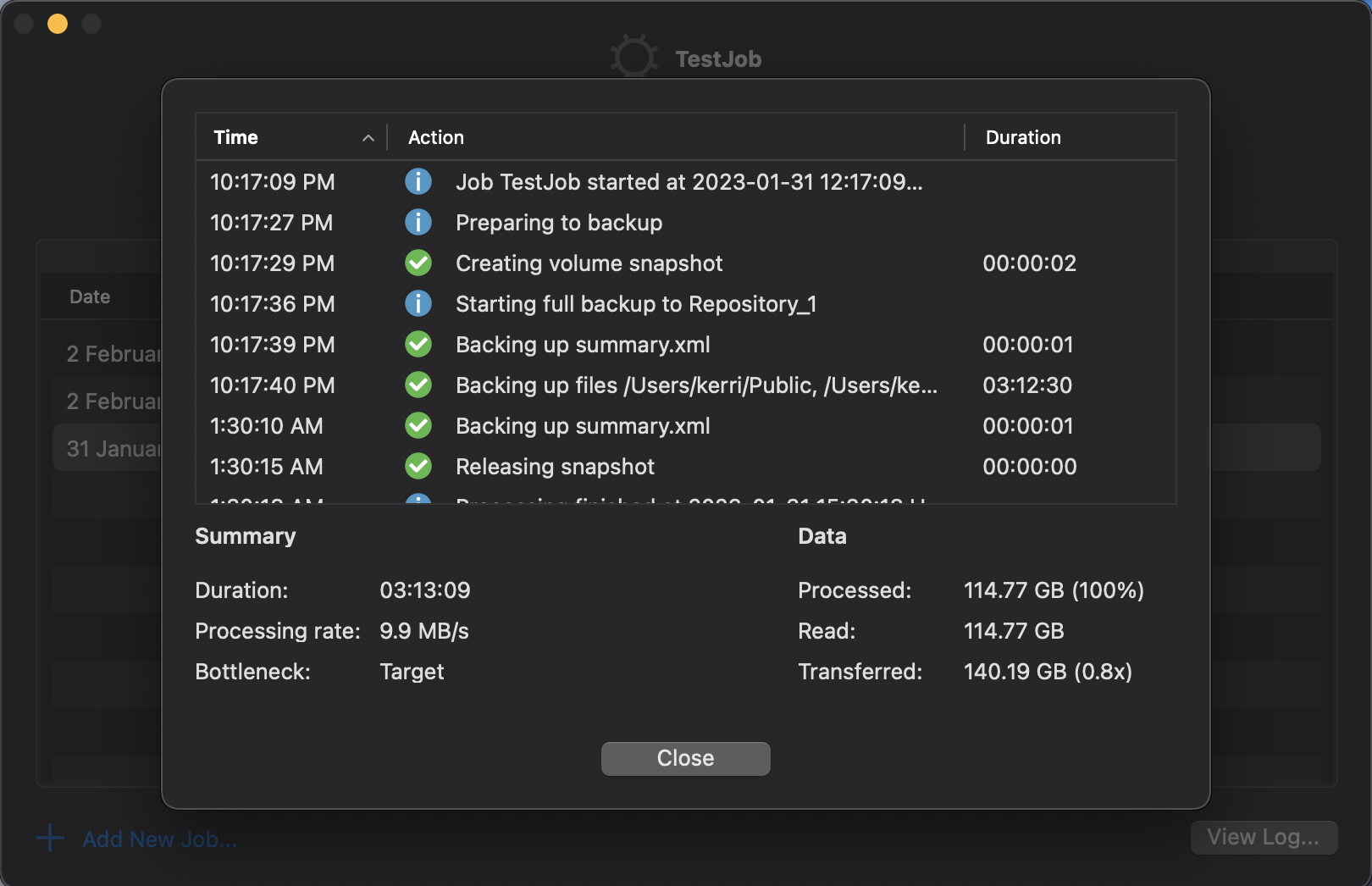
    Veeam have also done a fantastic job with their job logs and have a very detailed, but human consumable log output directly in the interface.

    Consclusion

    Yet again, Veeam have hit it out of the park with their products and to be able to provide a a free product that is packed full of features is very generous of them.  I think the Mac Agent has come a long way from v1 and is worth trying out. It certainly is a replacement for TimeMachine and much easier to understand and configure. I would like to see a few more menu items in the right click menu, but these are available in the Apple top bar, so no real issues there.

    Make sure you check out the new Veeam Mac Agent once it is GA and be sure to check

  • Rubrik Build Roadshow – Brisbane Event Overview

    Rubrik Build Roadshow – Brisbane Event Overview

    On Monday, I took part in the Rubrik Build roadshow. This was an awesome opportunity to learn about working with Open Source projects and how to contribute from writing code, to writing/editing documentation, testing and version control and much more using GitHub, but that wasn’t all. Back in February, Rebecca Fitzhugh, Chris Wahl and their teams at Rubrik launched “Build” as project to bring awareness and education to working with open source projects and APIs. These events are not meant to be focused on Rubrik, but the lessons do connect to a Rubrik cluster as the API docs and software is readily available.
    I came across Build back when it launched in February and I have been a member of their slack group since it’s birth. After joining and looking through the plethora of content readily available through build.rubrik.com. I decided that I would attempt to write my first full script from scratch, just to put up on Github. Having always struggled with starting scripts from scratch, I started with planning out each step, in fact, I stepped through the process manually and event created a blog post about those steps – then Roxie set the challenge.

    https://twitter.com/RoxieAtRubrik/status/1120415276795928576

    I knew what I wanted to achieve and after having looked through several PowerShell scripts already up on the Build github repo, I had an idea on how it should look. After a couple of weeks writing and testing, I had a full script ready to put up.

    Once I had my script up publicly on Github, I linked it to the Build slack group where I got some great feedback, and even one of the main Rubrik PowerShell maintainers made a comment he was going to take part of my script and incorporate it into some of his.

    https://twitter.com/RoxieAtRubrik/status/1127946416523886592

    There was one hiccup with the Rubrik PowerShell module, but I’ll talk a little bit about that later.

    That is only a basic outline of my story of getting started, but without the Build community, I would not have dived as deep into APIs and scripting as quickly as I did here.

    So tracking back to the Build event, this was jam packed full of information, the session kicked off with Rebecca talking about the project, the idea behind it and the future outlook of build. She went as far as to talk not only about working with GitHub and the scripts and repositories available, but also the process and level of alerting her team receives when an issue is submitted on GitHub. This showed the level dedication the team has to ensuring that it’s contributors are looked after and have a fantastic experience while contributing. I found out first hand during my first script how enthusiastic the team is in helping as I was unable to find a call within the SDK to install a Volume Filter Driver. I went ahead and posted in the slack group about what I was trying to achieve and said that I was unable to find how to perform this particular action, and in no time, there was a response from Andy Draper who immediately went out of his way to write and test a call. I have since been informed that it is currently being worked on to be added to the SDK.

    After the first lesson and practice modules of using Github and how forks, branches, conflicts, etc. work, Chris then kicked off the main part of talking about APIs and about the different ways you might come across APIs and how to use them. The lesson took you through how to use the API Explorer (Similar to VMware’s API Explorer if you have ever use that). The lessons took you through how to authenticate using cURL and how to use tokens within the Rubrik cluster when making a call using an API.
    Chris then followed up with a crash course in PowerShell and giving a fairly in-depth look into how PowerShell came about and how easy it is to work with. This then went into discussing the different components and how modules are used and how easily they can be created.

    Overall, I thoroughly enjoyed the sessions, I learnt a lot about automation, APIs and working with the Open Source community that I didn’t know beforehand. I highly suggest that If you are a novice or even an intermediate at working with APIs and Automation that you seek out when Rubrik Build is coming to a city near you and get over to it and see for yourself what it is all about.

    If you are unable to make it to a Build event, then get involved through the build online community and start looking at how you can contribute to the wider Open Source Community. There are use cases available on the website so you can get a good idea on where you can get started.

    You can find out more about Rubrik and Build by checking out the videos from Cloud Field Day 5 

  • Rubrik Backup Service Windows Host Install Walkthrough

    Rubrik Backup Service Windows Host Install Walkthrough

    To be able to get the most flexibility out of your data management and backups, sometimes you need more to be able to interrogate your OS to be able to backup the applications that are running inside. Some backup providers use VMware Tools\Hyper-V Integration Tools to be able to perform application consistent backups, such as; MS SQL and MS Exchange. Whilst this may seem like a great idea to minimise the number of services running, this also means that the backup vendor loses some control over what their product can leverage and limiting them to the virtualisation eco-system.

    Rubrik delivers control and flexibility with their Rubrik Backup Service (RBS) which is available for Windows, Linux, AIX and Solaris, but also allowing for the ability to backup virtual and also physical servers. The RBS allows for granular control over applications such as MS SQL where it can backup each database with different SLA domains, as well as backing up file systems.

    This post will walk through deploying the RBS to a MS Server 2019 Server manually, although, there are several methods available to automate the installation, this walkthrough will show you . To automate check out the Rubrik Inc. Github and Rubrik Build for sample scripts and API documentation. For Example: Install-RubrikBackupService with PowerShell

    Required Opened Ports: 
    tcp 12800
    tcp 12801

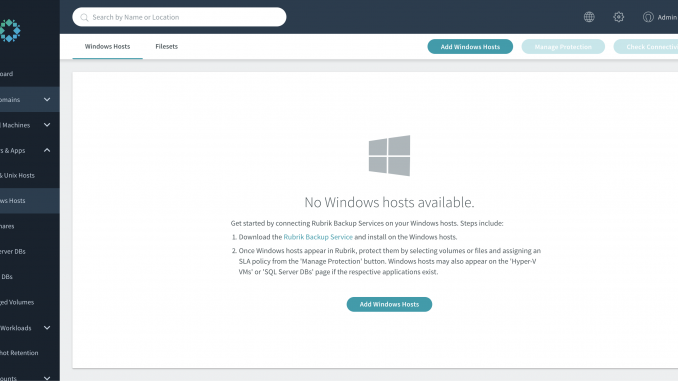
    First off, downloading the Rubrik Backup Service installer is easily achievable by 2 methods. You can obtain the installer from under the Windows Host section on your Rubrik CDM web UI or via the hyperlink https://<rubrik cluster Ip-hostname>/connector/RubrikBackupService.zip


    Once downloaded you will need to extract the contents. Ensure that you keep all files together in the same folder as they are all required for the install. Each installation package is specific to the cluster it was downloaded from and will only work with that cluster.

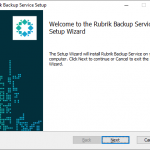
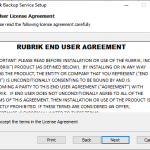
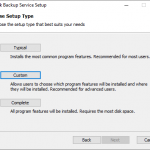
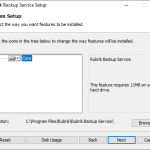
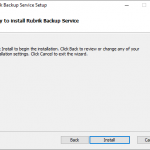
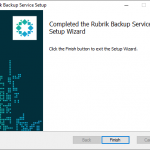
    The wizard is a simple “Next, Next..” process. Open the MSI file. When you select custom, you do have the ability ti change the installation location. Once completed, click Finish.

    Open up the computer Services manager and check that the “Rubrik Backup Service” is running.

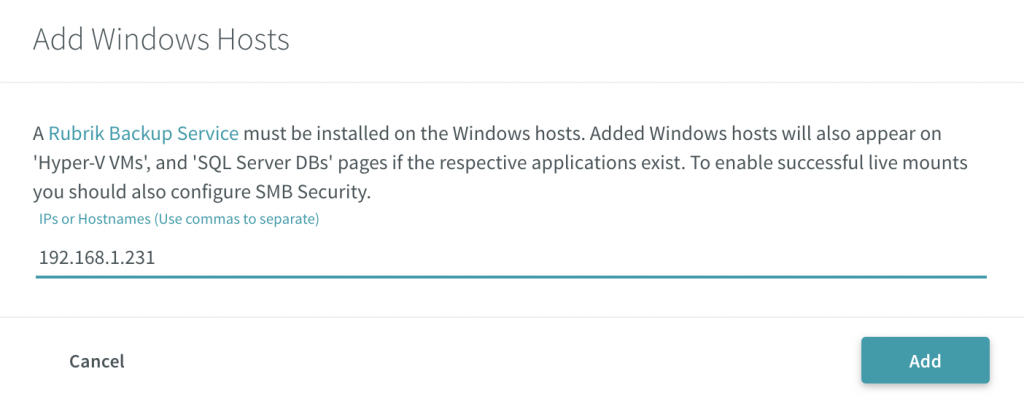
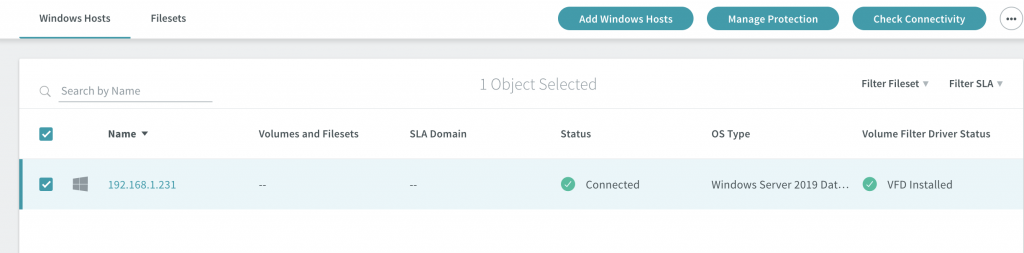
    At this point, you will not see the host show under Windows hosts under the web UI, you will need to click on the “Add windows hosts” button – either in the main screen or in the top bar.


    When adding the hosts you can either do this by IP or hostname. Ensure that your DNS is configured correctly prior to trying to add via hostname – click Add. Adding the host will create a secure connection between the host and the cluster.


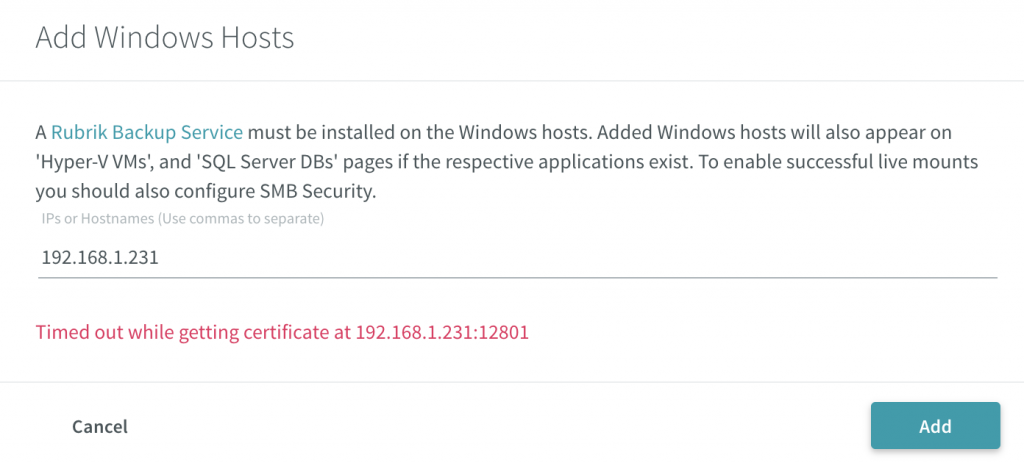
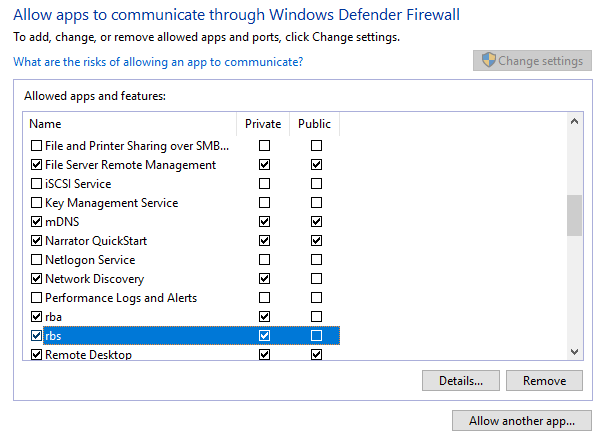
    If you run into an issue where the cluster is unable to connect to the host or display an error regarding retrieving the certificate, make sure you configure your firewall. As this lab is on a single subnet the cause for the error was the Windows Defender Firewall. Add the required allow access and retry added the Windows host to the cluster.


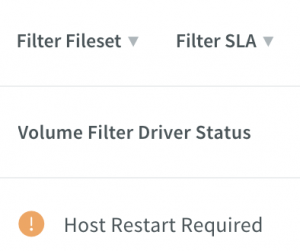
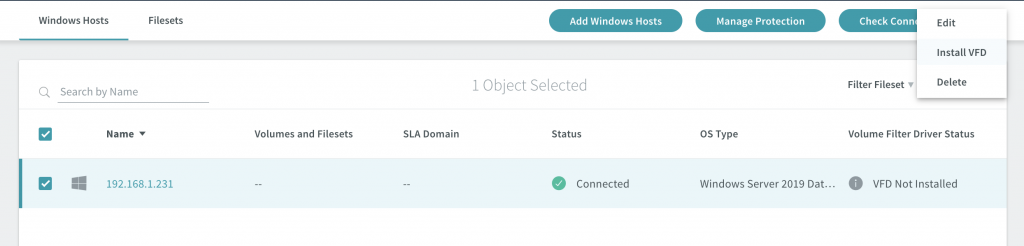
    The host will show a status of “Connected.” You will need to install the Volume Filter Driver (VFD) to enable the cluster to track changes to the blocks as well as assist with the performance of the incremental backups. Select the host you want to install the VFD on and click the 3 dots in the top right corner -> Select Install VFD -> Wait until the Volume Filter Driver Status changes to “Host Restart Required” and reboot the host. (Refresh the UI if you don’t see it update after some time.)


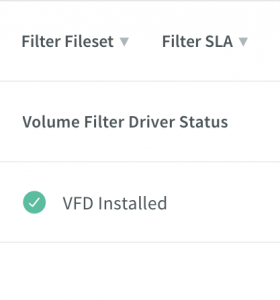
    After reboot, you should now see the status change to “VFD Installed”

    The Windows host is now looking ready to go and the last two items are to set up the protection by adding the SLA domain and content to be protected

    .
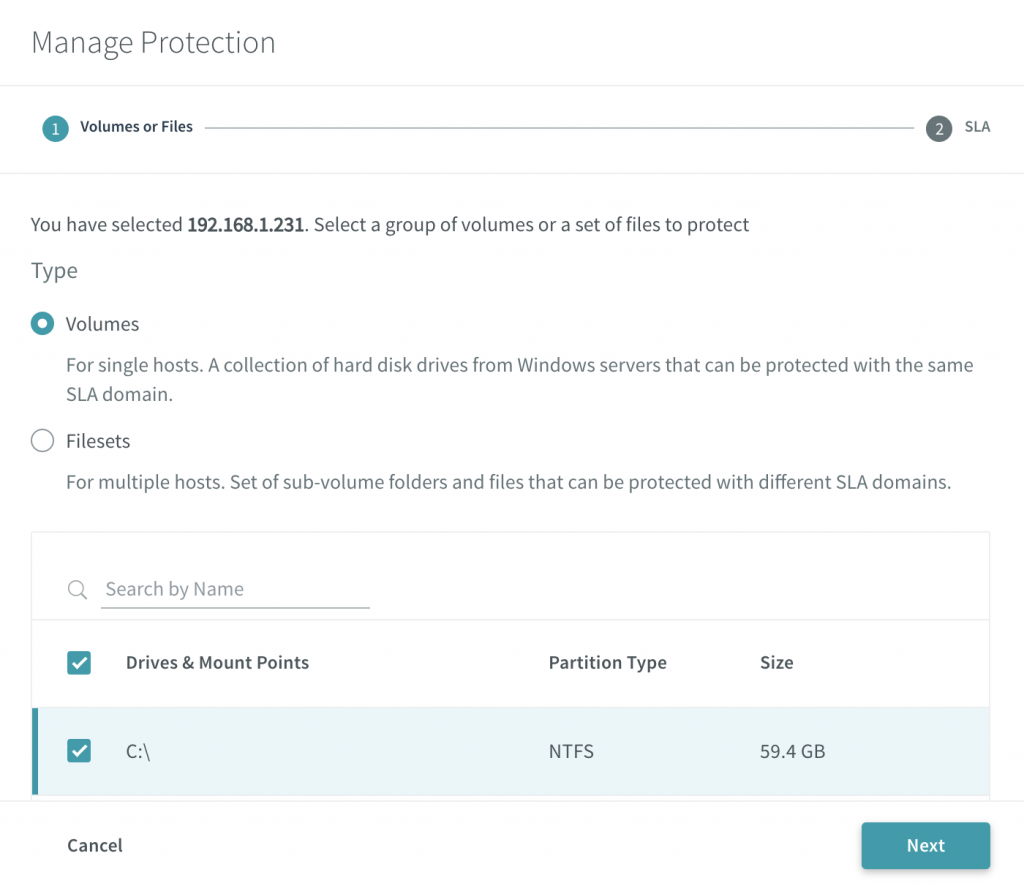
    Select the host and click the “Manage Protection” button. Here you can choose to backup set you want to protect, whether it is the volumes or filesets.

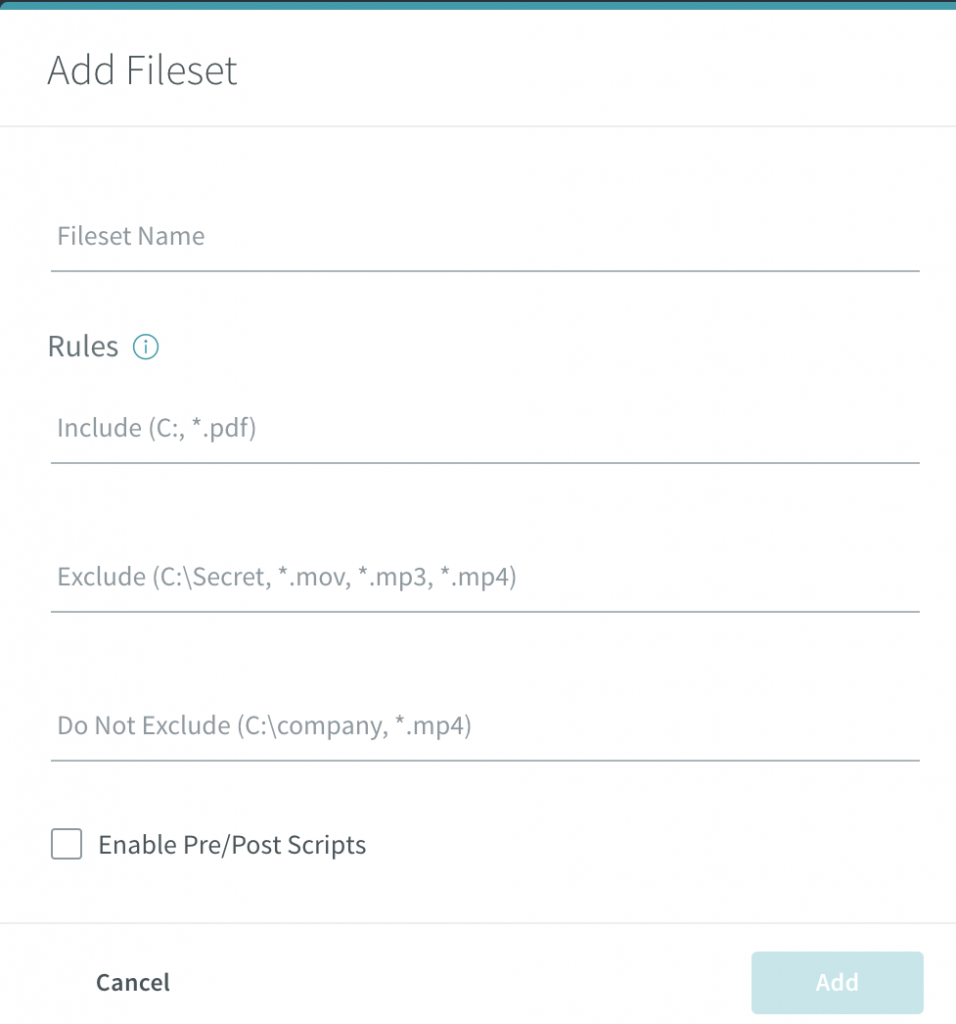
    When adding a fileset, you can set rules around whether to include or exclude certain folders and file types.


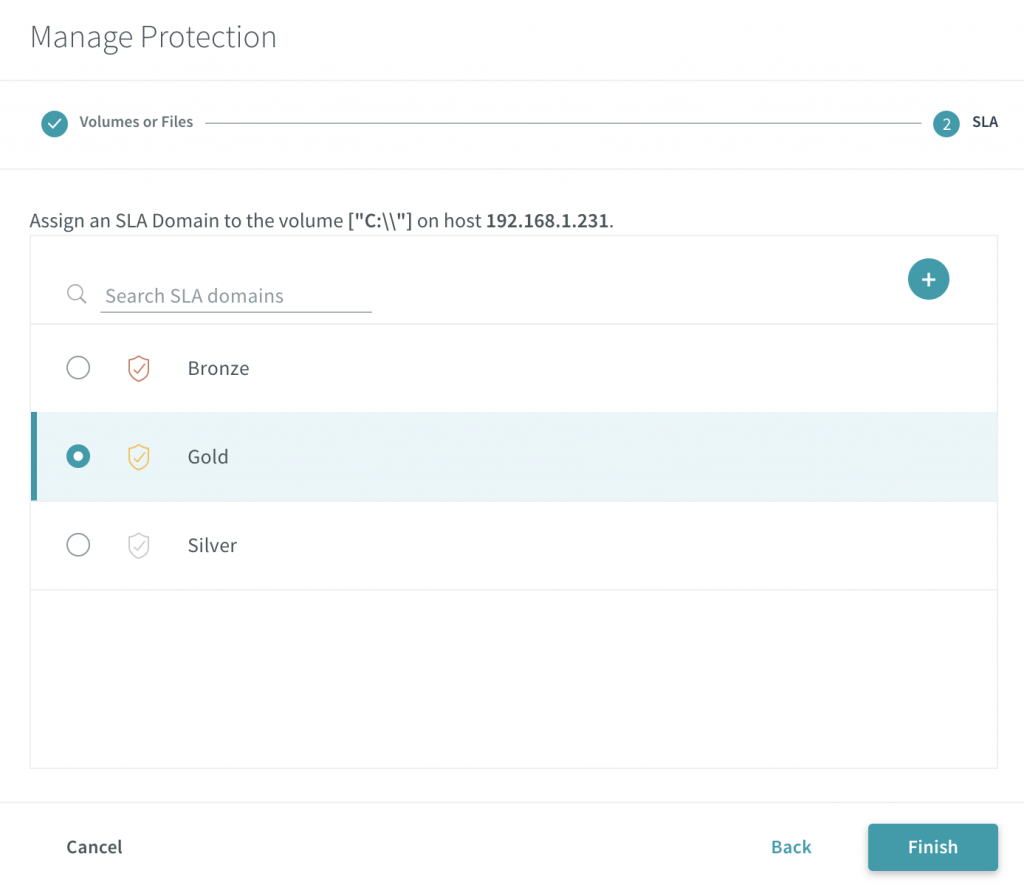
    Once you have set your backup set, you can then assign the SLA domain that meets your requirements for your backup SLA. For more about SLA Domains see SLA Domains Global Scale


    It is a very simple process which, as mentioned above, this can be automated through the use of scripts and APIs, however this was just a walkthrough of the process. Ensure to check out the Rubrik Build site. There are also other scripts available on the Rubrik Build GitHub repo along with various SDKs for use with Rubrik CDM.

  • Veeam Announcement Round Up

    Veeam Announcement Round Up

    So mark today as a good day as two announcements from Veeam have surfaced. I’ll start with the minor announcement and move onto the good stuff so you will read the full post.

    Veeam 9.5 Update 4a. 
    That’s right, 2 months after releasing the GA of Veeam B&R 9.5 Update 4, the next minor release has surfaced with some fixes as well as improvements.

    One of the bigger items on the list is the readiness for vSphere 6.7 U2 and Hardware Version 15. This means that the code has been tested against the up and coming update for vSphere.

    Second is the support for Microsoft System Centre Virtual Machine Manager 2019 

    There is a list of items in the release notes – Check them out!


    Veeam Backup and Replication Community Edition. 

    That’s right, Veeam have jumped on the bandwagon and release their Community Edition, allowing up to 10 VMs, Cloud Instances, Physical and/or Workstations to be backed up. However, the even cooler part is that you can even use this in production!

    The community edition is packed full of features, and you would think that there would be some that were missing, but that is surely not the case here. Veeam is putting it out there for you to get your hands on and to build your environments and see the full potential of Veeam B&R.

    You can get started with Veeam B&R:CE here 


    So that’s it for now, very quick overview announcement, but there is tons of information in the links. Go and check them out and get your hands on some awesome products!

  • Veeam Backup & Replication 9.5 Install – Back to Basics.

    Veeam Backup & Replication 9.5 Install – Back to Basics.


    Sometimes it is good to go back to basics, somethings change between different versions of software and the installation process isn’t always the same. Sometimes, you may have never installed that piece of software before, but the only installation guide is 3 versions in the past and they have since introduced the need for IIS for a new web portal or something. So here we go in the first post of my new Veeam series “How to install Veeam Backup and Replication” 

    1. Download the latest Veeam VBR ISO from the support download page. 
    2. Depending on version downloaded, you may need to extract the ISOs from the ZIP
    3. Mount the “VeeamBackup&Replication” ISO and open the setup.exe
    4. Click the install icon for Veeam Backup & Replication.
    • Read and Accept the EULA (You can’t proceed if you don’t agree) 
    • If you have a license file, attach it. Otherwise, you will get 30 days free trial
    • Choose your components to install. 
      • Veeam Backup & Replication– This is the main application for configuring and running backup & replication tasks.
      • Veeam Backup Catalog– Used to index the files into a GuestOS backup file for easy restoration. 
      • Veeam Backup & Replication Console– The console is the GUI used to perform tasks and configure Veeam Backup & Replication. 
    • The System Configuration check is used to ensure the correct components are available and installed ready for Veeam B&R to install and configure.
      If there are components showing as Failed, click on the “Install” button to get them installed.  
    • One installed, re-run the check and ensure each component passes. Click “next”. 
    1. Review the default configuration, this includes directory locations, ports and SQL instances. You can select “Let me specify different settings” if you need to make any changes. Click Install to continue. 
    • Wait until installation completes. The installation will take approx. 10 minutes, and if there is an update as part of the install, you will see this occur towards the end of the process. 
    • You will be notified once completed. 
    • Double click on the Veeam icon on the desktop to open the console and put in your Username and password and click connect.
    • By default, the Component update will open up and require you to run the update on any components that require it. They will be listed. Select and apply the updates.
    • Under “Inventory” > “Virtual Infrastructure” > select “ADD SERVER” > Select type of server (in this case, VMware vSphere). NB:You will need to run this process before you can set up your proxies.
    • Input your vCenter (or host) details for Veeam to connect to. 
    • Add your server credentials into the credential manager. 
    • Trust the certificate if it is Self-signed. Please see KB2806 regarding 9.5U3 self-signed Cert bug. 
    • Confirm settings are all correct and click “finish”. 
    • Confirm under “Virtual Infrastructure” > VMware vSphere” that you can see your vCenter hierarchy. 
    • Under “Backup Infrastructure” > “select Backup Proxies”

    • Add in your proxy server’s IP/hostname and a description
    • Add your credentials for the proxy server, or reuse pre-configured.
    • Wait for components to all install. 
    • Confirm the Proxy service details
    • Once you click “finish”, you will return back to the VMware Proxy screen, here you will be able to set your Transport Mode and Datastores. 
    • Select “Choose” for Transport Mode. This will show you a number of options with descriptions to help you choose the correct transport mode to meet your infrastructure requirements. If unsure, select Automatic Selection.
    • Once you continue on, you will have the opportunity to set up traffic rules where you can create bandwidth restrictions. Here you can get granular and create policies for certain IPs. 
    • Once you have finished setting up your proxy, you will then need to set up your repository for storing your backups and/or replications. Select “Backup Repositories” and Set up a new repository. Start off by giving your repo a name. 
    • Veeam offers support for a number of different types of repositories. Select the best option for your infrastructure. (This tutorial will just be a Windows Server.) 
    • Under “Server” choose the repository server from the list or click  “Add New…” server. Once added click the “Populate” button to see the capacities and free space available. Once identified, select the disk you want to use. 
    • In your Repository settings, you can setup the path for which you want your backups to go to. Once set, click the “Populate” button again. Veeam also offers Load Control to assist with your bandwidth and disk performance for your backups, use and adjust as required. 
    • With Windows Server 2016, Microsoft introduced ReFS, their new volume format that allows for greater capabilities. Veeam acknowledges these abilities and advises you of the benefits of using ReFS over NTFS.  *Proceeding will not prevent you from using the Datastore. NB: ReFS is reasonably resources heavy.
    • Under Mount Server, you can set which server will take the load when mounting a restore point with Instant VM Recovery, SureBackup or On-Demand Sandbox. If you have the ability to provide write caching for the mount server, you can enable vPower NFS Service to assist with those mount points.
    • Once all configured, the review stage will confirm if any of the additional components will need to be installed on the new Backup Repository. Once confirmed, you can apply and let Veeam set up the repository. 
    • During the apply process, you will be able to confirm all steps completion. 
    • Once your infrastructure is configured, it is down to business and time to test and create your first Backup job. Under “Backups”, Right click and Select “New Backup Job.” Set a Name and then select your Virtual Machines you would like to backup.  
    • Click recalculate to ensure the total size is updated to reflect the size of the disks to backup. You can also exclude objects from being backed up. 
    • Select your proxy, if you have a Proxy server setup, then choose that one. Otherwise, if you did not setup a proxy earlier, you can use VMware as the Backup Proxy, however this will be a slower process. 

    • Select your Repository for the backup job. In this screen, you can also set the amount for restore points you want to keep and any advanced settings such as additional scripts, Email notifications, backup modes (Incremental, Active Full, etc.) etc. 
    • The Guest Processing page is used to configure the backup job to leverage Application Aware processing and also file indexing and exclusions, and much more.
    • The schedule is fairly self-explanatory. Here you can configure how often the job will run and how many retry attempts before failing the job. 
    • Once all settings have been configured, apply the configuration and if appropriate, Run the job once created. 

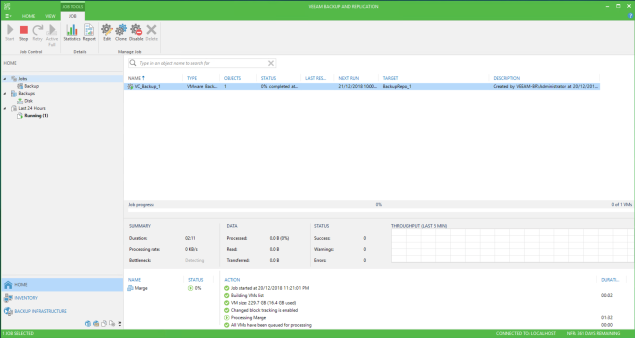
    • Watch the progress and if there are any errors, adjust your components where required. 
  • Rubrik Full Bare Metal Recovery

    Rubrik Full Bare Metal Recovery

    Recently I wrote a post on Rubrik’s latest major release, 5.0 Andes. That’s 5 major releases since the very beginning in January, 2014 and shipping the first Brik in November of the same year.  Much like the appliances themselves, that is just an incredible speed to get up and operational to send onsite to a customer! You can check out the full timeline here.
     
    I do however want to dig a little bit deeper into some of the items that were released as part of the 5.0 announcement. There were a number of things I had already mentioned, but for this post I want to go further into the Windows Bare Metal Recovery.
    So why do we want to deal with physical servers, isn’t everything virtualized? Well, no. Not everyone’s environments are virtualized as there are many reasons why an enterprise may need to continue to run physical machines for licensing or hardware requirements,  and it is imperative that they are backed up accordingly and even more-so easily recoverable in the event of a failure.
    Rubrik have now met this need with their full Windows Bare Metal Recovery (BMR) feature as part of the Rubrik 5.0 Andes release, backing up at block level while ensuring even the MBR/GPT partitions are secured. BMR isn’t new to Rubrik, but in the past it started only protecting file sets and files, in 4.2 it was able to protect volume partitions, however, now in 5.0 Rubrik offer FULL BMR by introducing the Volume Filter Driver (VFD) which can be installed optionally to work with the Volume Shadow Copy Service (VSS) and is used for Change Block Tracking (CBT) to decrease backup times.
    On first run, the Rubrik Backup Service (RBS) will capture a Crash-Consistent Volume-based snapshot and backed up onto the Brik and is stored as Virtual Hard Disk v2 (VHDX) which makes it easily available for P2v. Once captured, then incremental snapshots are taken with the VFD checking and creating a bitmap of changed blocks to ensure faster backup windows.
    The ease of backup is incredibly simple, and recovering from a disaster is just as good. You will need to use the Rubrik WinPE Tool to assist in making you WinPE boot image, but once created, you can then boot your target system into the PE. This environment will allow you to log in and mount the samba share and kick off the restore PowerShell script. BMR also support Live Mount which will allow you to mount your required volume snapshot that you want to restore from. As the first part, the script will obtain and prepare you disk layouts prior to copying down your boot partitions and data. Once the restore is completed, reboot and then you can login and confirm that all the volumes are intact and all data is there and accessible. If you are migrating to a different physical tin, then sensible target hardware needs to be considered, however there is no requirement to match the original source hardware.
    One last feature of the 5.0 release is the ability to migrate from a physical machine. There are 3 options for migration;

    • P2V: Migrate from physical to virtual, either VMware vSphere or Microsoft Hyper-V
    • P2P: Migrate from physical to similar or dissimilar physical hardware
    • P2V: Migrate from Physical to the cloud, whether it is Microsoft Azure or AWS

    It really is just that easy to do and those who are still bound by physical servers can breathe again knowing that Rubrik can take care of their Full BMR needs, as well as being able to meet the Enterprises’ requirements of off-site long term storage by pushing to the cloud.

  • Rubrik announces Andes 5.0

    Rubrik announces Andes 5.0

    Alright, backup and take a seat for this one!  See what I did with the title? Ok, maybe I’m a kinda a little excited to write a post this time. Not only is this my first briefing with Rubrik, but it is also a jam packed new release with some amazing new features.  In this post, I am just going to briefly mention the new features and what to expect, as I hope over the next week, I can dive in deeper into a few of them..

    So starting from the top, since 2015 when Rubrik rebased their v1.0, they have been making some significant headway in new feature and almost releasing a a major release within the same year of the previous. Skipping a bit over 3 years since that first release and here we are with Andes 5.0, this is staggering to see a company raising the bar.
    As I mentioned above, this is a just a quick overview to get your tastebuds watering, so I’ll move right in to mentioning the all the gossip!
    Rubrik is really looking into the Digital Transformation buzz that we are all see happening at the moment, and they are rapidly adapting to keep up and get infant of the market to meet the Digital Transformation demand.
    Oracle: 
    When you work with databases, you know how quickly they update and change, and being able to recover your database in the event of a disaster is time critical. That’s where Rubrik now has Instant Recovery and Live Mount to achieve almost near zero Recovery Time Object. This is great for test/Dev as the databases would be an almost instant clone.
    NAS Direct Archive:
    Sometimes you may already have a file store in place backing up\replicating from an onsite NAS, this is good, but it can be better with Rubrik’s NAS Direct Archive. This new feature will allow you to continue to backup you NAS to a remote store (Clud, NFS Store, or Object store) however, it packs on extra simplicity by crawling through the data for you and indexing it automatically to save you time when you need to recover from that remote storage.
    Elastic App Service:
    The EAS is a new storage repository that provides a highly available, storage efficient distributed file repository over NFS or Secure SMB. This platform allows nearly any application or OS to write direct to the volume, opening and closing the connection with scripted API calls. The EAS works like any other plain old NFS/SMB but when the connection is closed a Point-In-Time snapshot is taken and the data is secured. Rubrik has again made it easy by creating some pre-tuned default tags for different databases, you can tag the volume with this predefined tags and let the Brik for the rest.
    SAP HANA Protection Certified Solution.
    Rubrik has now been awarded the SAP HANA Certified Solution certification leveraging the backint API to assist with backup and restore using SAP HANA Studio or Cockpit.
    Microsoft SQL Enhancements:
    MS SQL has been supported since version 3.0, however there have been some major updates to the platform to help make the process more efficient. Change Block Tracking has now been enabled with a new filter driver, this will ensure that you are only backing up the blocks that have had any changes made and decreasing the backup time. Rubrik can also now invoke VSS and take snapshots of the database to get a point-in-time consistent backups.
    Windows Server Bare-Metal Recovery:
    Just when the world was moving away from physical as virtual infrastructure offers more in terms of high availability, lower power consumption, better resource utilisation, etc… Rubrik has come out with Bare-Metal backup and recovery, protecting those who still run in a physical world. The perfect thing about this is that your Brik will do all the work for you in taking a backup of the MBR and GUID Partition Table while tracking the changed blocks at the kernel level. In the event of a failure, there are some manual steps including booting into WinPE, however, this is a much more efficient and accurate way than restoring from tapes!
    There is also the added benefit this can be use for P2V – so not all hope is lost in those still running physical workloads!
    Polaris protection for Office365:
    Earlier this year, Rubrik announced their Polaris SaaS Platform offering simple policy-based management to backup and recovery of your Office365 environment. This allows customers to mange their O365 backup and recovery policies through the Polaris interface, allowing them to use the same SLA policies as their on-prem solution. This integration also allows for global file search and single object recovery.

    As mentioned, this is just a brief overview for now. There is a lot crammed into this release, too much to put into one post. Stay tuned and continue to check out other posts around this release.
    To learn more check out: www.rubrik.com 

  • Zerto – Not Just Short Term DR Retention Anymore

    Zerto – Not Just Short Term DR Retention Anymore

    Last week I had the opportunity to participate in a session with Zerto at their global headquarters in Boston, MA. as part of Storage Field Day 16. This was a session I was really looking forward to after having been a partner for ~3 years and someone who really likes the technology.
    The session started with the companies Chief Marketing Officer, Gil Levonai going over the core details of how the company has grown and how their block based Continuous Data Protection technology has evolved over the years.
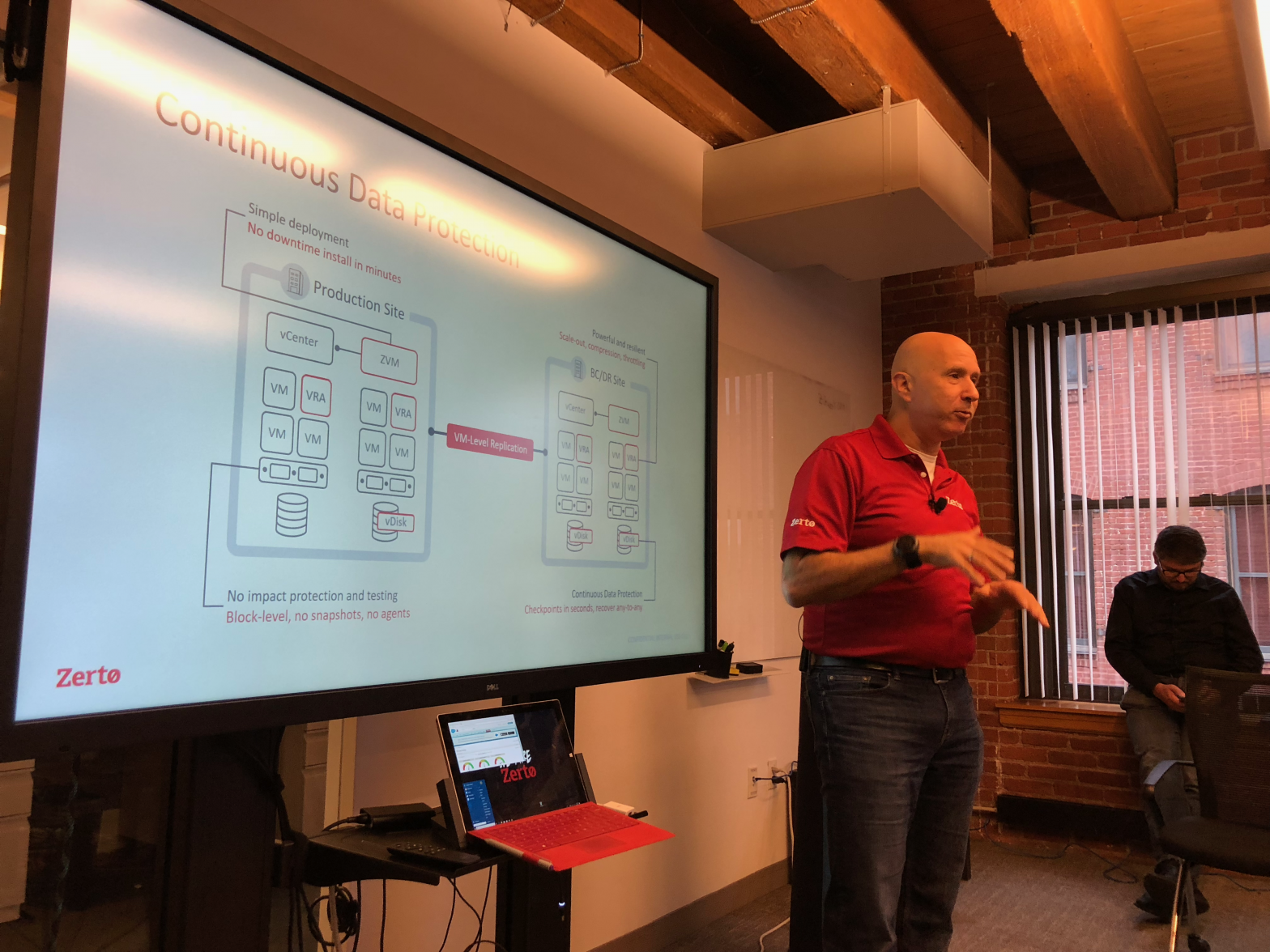
    Zerto Virtual Replication (ZVR) disaster recovery product that uses block based replication allowing it to be hardware agnostic. This means you can use any underlying storage vendor between sites. Zerto is building out their cloud portfolio to allow replication across multiple hypervisors and public cloud companies from vSphere and Hyper-V, through to AWS and Azure, and beyond. There are two main components that are required at both sites for the replication to work, the Zerto Virtual Manager (ZVM) and the Zerto Virtual Replication Appliance (ZVRA). The ZVM is a Windows VM that connects to vCenter/Hyper-V Manager to run the management WebGUI and present and coordinate the VMs and Virtual Protection Groups (VPGs) between sites. The ZVRAs are loaded on to each hypervisor as an appliance and is used to replicate the blocks across sites while compressing the data. One storage platform they do no support currently is VVOLs, however, they are a company that will develop for the technology as there is demand.
    You can set your target RPO to a mere 10 seconds and retain your recoverable data in the short-term journal from 1 hour up to 30 days – meaning you can restore data from a specific time rather than when the backup was last run..
    The VPGs are groups of VMs you want to be part of a failover group. This is where you can create a group for say a 3 tier app where you need each VM to restart in a certain order at certain intervals.

    You can see the Gil’s talk here: https://vimeo.com/277582934
    So, what was the technical discussion during this session? Mike Khusid (Product Management Leader) took us through their new Long Term Retention (LTR) piece that is currently under development to extend the capabilities of ZVR. This is  due to to be included in their next Major release, Zerto 7. This requirement for many enterprises is driven by the need to meet compliance standards and be able to retain data from 7 to 99 years. The benefit of this being included in Zerto’s Continuous Data protection means that you will have an available copy of data that was created ~3 minutes prior to being deleted, ensuring it will be recoverable within the set retention period.
    This is certainly a great way for Zerto to extend their product set to be able to meet the compliance demands that many companies face. As a partner using Zerto, I know this will be a great piece to be able to pass on to our customers.
    You can also catch Mike’s segment here: https://vimeo.com/277583291
    Thank you Zerto for taking the time to present at Storage Field Day #16.

  • Extended Unstun Times with VVOLs and Veeam Proxy Fixed in 9.5 Update 3

    Recently Veeam released Veeam Backup and Replication 9.5 Update 3″ This update has brought a number of fixes and additional features that you can read about in Anthony Spiteri’s post VEEAM BACKUP & REPLICATION 9.5 UPDATE 3 – TOP NEW FEATURES
    This particular release brings a welcomed fix for backing up VVOL backed VMs when using a proxy server. The symptoms occur when you backup a VM that is utilising VVOL storage and a proxy server with hotadd. The snapshot attempts to remove too soon before the HotAdded disk finishes its unbind process. When this occurs the VM can freeze anywhere from a number of seconds up to 80+ seconds.  These issues were not present when the backup proxy was on the same host as the VM that was backing up. The workaround prior to this release was to run in NBD mode which uses the host as a proxy and is a slower method.
    So, what am I looking for? The most obvious symptom is when your VM freezes and can not perform any actions, however performance graphs, etc all should a healthy VM. The other is in your VM log file, you will find a line similar to below. this is a standard line in your log, the difference is the the length of time the process runs for.  In this sample: 56 seconds

    Checkpoint_Unstun: vm stopped for 56223314 us

    In Veeam B&R 9.5U3, you can now add a registry value to set a wait time to allow the unbind from the proxy to complete before the snapshot is removed. to do this, open up your Veeam B&R server -> Open RegEdit -> navigate to:

    HKEY_LOCAL_MACHINE\SOFTWARE\Veeam\Veeam Backup and Replication\

    Create a new REG_DWORD: HotaddTimeoutAfterDetachSec
    Using decimal set your wait time (value) in seconds for how long you require.
    Once added, you can restart your server\services for the settings to take affect. After testing overnight with a few Backup jobs, I re-enabled all jobs to run through proxies and  have not seen any issues yet.