
On Thursday we saw VMware release their next major release in the vSphere product line. vSphere 7 was finally GA’d after a number of months since Project Tanzu and Project Pacific were announced at VMworld US 2019. There have been some significant changes in this release where some items have been removed and a large number of new features added.
In this particular article, I want to cover the changes made to vSphere Update Manager (VUM) or as it is now known as vSphere Lifecycle Manager (vLCM). vLCM incorporates vboth the original vSphere Update Manager controls as well as managing firmware updates for your hosts hardware.
vLCM is designed to not only apply the standard upgrades, patches, VMware Tools and Virtual Machine hardware updates as the previous vSphere Update Manager, but it is also has the ability to apply firmware updates to your hosts hardware. These new features to apply OEM software updates to your host hardware are only available to hosts running ESXi 7.0. Actions such as host patching, updates and upgrades are still available for lower versions 6.5 and 6.7. When using an ISO through vLCM to upgrade your hosts, you will still only be able to use the matching major version of vCenter, will not be able to use a lower version to say upgrade a 6.5 host to 6.7 while using vCenter 7.
vSphere Lifecycle Manager is only available under the HTML5 vSphere client, and rightly so as the flash client has been completely removed. There are 5 top menu items and each with related sub-menu’s underneath. These are arranged as below:
- Image Depot
o ESXi Versions
o Vendor Addons
o Components - Updates
- Imported iSOs
- Baselines
- Settings
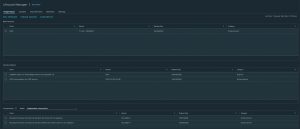
Image Depot
The image depot displays 3 sets of tables, each presenting a list of items that together will help form your remediate image to manage your host updates. You will start with your Base VMware ESXi Image, then you can either select to use updated firmware bundles provided by the vendor or select individual components to update. The vLCM will sync with the the VMware HCL to provide an up-to-date approved list of firmware.
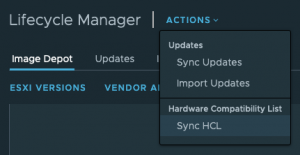
ESXi Versions
This is a collective list of VMware base images that are available in the depot. Selecting the image will provide information on the included software and drives that are available and may be installed when the host if remediated.
Vendor Addons
In this list, you will find a collection of component updates in a single bundle provided by the vendor. Here you will get a select list which the vendor has approved to work together and information provided on each update. There is also an included list of the drivers that have also been removed from the build.
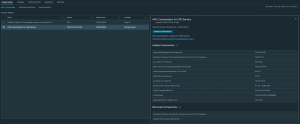
Components
This menu provides a list of available individual component firmware updates that you can include in your remediation images. If you have found that you do not want certain components updated in the vendor addons or that there is a critical fix that is only required for one component, then you will be able to add these components separately to your image.

Outside of the new Image Deport, there are the standard vSphere Update Manager options avialble to remediate your hosts with the standard Patches, VMware Tools, VM Hardware Version through the use of baselines and baseline groups.
The introduction of the new Image Depot included in vSphere Lifecycle Manager definitely seems to look promising and is a nice addition. This will certainly help save a lot of time researching and bridging the gap between ESXi and supported vendor drivers and firmware versions. This is certainly a great new step forward.

