Tag: Replication

  • VMCE: Core Concepts – Define RTO and RPO

    VMCE: Core Concepts – Define RTO and RPO

    Core Concepts: Define RTO and RPO (Veeam KB link)


    Defining the protection scope:

    • Find out first how many machines and how much disk space is currently used
    • Utilising the above information, add it with the calculation of the daily change rate
    • This information is critical to ensure that there is enough space available to protect the backup. Veeam will create a full backup file on first run, then each backup job after will run an incremental. The incremental backups will only backup the changed blocks, If the changed blocks is only small, then on a short and small backup will take place, if there are a large number of files changed, then the backup will take significantly longer and will take up additional space.

    Veeam Calculators

    RPO (Recovery point Objective)

    RPO and RTO are absolute requirements for a DR plan.
    RPO is the point in time of which the latest backup is available, this is the accepted risk of amount of time/data that may be lost since the last backup.
    This will also set how many backups will need to be taken to ensure an available copy within the window


    RTO (Recovery Time Objective):

    RTO is the time between the time of the incident to the time the environment or systems are available for use again.  If you have a RTO that is 24hrs in your Disaster Recovery plan, this is the agreed upon time that the systems should take to be online again and available. This time can be calculated by running failover tests or recovery scenarios in which the steps to recovery involved would be tested and timed.


    Planning RTO and RPO

    There are different recovery strategies that can be used, all of which can range from a short downtime to a longer recovery. Achieving a short downtime may require additional features and services to be available.

    In order to have an RTO and RPO within seconds, you can utilise Veeam CDP, however, this would require having two separate sites, Prod and DR, to live replicate and failover to in near real-time, the data would be synchronised instantly to ensure the recovery point objective is meter.

    For a RPO of minutes but an RTO of seconds, Veeam Replication will give you the ability to have have an RPO within minutes, but your recovery time can be within seconds from failing over to the environment starting up. This is due to way replications are created as these first create the snapshot like a backup, and then run a job to applying the changes to the target. This can run every few minutes.

    For a recovery time within minutes, the Veeam Snapshot Orchestration (within VMware vSphere) creating a chain of application consistent array-based snapshots which is then able to be mirror/replicated to a secondary array.

    Moving into the having an RPO of less than 24 hours and a recovery time that is generally within minutes or within a day is the straight up backup. Generally, a backup is taken every 24 hrs at the end of the day, some may be configured to take a backup every hour or every 2 hours depending on the requirement, however, this will creates a much longer RPO to go back to and thus more changes that occurred during the day that may not be backed up.

    If you find yourself in a situation where your backups are unavailable, then you will be looking at Backup Copies where your RPO is going to be within the 24-48 hour range, and your RTO could come within minutes, but generally a number of hours depending on where your backup copies are stored. This allows you to keep a copy offsite, in another data centre. As this is a copy of the backup, the calculation would first involve the frequency of the backup + the time for the backup copy to complete its copy process to the next location.

    To really get into the 3-2-1 rule, although it is going to put both the RPO and RTO into the hours with significant recovery operator involvement, Tape is a great way to air-gap your backups and have an offsite/disconnected copy. The reason that this is the slowest solution is the speed of which tapes read and write at. Tapes generally also only hold upwards of a few TB and thus require swapping, and if you are using GFS (Grandfather-father-son) method, depending on where in the chain the recovery is being processed may require a number of tapes to be swapped.

    Summarising RTO and RPO planning:

    Depending on the budget and resources available, the RTO and RPO can differ significantly, and with less equipment, the RTO can be much higher. For instance, without a failover site, both the RTO and RPO could take significantly longer times as the best option, if supported by the array, is Snapshot Orchestration where the data is available on the array already.  If not support, then you do not have a second site, you would then be recovering for a backup, and if those backups have been affected by the disaster as well, the recovery from Backup Copies or Tape are your real remaining options.

    With planning and budget, RTO and RPOs can be lowered and almost require only small amounts of restore operator assistance to get production back up and running.

    Keep in mind, the longer the RPO, then the bigger the gap of data that isn’t backed up and available when the environment is recovered.

  • Veeam Backup & Replication 9.5 Install – Back to Basics.

    Veeam Backup & Replication 9.5 Install – Back to Basics.


    Sometimes it is good to go back to basics, somethings change between different versions of software and the installation process isn’t always the same. Sometimes, you may have never installed that piece of software before, but the only installation guide is 3 versions in the past and they have since introduced the need for IIS for a new web portal or something. So here we go in the first post of my new Veeam series “How to install Veeam Backup and Replication” 

    1. Download the latest Veeam VBR ISO from the support download page. 
    2. Depending on version downloaded, you may need to extract the ISOs from the ZIP
    3. Mount the “VeeamBackup&Replication” ISO and open the setup.exe
    4. Click the install icon for Veeam Backup & Replication.
    • Read and Accept the EULA (You can’t proceed if you don’t agree) 
    • If you have a license file, attach it. Otherwise, you will get 30 days free trial
    • Choose your components to install. 
      • Veeam Backup & Replication– This is the main application for configuring and running backup & replication tasks.
      • Veeam Backup Catalog– Used to index the files into a GuestOS backup file for easy restoration. 
      • Veeam Backup & Replication Console– The console is the GUI used to perform tasks and configure Veeam Backup & Replication. 
    • The System Configuration check is used to ensure the correct components are available and installed ready for Veeam B&R to install and configure.
      If there are components showing as Failed, click on the “Install” button to get them installed.  
    • One installed, re-run the check and ensure each component passes. Click “next”. 
    1. Review the default configuration, this includes directory locations, ports and SQL instances. You can select “Let me specify different settings” if you need to make any changes. Click Install to continue. 
    • Wait until installation completes. The installation will take approx. 10 minutes, and if there is an update as part of the install, you will see this occur towards the end of the process. 
    • You will be notified once completed. 
    • Double click on the Veeam icon on the desktop to open the console and put in your Username and password and click connect.
    • By default, the Component update will open up and require you to run the update on any components that require it. They will be listed. Select and apply the updates.
    • Under “Inventory” > “Virtual Infrastructure” > select “ADD SERVER” > Select type of server (in this case, VMware vSphere). NB:You will need to run this process before you can set up your proxies.
    • Input your vCenter (or host) details for Veeam to connect to. 
    • Add your server credentials into the credential manager. 
    • Trust the certificate if it is Self-signed. Please see KB2806 regarding 9.5U3 self-signed Cert bug. 
    • Confirm settings are all correct and click “finish”. 
    • Confirm under “Virtual Infrastructure” > VMware vSphere” that you can see your vCenter hierarchy. 
    • Under “Backup Infrastructure” > “select Backup Proxies”

    • Add in your proxy server’s IP/hostname and a description
    • Add your credentials for the proxy server, or reuse pre-configured.
    • Wait for components to all install. 
    • Confirm the Proxy service details
    • Once you click “finish”, you will return back to the VMware Proxy screen, here you will be able to set your Transport Mode and Datastores. 
    • Select “Choose” for Transport Mode. This will show you a number of options with descriptions to help you choose the correct transport mode to meet your infrastructure requirements. If unsure, select Automatic Selection.
    • Once you continue on, you will have the opportunity to set up traffic rules where you can create bandwidth restrictions. Here you can get granular and create policies for certain IPs. 
    • Once you have finished setting up your proxy, you will then need to set up your repository for storing your backups and/or replications. Select “Backup Repositories” and Set up a new repository. Start off by giving your repo a name. 
    • Veeam offers support for a number of different types of repositories. Select the best option for your infrastructure. (This tutorial will just be a Windows Server.) 
    • Under “Server” choose the repository server from the list or click  “Add New…” server. Once added click the “Populate” button to see the capacities and free space available. Once identified, select the disk you want to use. 
    • In your Repository settings, you can setup the path for which you want your backups to go to. Once set, click the “Populate” button again. Veeam also offers Load Control to assist with your bandwidth and disk performance for your backups, use and adjust as required. 
    • With Windows Server 2016, Microsoft introduced ReFS, their new volume format that allows for greater capabilities. Veeam acknowledges these abilities and advises you of the benefits of using ReFS over NTFS.  *Proceeding will not prevent you from using the Datastore. NB: ReFS is reasonably resources heavy.
    • Under Mount Server, you can set which server will take the load when mounting a restore point with Instant VM Recovery, SureBackup or On-Demand Sandbox. If you have the ability to provide write caching for the mount server, you can enable vPower NFS Service to assist with those mount points.
    • Once all configured, the review stage will confirm if any of the additional components will need to be installed on the new Backup Repository. Once confirmed, you can apply and let Veeam set up the repository. 
    • During the apply process, you will be able to confirm all steps completion. 
    • Once your infrastructure is configured, it is down to business and time to test and create your first Backup job. Under “Backups”, Right click and Select “New Backup Job.” Set a Name and then select your Virtual Machines you would like to backup.  
    • Click recalculate to ensure the total size is updated to reflect the size of the disks to backup. You can also exclude objects from being backed up. 
    • Select your proxy, if you have a Proxy server setup, then choose that one. Otherwise, if you did not setup a proxy earlier, you can use VMware as the Backup Proxy, however this will be a slower process. 

    • Select your Repository for the backup job. In this screen, you can also set the amount for restore points you want to keep and any advanced settings such as additional scripts, Email notifications, backup modes (Incremental, Active Full, etc.) etc. 
    • The Guest Processing page is used to configure the backup job to leverage Application Aware processing and also file indexing and exclusions, and much more.
    • The schedule is fairly self-explanatory. Here you can configure how often the job will run and how many retry attempts before failing the job. 
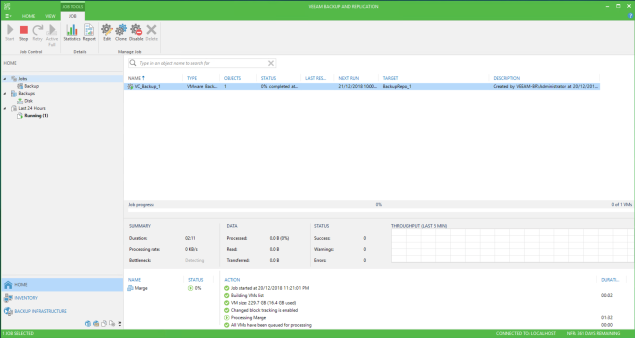
    • Once all settings have been configured, apply the configuration and if appropriate, Run the job once created. 

    • Watch the progress and if there are any errors, adjust your components where required.