Tag: m365

  • How to automate certificate update in Veeam Backup for M365

    How to automate certificate update in Veeam Backup for M365

    One of the most tedious operational tasks you can do in IT is manage domains and certificates – these chores can become quite tiresome when replacing many over a year and then starting again as most certificates only have a 1 year (13 month) life cycle. 

    But then… you have certificate providers like Let’s Encrypt and ZeroSSL who provide 3 month free certificates (some with additional costs for repeated use) that with the help with additional toolsets can become automated certificate renewals. 

    in this article I want to cover how to set up and use Let’s Encrypt with Certify the Web to automate the renewal of the certificates for Veeam Backup for M365. 

    As Let’s encrypt needs to use either DNS or HTML to check the legitimacy of the domain to be ale to provide a valid certificate, it is helpful to use an application like CertifyTheWeb to automate the process to update the DNS record when required. CertifyTheWeb has the ability to update a number of DNS providers using the APIs provided along with the API token. 
    Use the attached link here for Setting up CloudFlare API Token for your required DNS zone – this will then allow CertifyTheWeb to make those changes on the fly. 

    To set up CertifyTheWeb to just generate certificate: 

    1. Download and install CertifyTheWeb’s application (Best on the server you require the certificates on) 
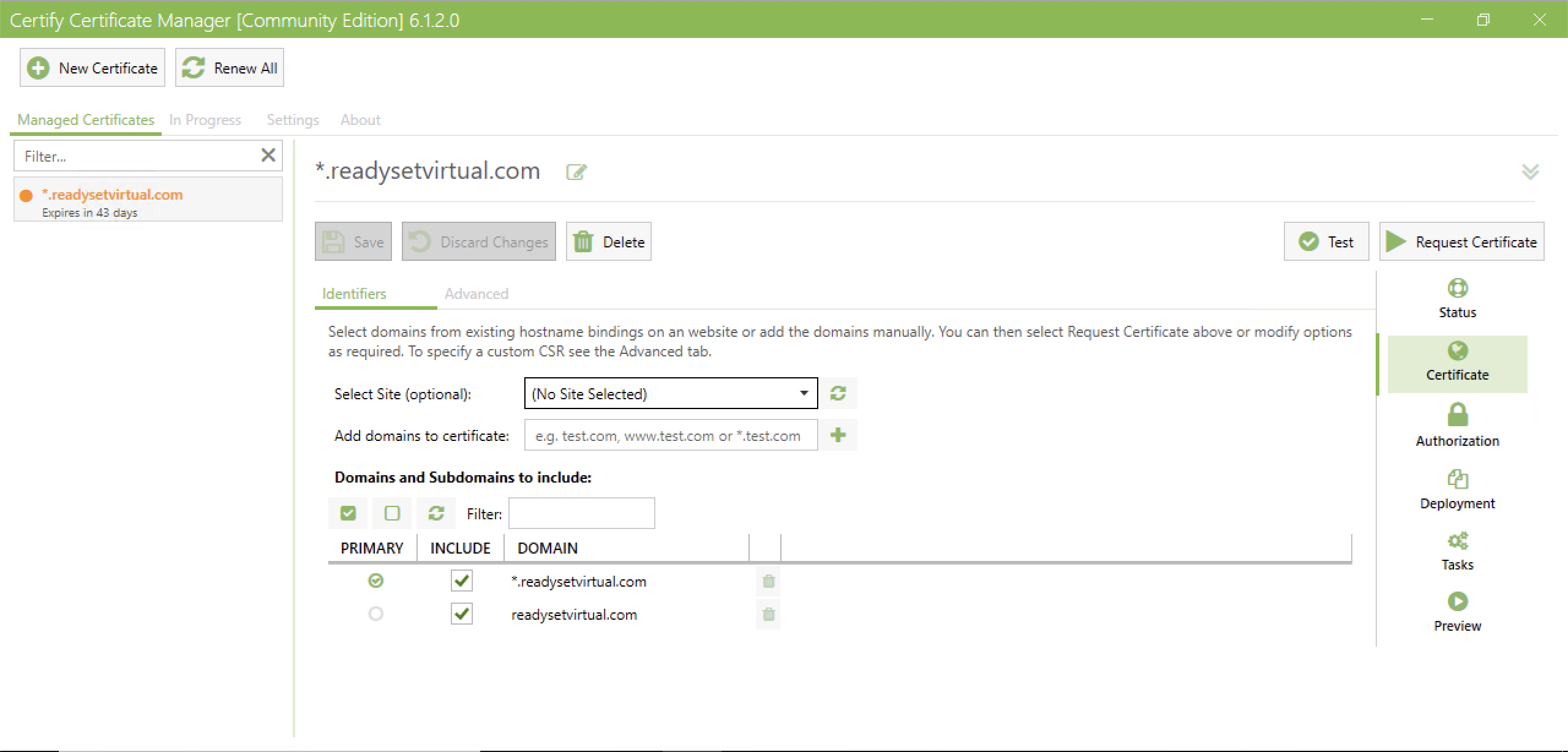
    2. Create a new Certificate
    3. Set the Challenge type to DNS and select your DNS Update Method /Manage
    4. Add your credentials/API Token for the DNS manager and put in your DNS Zone ID
    5. Run a Test and confirm that the challenge is working and that the certificate is ready to be deployed. 
    While certify the web will handle applying the certificate to a number of web host systems, for applications like VB365, you need to utilise the APIs/PowerShell commands to install the certificates. 

    This will be applied to the Tasks section of CertifyTheWeb where you can run post-scripts to your recently registered certificates. 


    When a certificate is downloaded, it is added to the default folder of C:\ProgramData\certify\assets\<_.domainName>\  – Here you will find the .pfx files. 


    The below script will install the certificate to the below parts of Veeam Backup for M365. It will also enable the features.

    • RestAPI
    • Tenant and Operator Authentication
    • VBO Restore Portal

    In a nutshell the script will perform the below actions: 

    1. Import required modules from Veeam Backup for M365
    2. Create archive folder for certificate if it doesn’t already exist
    3. Set Certificate path
    4. Enable RestAPI setting and install certificate 
    5. Enable Operator Authentication setting and install certificate
    6. Enable Tenant Authentication setting and install certificate
    7. Enable Restore Portal Setting and install Certificate while setting Region, AppID and PortalURI
    8. Move certificate to the archive folder

    Save the below script as a .ps1 and map it through the Tasks in CertifyTheWeb – this will then call during deployment. 

    # Import VB365 PowerShell Modules
    
    Import-Module "C:\Program Files\Veeam\Backup365\Veeam.Archiver.PowerShell\Veeam.Archiver.PowerShell.psd1"
    Import-Module "C:\Program Files\Veeam\Backup and Replication\Explorers\Exchange\Veeam.Exchange.PowerShell\Veeam.Exchange.PowerShell.psd1"
    Import-Module "C:\Program Files\Veeam\Backup and Replication\Explorers\SharePoint\Veeam.SharePoint.PowerShell\Veeam.SharePoint.PowerShell.psd1"
    Import-Module "C:\Program Files\Veeam\Backup and Replication\Explorers\Teams\Veeam.Teams.PowerShell\Veeam.Teams.PowerShell.psd1"
    
    $Region = #Default is = Worldwide
    $AppID = #AppID
    $PortalURI = #RestorePortal URI
    
    # Set the archive folder path
    
    $archive = "C:\ProgramData\certify\archive\"
    # Check if folder not exists, and create it
    if (-not(Test-Path $archive -PathType Container)) {
        New-Item -path $archive -ItemType Directory
    }
    
    # Grab new certificate
    # -Path must be set to the assets folder domain with the wilcard for the .pfx 
    
    $Certificate = Get-ChildItem -Path "C:\ProgramData\certify\assets\_.readysetvirtual.com\*.pfx"
    
    # Install RestAPI certificate and enable service
    
    write-host -foreground Yellow "Setting VBO365 Certificate"
    Set-VBORestAPISettings -EnableService -AuthTokenLifeTime 4800 -CertificateFilePath $Certificate
    
    # Install Tenant and Operator Authentication Certificate
    
    Set-VBOOperatorAuthenticationSettings -EnableAuthentication -CertificateFilePath $Certificate
    Set-VBOTenantAuthenticationSettings -EnableAuthentication -CertificateFilePath $Certificate
    
    # Install Restore Portal Certificate
    
    Set-VBORestorePortalSettings -EnableService -ApplicationId $ApplicationId -CertificateFilePath $Certificate -Region Worldwide -PortalUri $PortalURI
    
    sleep 5
    
    # Move Certificate to Archive C:\ProgramData\certify\archive\
    
    write-host -foreground yellow "Moving certificate to C:\certs\certify_archive\"
    Move-Item -Path $Certificate -Destination C:\ProgramData\certify\archive\
    
    
    write-host -foreground green "Certificate Sucessfully Applied"

    Just like that, the certificates are updated, and in the final few weeks CertifyTheWeb will run and generate a new set of certificates and apply as required when the existing are about to expire.

  • VeeamOn 24 – Day 1 Keynote Announcements

    VeeamOn 24 – Day 1 Keynote Announcements

    VeeamOn is upon us once more and is loaded with many great announcements for new innovations and technology in the backup and cyber resiliency space. There were recaps of announcements made earlier in the year, such as; Veeam Data Cloud, and Coveware. But there was some secrets that were kept very quiet.

    Veeam, in recent years, has had a strong focus on Cyber Security, and protecting not only your backups, but also detecting anomalies in your data, capturing malicious content before it becomes a problem. There are many ways in which your backups can be protected using technologies like; Immutability, Encryption and in-line malware detection. Each one plays a critical role.

    At VeeamOn 24, Veeam highlighted the Veeam Cyber Secure Program detailing the workflow for securing your backups, detecting anomalies and performing the subsequent action required to ensure your business data is secure and protected or getting the business back on their feet after a cyber incident.


    Before getting into announcements, taking a look back at the history of innovation from Veeam is a great way show the progression over the years for how the product(s) have transformed and become what they are today, and where the product is heading.


    But now it is time, the future of Veeam products is laid out, what new versions and what are they going to entail?

    First up, the small updates and additions to existing products on the market. Some highlight

    Kubernetes Backup – V7 (Available Now):

    • FIPS- Enable Cluster
    • Azure Blob Immutability
    • OpenShift Support

    Veeam Backup for M365 – V8

    • Immutability for Primary Backups
    • Linux Proxys
    • Proxy Pools
    • MFA for Console access

    Backup for AWS – V8

    • AWS RedShift Support
    • ASW FSx

    Backup for Azure – V7 

    • CosmosDB Support

    Backup for Salesforce – V3

    • Data Encryption
    • Data Archiving
    • Data Pipeline


    Moving to the longest standing Veeam product, there is always room for improvement or other technologies out there that just aren’t being backed up yet. Anton dove straight in and presented backup for both MongoDB and Microsoft Entra ID. These are both built into Veeam Backup and Replication, extending the feature set to do more.

    Some will wonder why Entra ID is going to Veeam BR rather than VB365, and there are going to be a few answers, but it comes down to the majority that will benefit from being able to backup their users in Azure and restore user properties. Those customers may also not use the full Azure suite and may only have it for authentication into their environment. EntraID becomes the backbone, the replacement for Active Directory on-premises.

    And finally, the most exciting announcement I thought was worth highlighting is Veeam Backup and Replication V13 will be coming with support to run on Linux! This is something that Veeam has fallen behind on, but it has certainly been assumed that it was on the road map, as each new version of VBR brought in another component running on Linux.  There are possibly a few components that might not support running on Linux, but I’m sure these will come over time.

    Running on Linux allows for greater control, security, and performance. This now brings the flexibility that could be used to build Veeam appliances that MSPs and Service Providers can supply to customer sites to create a primary backup copy and then using cloud connect, store a backup copy offsite with the Service Provider – This is just one of the possibilities – Sure, you could do that with Windows, but there are more limitations and additional licensing.

    All this is due for release Q3 2024. Watch out for further announcements on day 2, along with product demoes.

  • Configure Object Backup Copy in Veeam Backup for Microsoft 365

    Configure Object Backup Copy in Veeam Backup for Microsoft 365

    In early 2023, Veeam released their next realease of Veeam Backup for Microsoft 365, with v7.  This brought a load of new features, allowing it provide faster and more resilient backups for Microsoft 365.  One of the biggest features was the ability to perform backup copies of your tenancy, allowing you to keep a second copy whether that be on another datastore, another data centre or off up into the mighty cloud.

    Backup copies aren’t new, they have been around in Veeam Backup and Replication for over 10 years, and it only made sense to extend this feature to 365 backups.

    A backup copy is a separate job from the primary job, this allows more flexibility and ease of use – so it is important to name the backup copy with something that distinguishes it from the primary job.

    Before we get into the configuration side of things, there are a couple of pre-requisites for being able to run a backup copy:

    • Only Object Repository to Object Repository is supported. You cannot perform a backup copy of the original JetDB – If you want to backup your JetDB, you could use Veeam Agent Based backup to take a copy of the JetDB files or veeam Backup and Replication to take a backup of the VM hosting those JetDB files.
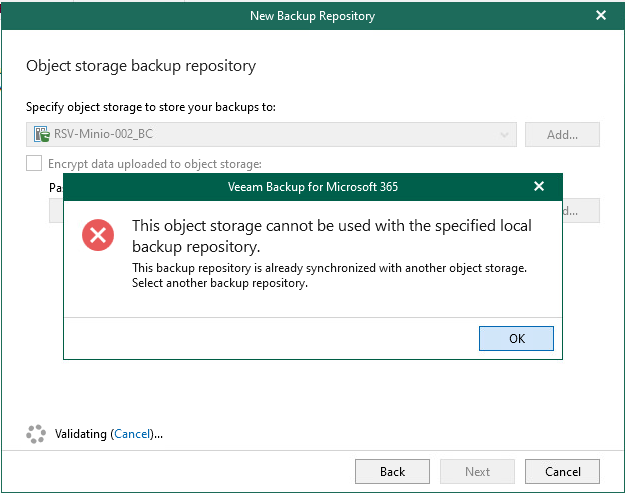
    • Your Object target must have it’s own Proxy/Repository attached, you cannot share with Object targets. You will receive an error if you try to use a proxy folder that already contains data.
    • If you want to use Immutability, Object Lock must be enabled on the bucket before configuring the job.

    That’s pretty much all there is to watch out for and consider. The rest of the steps should be fairly familiar if you have already gone through and set up Object Repositories for your existing jobs.

    Config

    1. If you are using an on-prem solution for your object storage, like MinIO or Object First, you will need make sure your storage is pre-confgiured and accessible from your 365 server.
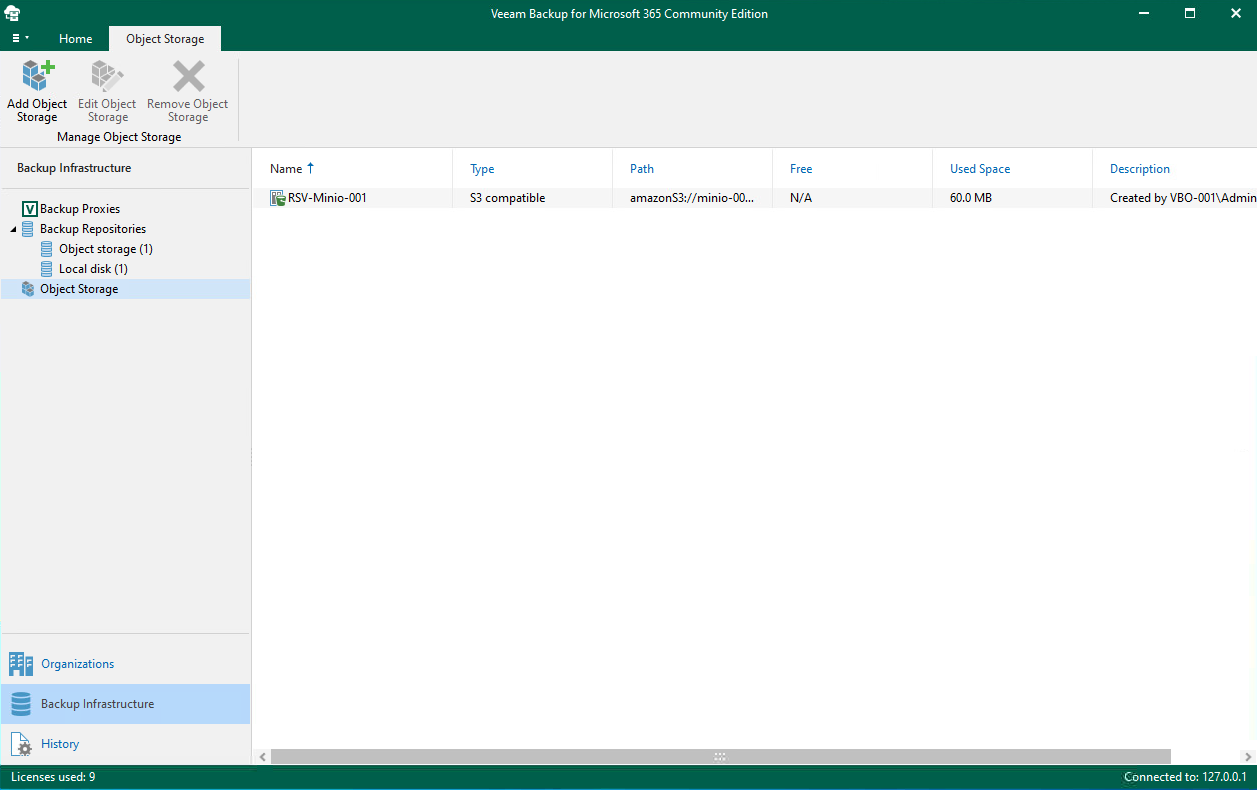
    2. Create your bucket on your Backup Copy target storage and confirm that you can access the location. Below you can see that minio-001 (left) contains my primary backup that i hav already configured and taken an initial full backup of my 365 account. My Backup Copy target, minio-002 (right) currently shows no backed up data for 365,


      You will also note that i currently only have 1 backup job configured.

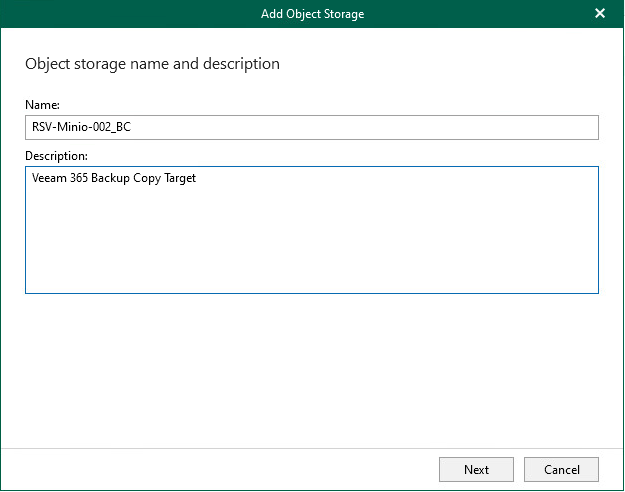
    3. Navigate to Backup Infrastructure -> Object Storage and  select Add Object Storage.  This will open up the Object Storage connection wizard. Here you can start by giving your object storage a Name and Description

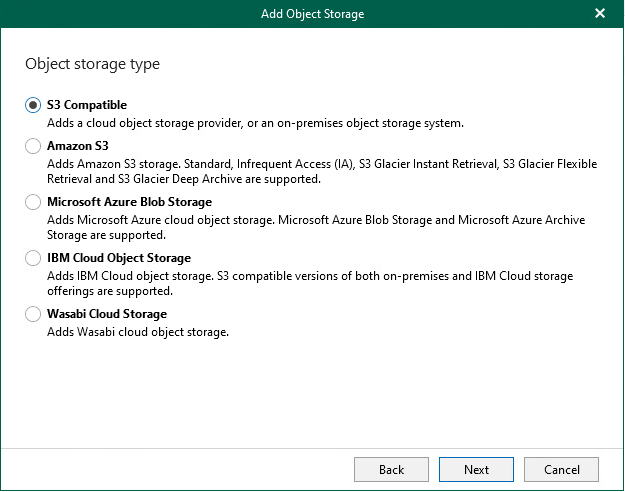
    4. Select the correct object storage solution to meet your requirements. If you are using something like MinIO, Ceph or another S3 Compatible object storage, select S3 Compatible, otherwise select the matching cloud target.

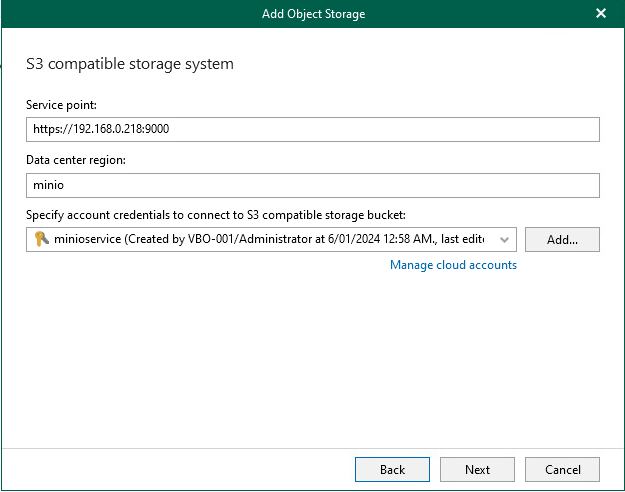
    5. In the next screen, you will need to enter your service point, Data Center Region and specify your Account Credentials for your target repository. These will be saved into the Veeam DB. The service point will be that of your backup copy target.

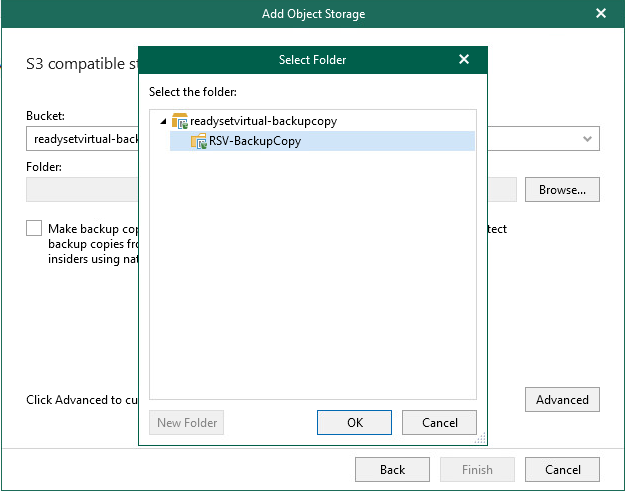
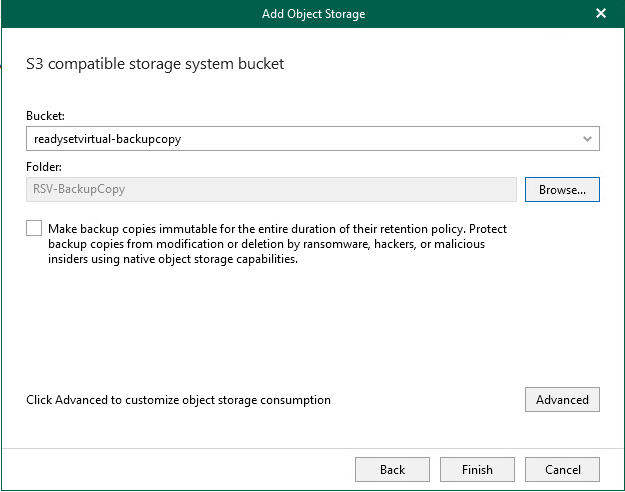
    6. Ensure that you have already prepped your repository with a bucket to connect to. Depending on the number of buckets that you have, the drop down menu will display all available buckets – Select the correct bucket for your target. Once you have selected your bucket, click Browse  and select the bucket name – Click New Folder and name your Backup Copy target folder.

    7. Another great feature brought into v7 is the ability to create Immutable Backup Copies. However, please consider and understand the use of this feature, whilst it is always recommended to have immutable backups, in Veeam Backup for Microsoft 365, the retention period you select for the job is also the retention period of the immutable backup. In other words, If you select to retain 2 years worth of backups before they age out and have applied immutable backups, if the customer leaves and you are required to delete the customers data off your system, you will need to wait until the last backup has aged out over 2 years before it can be removed.
      https://helpcenter.veeam.com/docs/vbo365/guide/immutability.html?ver=70

      Click Finish to create your object storage

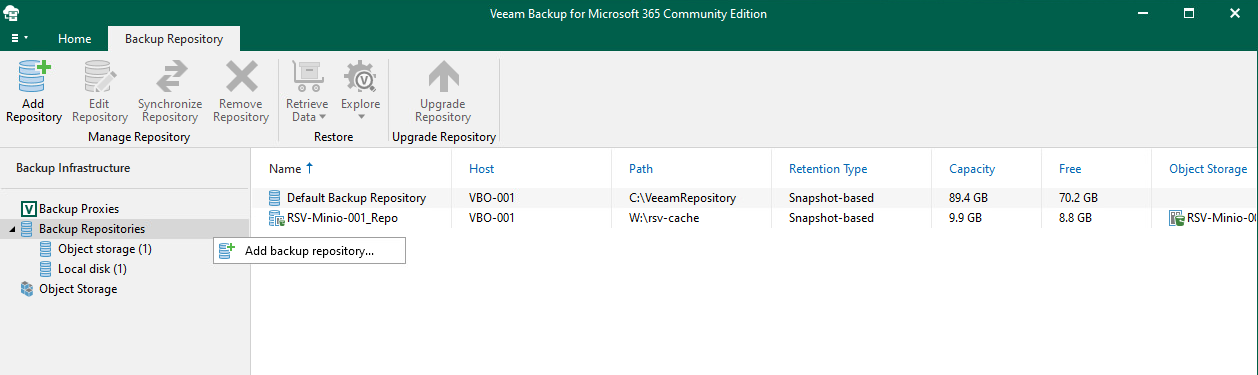
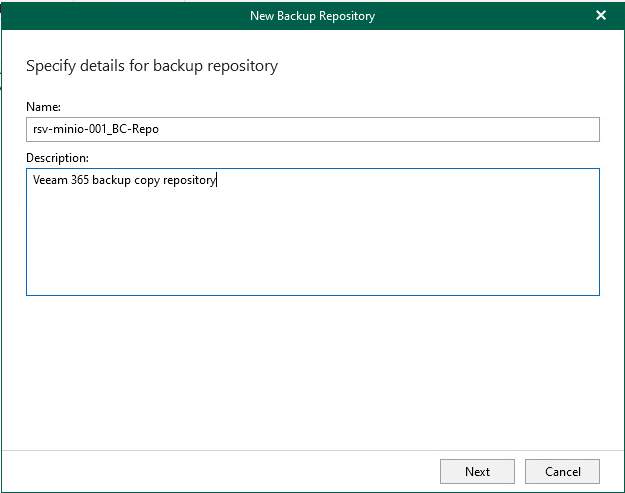
    8. You will need to create and Object Repository that attached the Object Storage to a Proxy and a caching folder for the database. Select Backup Repository > Add Repository (You can also right click to select Add backup repository). Once again a wizard will open up and you can give the repository a Name and Description


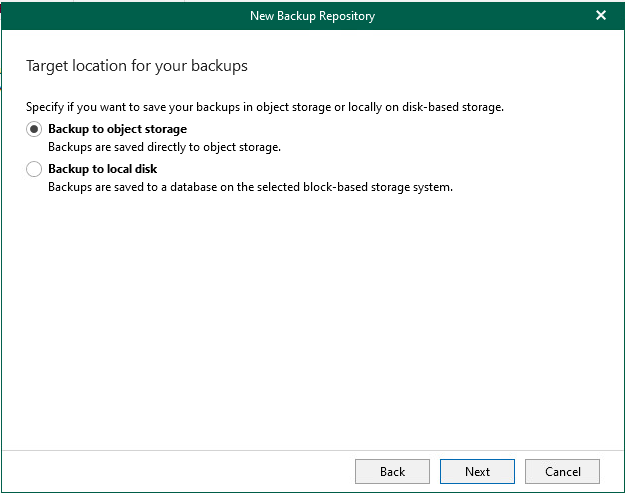
    9. Select Backup to object storage – this will select the next few windows applicable to object storage. If you select the second option, this will allow you to create a JetDB repository – which unfortunately won’t work with what we’re trying to achieve here.

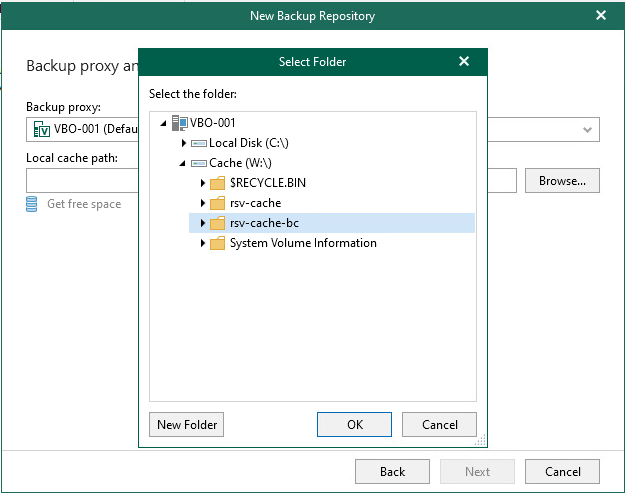
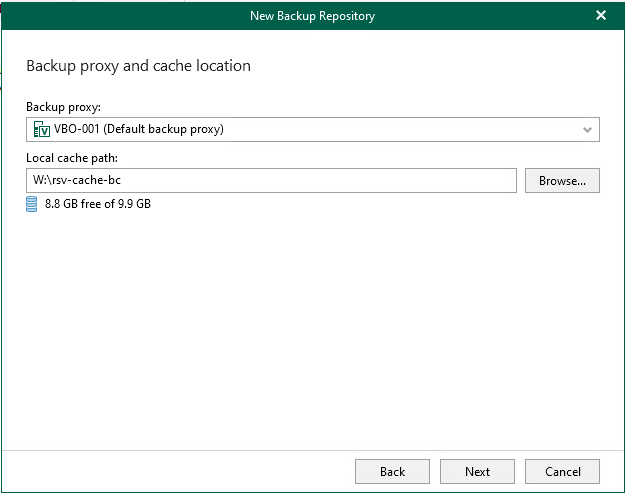
    10. Depending on your infrastructure design, you may have multiple proxy servers, and they may be in different locations. Select the right proxy server that connects to your object storage target. Here you can then create the local cache path that will reside on your proxy server. You should have a drive preconfigured to contain your cache files. Select Browse and then select the drive and path then New Folder to create the target cache folder,

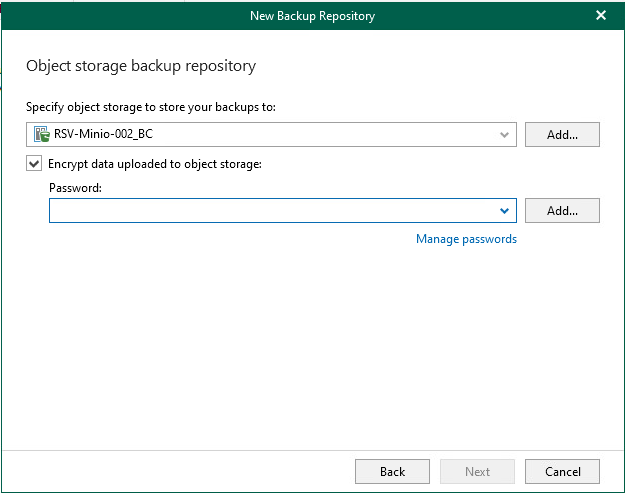
    11. Select the target object storage. If the object storage is already in use by another repository, it will not show up in the list.

      You can configure an encryption password to ensure that the data is encrypted at the target. This is different from immutability, encryption will prevent someone from reading the data without the encryption password, but will not prevent them from deleting the data.


      During the validation process, if the selected cache folder already contains an existing database in it, you will receive an error message advising of this. You will either need to clear the folder or create a new folder.

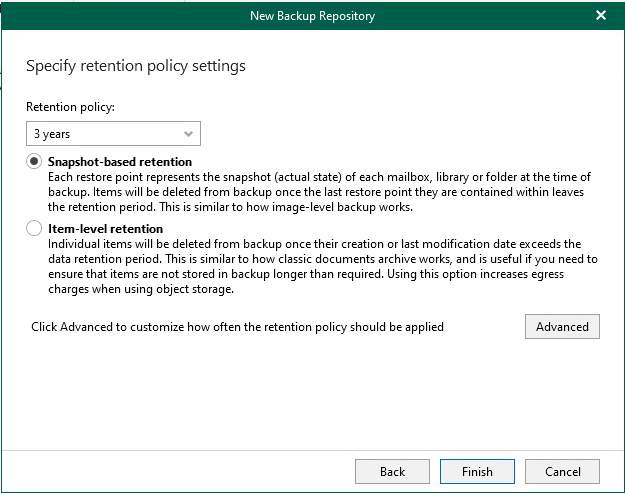
    12. Select your retention policy and the type of backup you want to take, whether it be as an image or at the item level, make sure you read carefully the different options available.
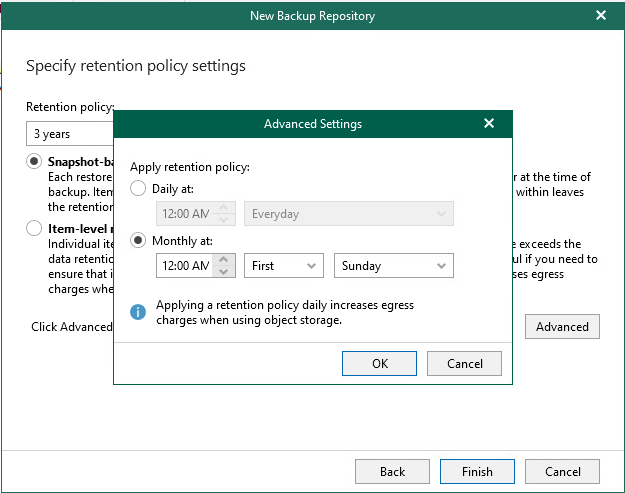
      By selecting Advanced you have the ability to choose when you want the retention policy applied – make sure you understand how this works, otherwise you may end up paying additional egress charges.
      https://helpcenter.veeam.com/docs/vbo365/guide/new_repository_4.html?ver=70 

    13. Lastly, once the targets have been configure, it is now just a case of creating the backup copy job. Head back over to Organizations > Select your existing primary backup job and click Backup Copy  – this will open a new wizard that looks similar to the primary backup job creation wizard.

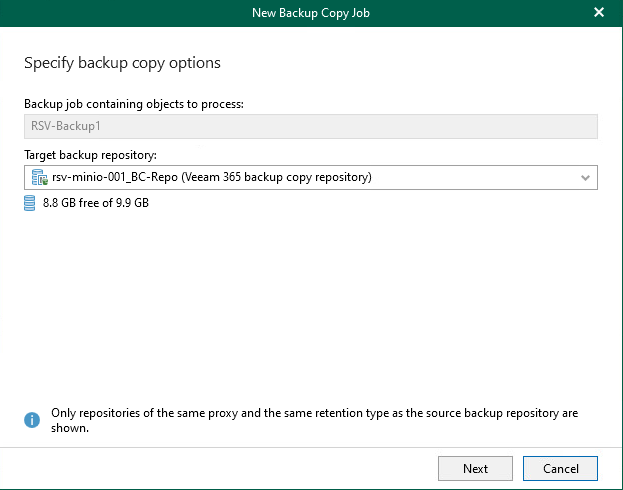
    14. Here you will be able to select your Target Backup Repository – take note that this is the Backup repository and not the Object Storage directly.

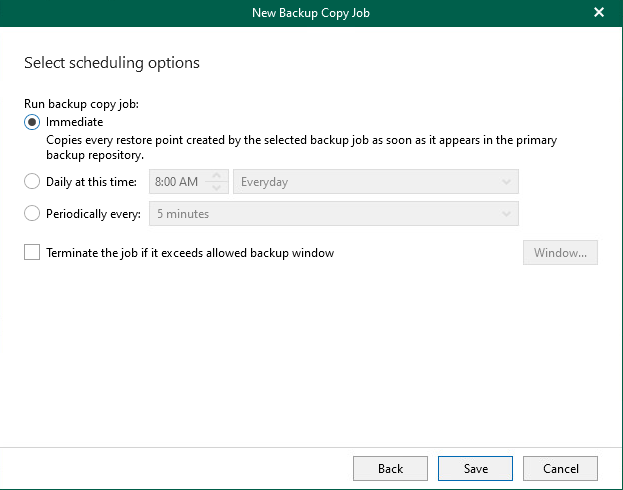
    15. You can choose when you want to run the backup copy job. You can select for it to occur immediately as the primary backup job runs, you can set a specific time of day or on a repeated schedule.
      There is also the option to run the backup job within a pre-defined window.

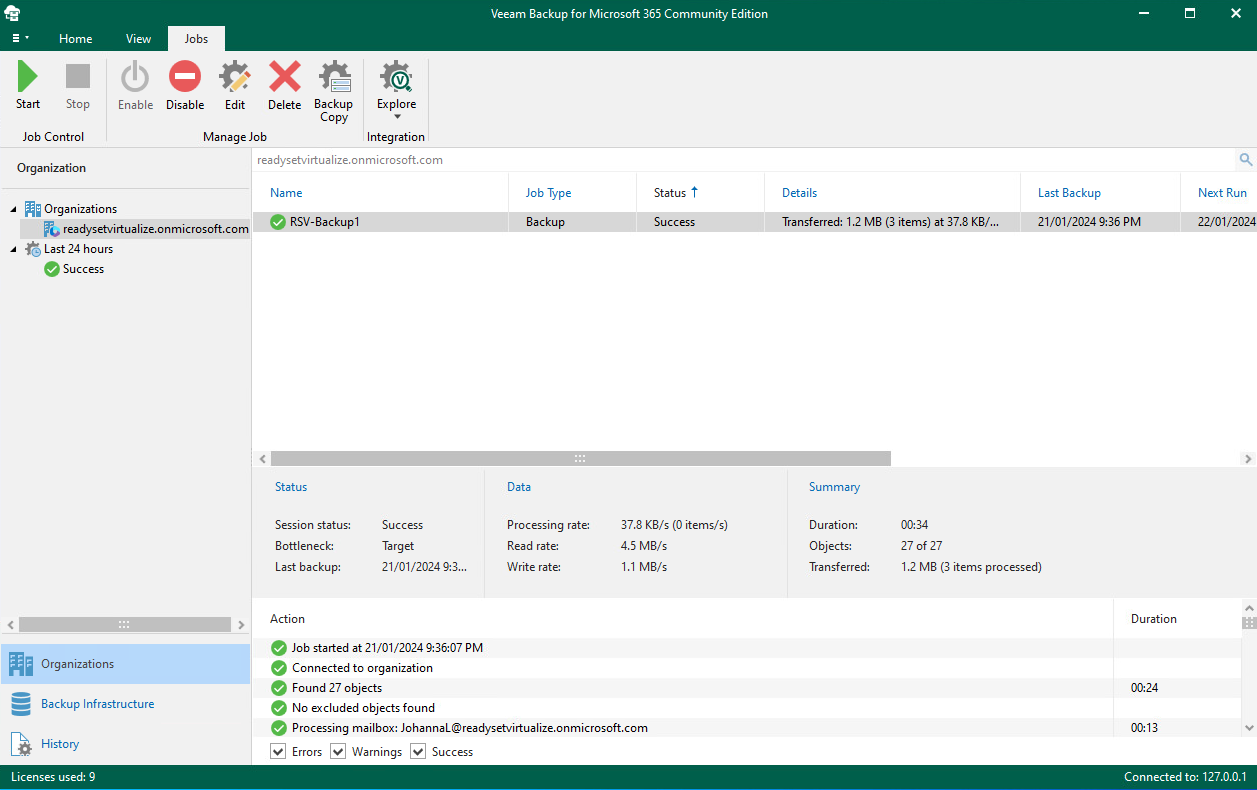
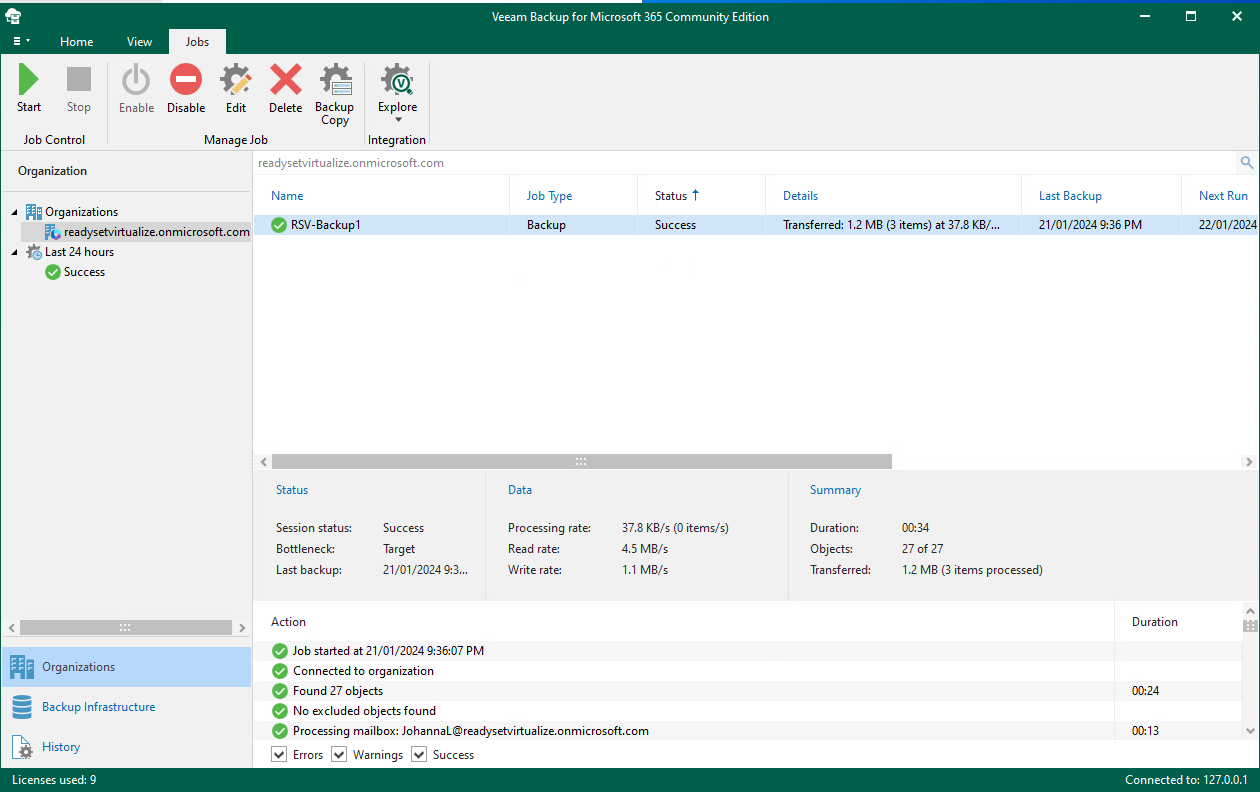
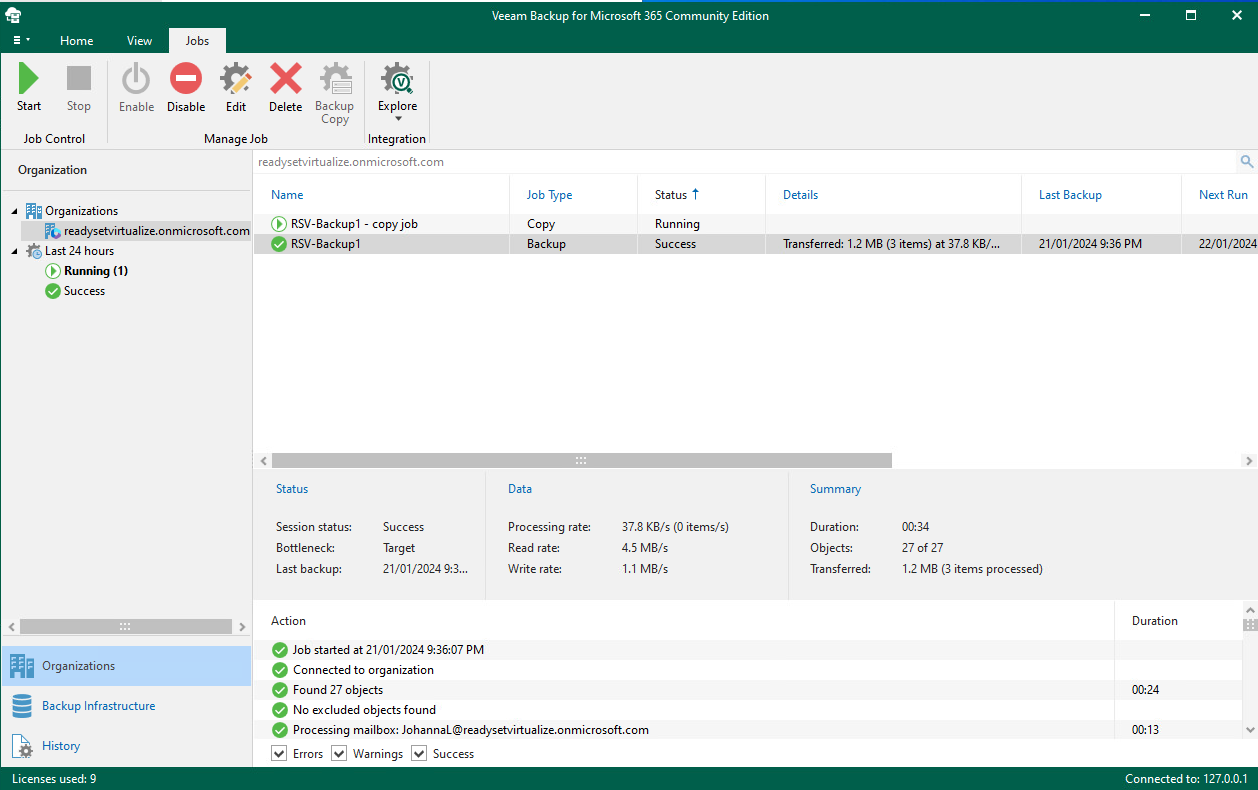
    16. Once the job has been configured, if you did not select the “Immediate” option to run the job, you can go ahead and run it for the first time. You will note that the job type is shown as Copy and the the start and last backup information is avialable.

    You have now configured a backup copy of your primary Microsoft 365 backup.

    For more information, please check out Veeam’s KB articles related to backup copies.